Approving times
Set the approved start and end, miles and expenses for shifts, one at a time or many at once.
The approved times are the times payroll and billing are made from. A shift with an approved start and an approved end becomes Complete, ready to finalise. With only one of them it is Incomplete. You can approve from the Timesheets page or from a shift's Timesheet pane.
Approve times on the Timesheets page
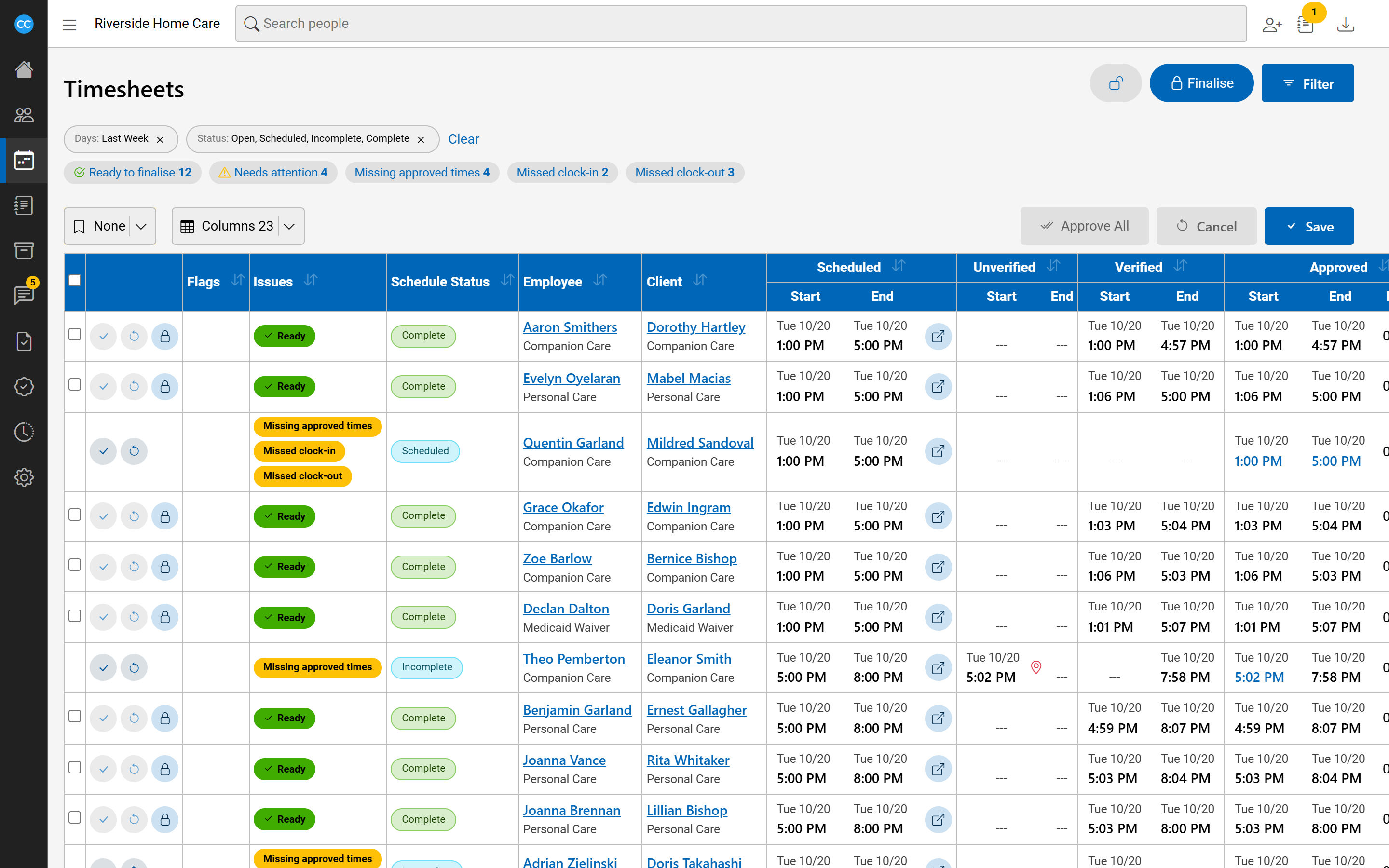
For shifts not yet finalised, the scheduled, unverified and verified times in each row are buttons.
- Click a start or end time to make it the row's approved start or end. It shows straight away in the Approved column, in blue until saved.
- To fill every row at once, click Approve All. Each row takes its verified time, or else its unverified time, or else its scheduled time. It also takes the miles and expenses the employee submitted.
- Click Save to save every changed row, or Cancel to put them all back.
Each row also has its own small Save and Cancel buttons for just that row. If any row cannot be saved, for example because someone changed it in the meantime or the end is before the start, a message names it and says why. Reloading the list drops any times you clicked but did not save.
Approve times on a shift
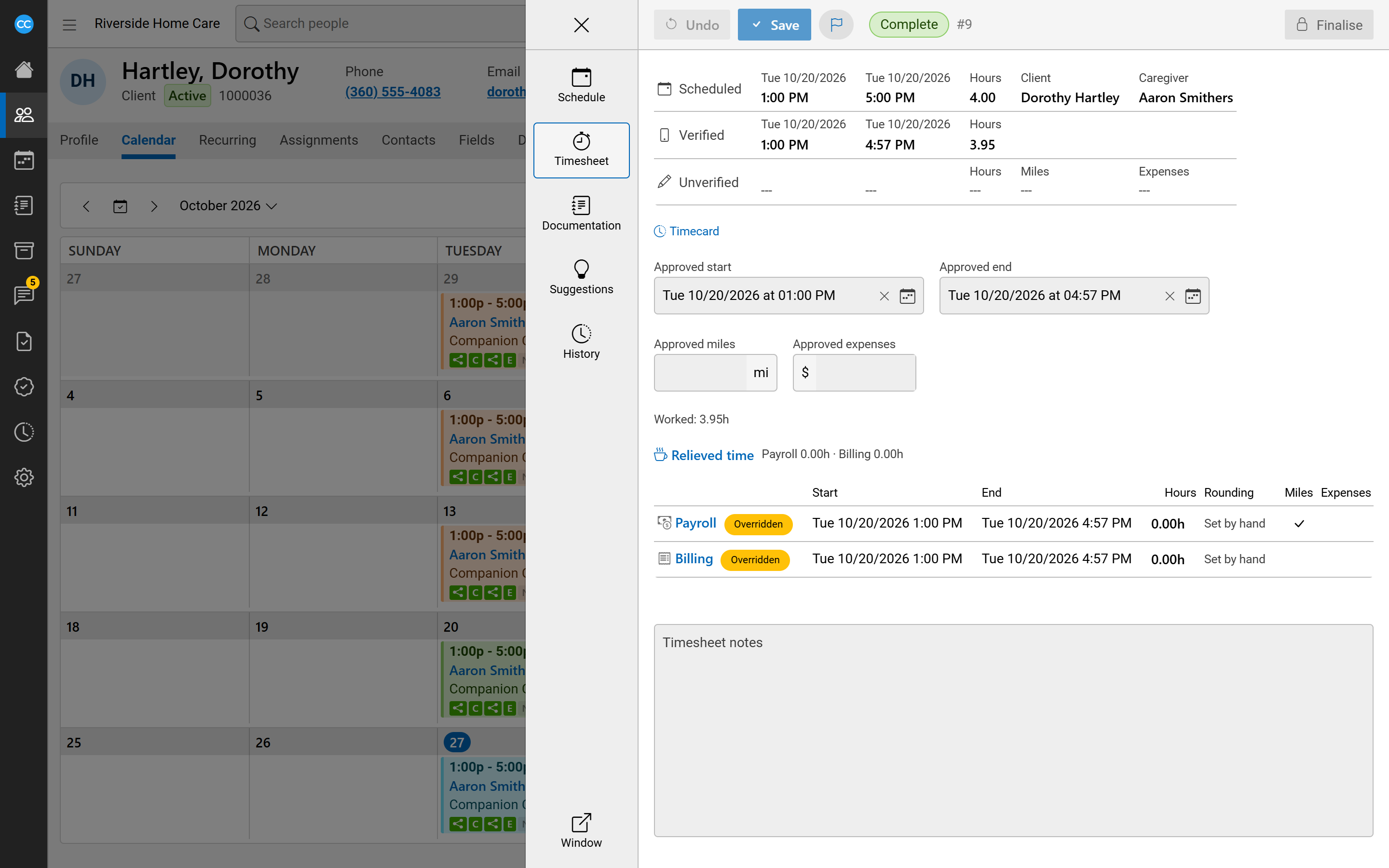
- Open the shift and click Timesheet on the left of the schedule editor.
- The top rows show Scheduled, Verified and Unverified times, each with its hours. Click a time or a figure to use it as the approved one, or click the row's label to use the whole row.
- Check or type the Approved start, Approved end, Approved miles and Approved expenses. Times are on the client's clock.
- Add any Timesheet notes and click Save.
Open Timecard to see everything the caregiver's phone calls and app sent for the shift, with when and where each arrived. An entry clocked outside the client's location is marked Outside the fence, and Map shows where it came from.
Changing approved times later
You can change approved times until the shift is finalised. Changing them works out the pay and bill hours again and removes any manual override on them. A finalised shift must be unfinalised first.