Finalising and unfinalising shifts
Sign off checked shifts for payroll and billing, and reopen one when it needs a correction.
Finalising a shift signs it off for payroll and billing. Its times and people are then locked. You can finalise from the Timesheets page, one shift or many at once, or from the schedule editor.
What a shift needs before it can be finalised
- It is Complete: it has both an approved start and an approved end.
- It has no red flags waiting to be reviewed.
- Its billing and payroll have finished updating. The Still updating chip on the Timesheets page shows any that have not.
The Ready to finalise chip lists the shifts that meet all of these.
Finalise shifts on the Timesheets page
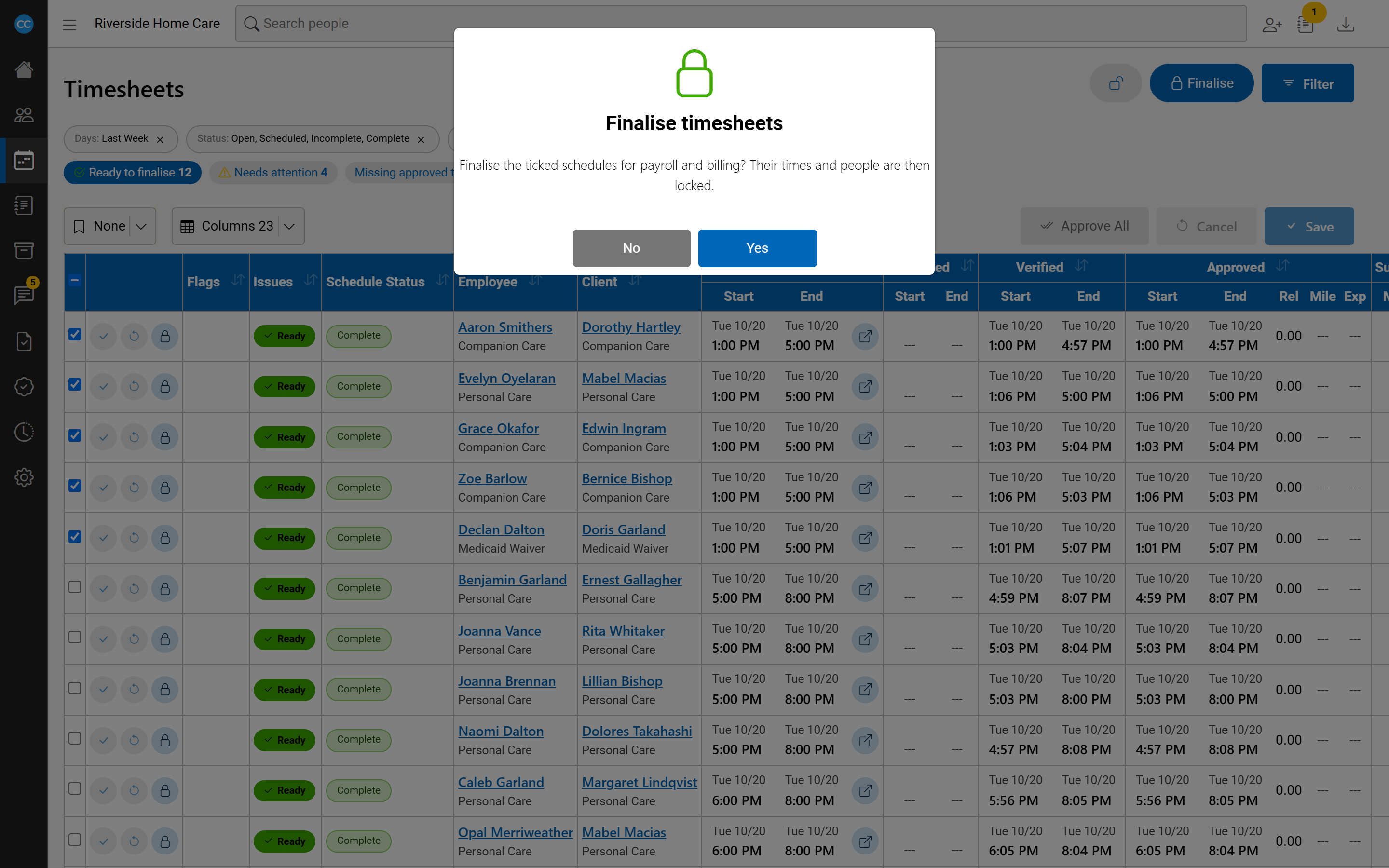
- Click Ready to finalise to list just those shifts.
- Tick the shifts you want, or tick them all.
- Click Finalise and confirm.
Every shift that can be finalised is finalised. A message says how many, and names any that were refused and why, so one problem shift does not hold up the rest. The list then reloads.
To finalise a single row, use the lock button among its own buttons. It acts straight away, without asking.
Finalise from the schedule editor
When a shift is Complete and you may finalise it, a Finalise button appears in the editor's toolbar. It acts at once, without asking. When a shift's status locks it, a padlock shows beside the status. Hover over the padlock to see why.
Unfinalise a shift
If a finalised shift needs a correction, unfinalise it. It goes back to Complete and can be changed again.
- On the Timesheets page, tick the shifts and click the unlock button, Unfinalise ticked, then confirm. Each finalised row also has its own unlock button.
- In the schedule editor, click Unfinalise.
Only a shift whose status is Finalised can be unfinalised. A shift that is already paid or billed cannot.
If you do not see these buttons, your role may not allow finalising timesheets. Ask your administrator.