Checking timesheets
Use the Timesheets page to see which shifts are ready to finalise and which need attention.
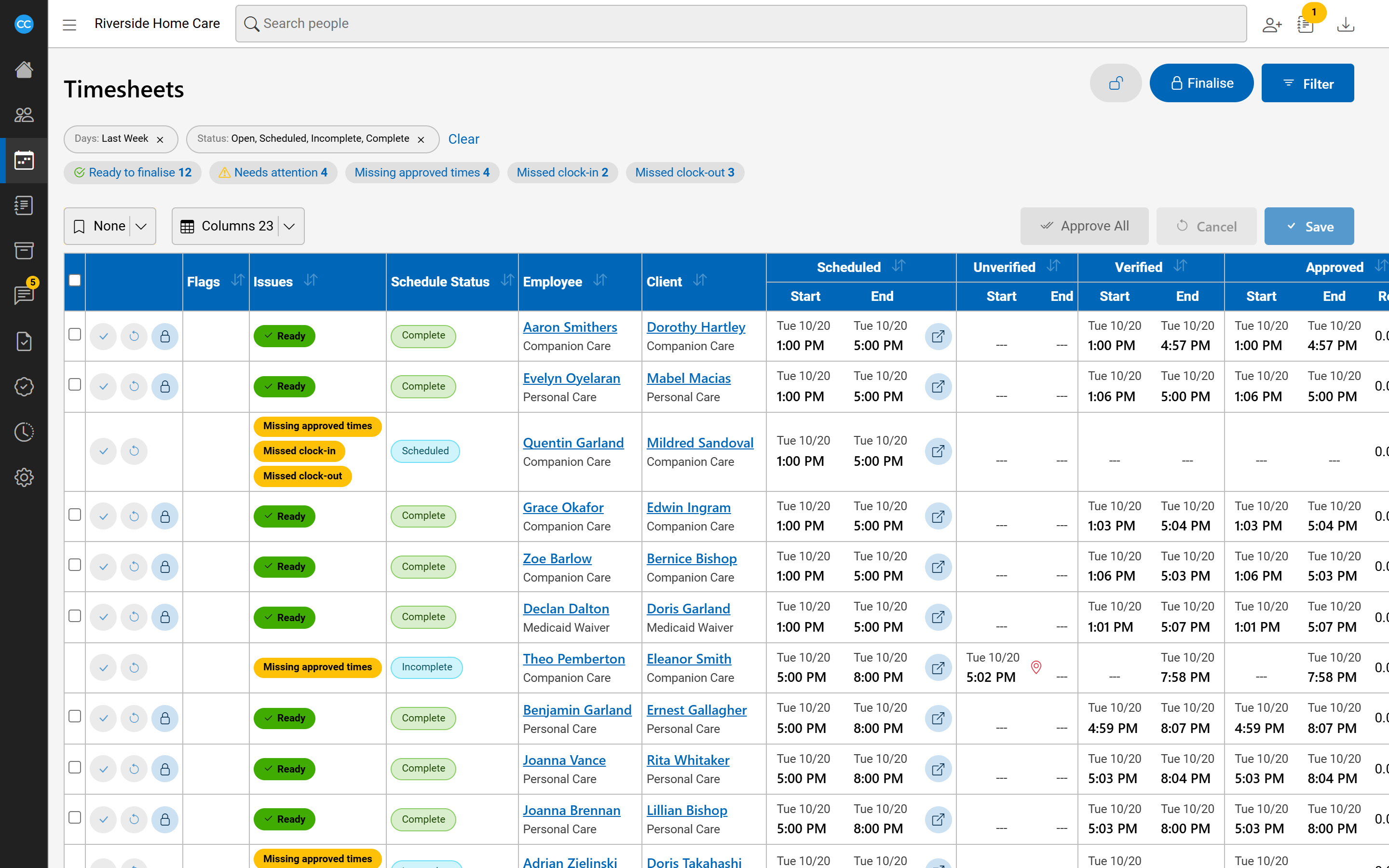
The Timesheets page, in the side menu, lists shifts over a set of days so you can check them and finalise them for payroll and billing. It opens on last week's shifts that are not finalised yet, for everyone, unless you have set a default bookmark.
See what needs doing
Above the list, a row of chips counts what the list holds. Click a chip to show just those shifts, and click it again to go back.
- Ready to finalise: complete, with nothing wrong.
- Needs attention: shifts with at least one issue.
- Earlier outstanding: shifts before these days that are still not finalised, and the oldest date.
- Open red flags: a red flag nobody has reviewed. Hover over the chip to see which flags.
- Missing approved times: the shift has ended without an approved start or end.
- Missed clock-in and Missed clock-out: a visit with a caregiver whose start or end has passed with nothing recorded for it.
- Still updating: the shift's billing or payroll is still being worked out. Finalising waits for it.
An issue chip only shows when some shift has that issue.
Narrow the list
Click Filter to choose:
- Dates: a shortcut such as Last Week, or up to 32 days you pick.
- Assigned to and Assigned as: shifts whose client or employee is in that person's caseload.
- Status, Kinds, Rate codes and Client or employee (part of a name).
- Issues and Showing (Ready to finalise or Needs attention).
- Group by: Client, Employee, Bill Code, Pay Code or Status, in any order.
- Rates outside: shifts with a bill or pay rate under or over the amounts you enter.
Click Search to apply them. Save a set of filters you use often as a bookmark.
Read a row
Each row shows the flags and issues, the status, the employee and client, the codes, and the times side by side:
- Scheduled: what was planned.
- Unverified: times entered or edited by hand, or clocked outside the client's location.
- Verified: times clocked from the client's phone, or by GPS at the client's location.
- Approved: the times payroll and billing will use, with relieved hours, miles and expenses.
Hours, notes, rates and the employee's submitted miles and expenses follow. Click any column heading to sort the page.
Click a row's open button, beside the scheduled times, to open the shift in the side panel on its Timesheet pane. There you can approve times and review red flags. The list updates when you save.