Using the schedule board
See many people's shifts side by side, narrow them with filters, read the day totals and save views as bookmarks.
The Schedule Board in the side menu shows up to seven days for many people at once, one row per person. It opens on the people assigned to you.
Choose the days
Click the days' name in the toolbar to pick from one to seven days, or a shortcut such as Today, Next 7 Days, This Week, Next Week or Last Week. The arrows go back and forward by as many days as you are showing, and From today starts again from today.
Filter who is listed
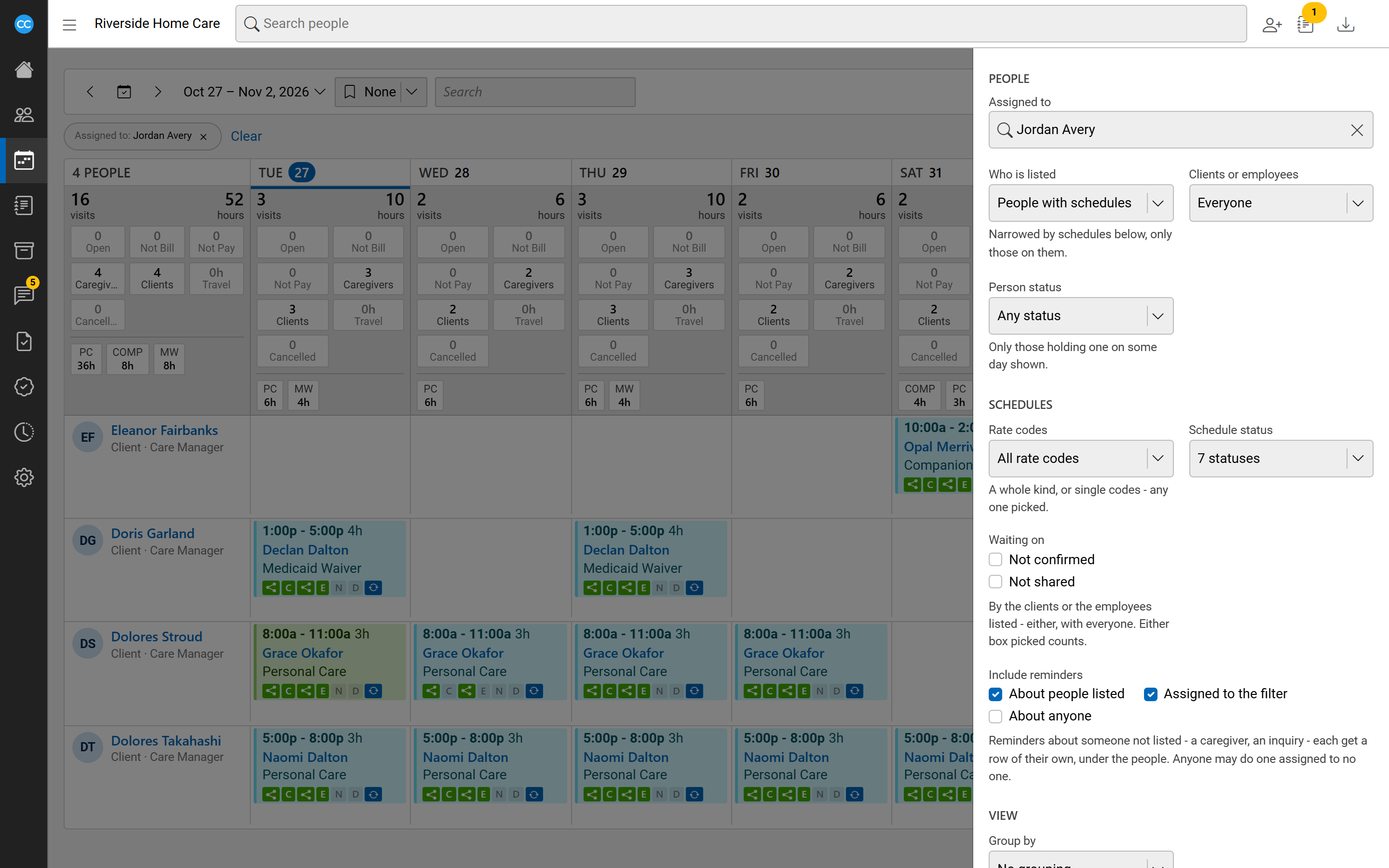
Click Filter beside the page title, set what you need and click Search.
- People: Assigned to a person (or Anyone), and Assigned as which assignment types. Who is listed: people with schedules, people who could be scheduled, or only those who can be scheduled and have none. Clients or employees, and Person status.
- Schedules: Rate codes (whole kinds such as all travel, or single codes), Schedule status, Waiting on (Not confirmed or Not shared) and Include reminders.
- View: Group by an assignment type. Each lead's people then come under a heading with their own totals.
Each filter you apply shows as a chip above the board. Remove one by its chip, or all of them with Clear. When schedule filters are on, the expand button switches between only the matching shifts and each person's whole week.
The Search box in the toolbar quickly narrows the rows to people whose name contains what you type.
Read the day totals
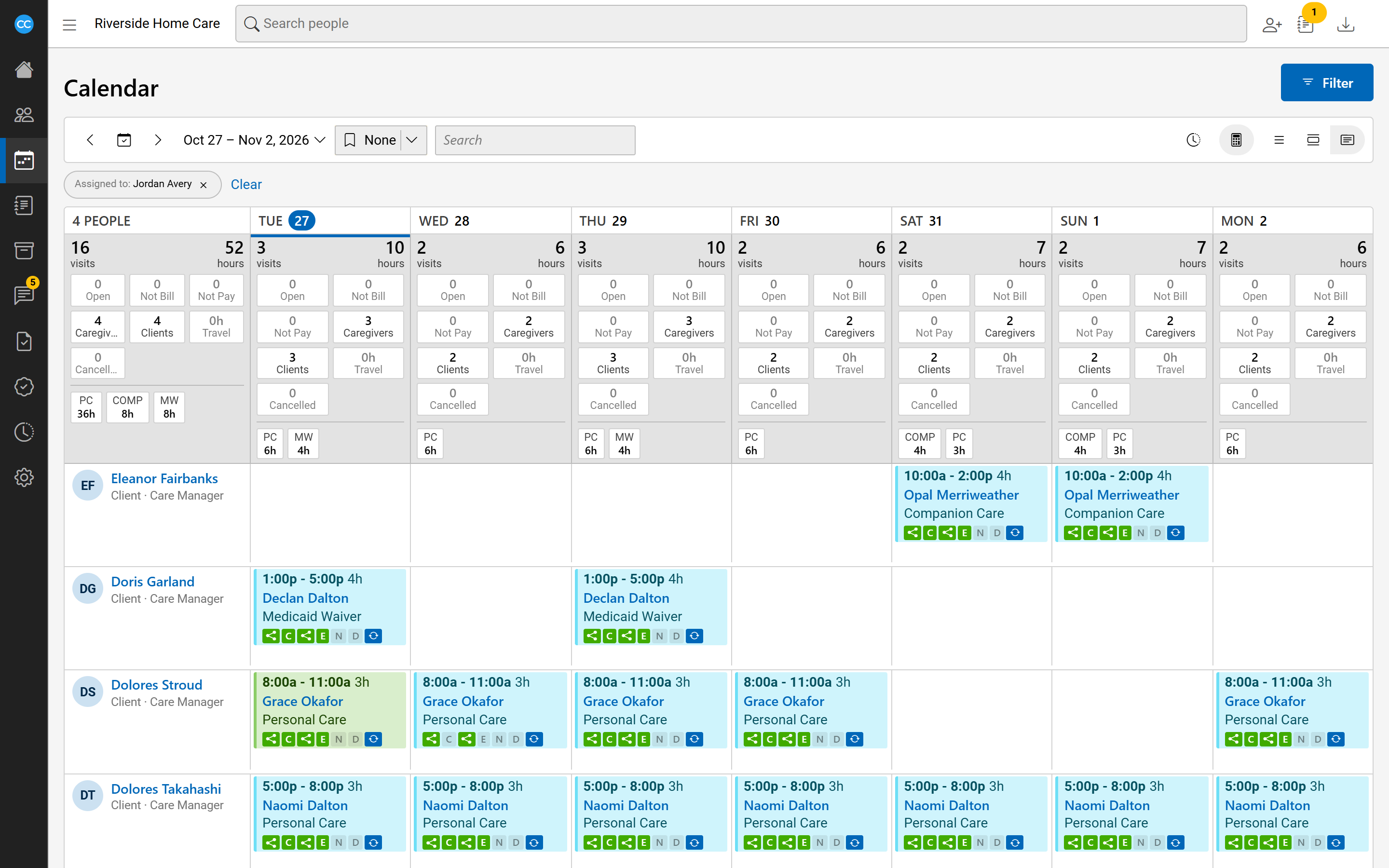
Under the weekdays is a band of totals, first for the whole period and then for each day. Each shows the visits and their hours, then Open, Not Bill, Not Pay, Caregivers, Clients, Travel and Cancelled, and the hours for each rate code. Open is highlighted while any visit has no caregiver.
Click any total to show only the shifts it counts. Click it again to show everything. The Totals button hides or shows the band, and Approved times switches the board between scheduled and approved times.
Save a view as a bookmark
Bookmarks keep your filters, grouping and days. Choose New bookmark, name it and save. Click the star beside a bookmark to open the board on it each time. A bookmark saved with a shortcut such as This Week always opens on the current week.
Work on shifts from the board
Double-click a shift to open it. Adding, moving, copying and selecting shifts on a person's row work just as on their own calendar.