Working the Inquiries list
Find the inquiries that need you, follow them up, and keep status, reminders and close reasons up to date.
The Inquiries list is where intake work is followed up. It shows open inquiries by default, newest first, so you can see who needs a call back.
Read the list
Each row shows Who needs care, the Callers, the Status, the Rating, who it is Handled by, the Last call, and the Next reminder with its Next reminder date. A reminder date in red is overdue. An inquiry whose person has not been named yet shows Recipient not yet named.
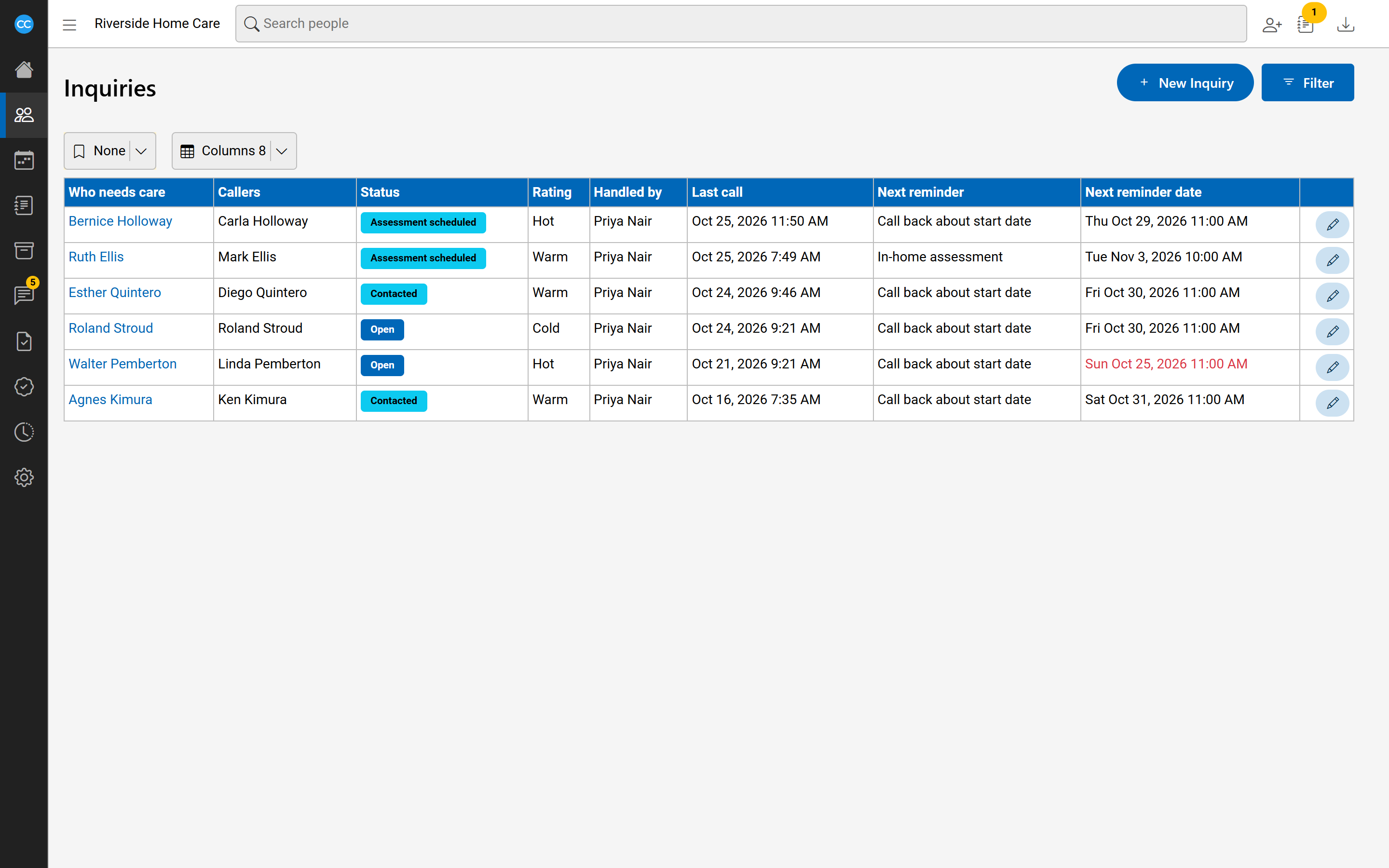
Find an inquiry
Select the filter button to search and narrow the list:
- Name or Phone: the person needing care or a caller.
- Show: Open, Closed, Converted or All.
- Only those I handle: inquiries handled by you.
Select Search to apply, or Clear to start again.
Correct an inquiry
Each inquiry is one call, email or web form, with the one person who reached out, its contact. Select an inquiry to open it. It opens in the same form you used to take the call, filled in from it. Correct anything there and select Save.
A contact is kept once, however many inquiries they are on. Correcting their name, phone or email changes it on all of them, so when they are on others, tick Change them everywhere before you save. If the contact was entered twice, select Unlink, find them by phone or email, and select Link beside the one on file: the two become one.
Follow up
To call or email them back, open the inquiry and select Follow up. A new inquiry opens about the same person, with the same contact and Who reached out set to Agency follow-up. Change the contact if someone else answers, record what was said, and select Save follow-up. When someone else calls about the same person, take the call as a new inquiry and link who needs care to their open inquiry.
Update its status
At the top of the inquiry, set the Status: Open, Contacted, Assessment scheduled or Closed. When an inquiry closes without becoming a client, choose a Reason closed. Use Rating (Hot, Warm or Cold) to show how likely it is to go ahead. Your agency may hide or require the rating and the reason closed.
Converted is set for you when the inquiry becomes a client.
Keep up with reminders
Appointments you book on a call, such as an assessment or a callback, become the inquiry's reminders. To mark one done, open the inquiry and select Every inquiry about them, and reminders. Under Reminders, select Done on a reminder, or Open again to undo it. You can also add a reminder there: enter What to do and When, and optionally who it is assigned to.
That page also lists every inquiry about the person, each with its own Follow up.
Set up your agency's choices
The lists the inquiry form offers are kept in Settings under People, including Inquiry Close Reasons, Reminder Types, Inquiry Sources, Care Types and Inquiry Fields.