Taking an inquiry call
Record a call about care, check whether the caller or the person needing care is already on file, and book a follow-up.
An inquiry is someone's interest in care, from the first call until it becomes a client or closes. New Inquiry is built to fill in while you are on the phone: start with the caller, then who the call is about.
Start the inquiry
- Open Inquiries under People in the side menu.
- Select New Inquiry.
Your agency decides which fields are shown or required, in Settings under Inquiry Fields. Fields marked with a red star must be filled in.
Look up the caller
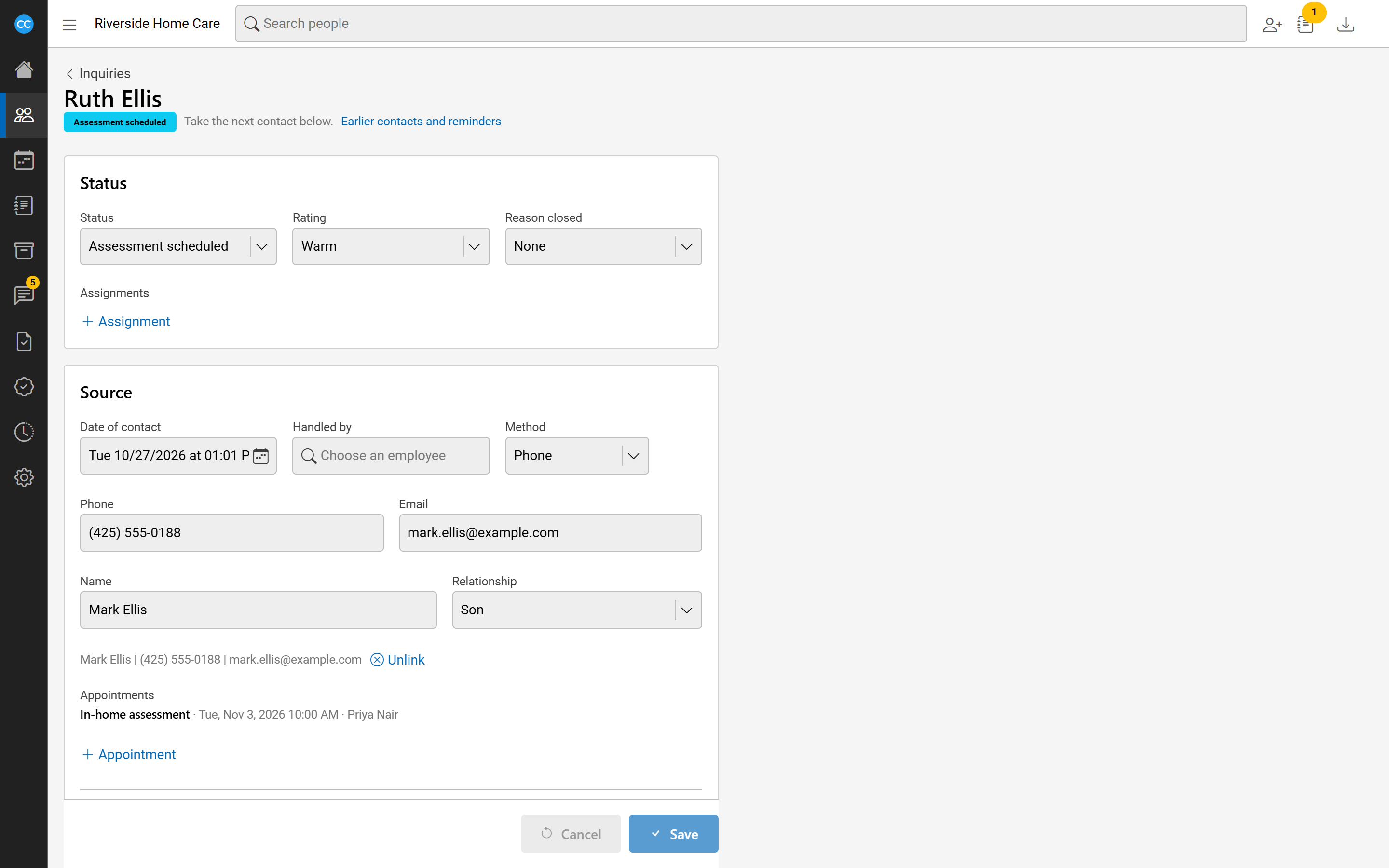
Under Source, Date of contact starts at now and Handled by starts as you. Change either if needed, and pick the Method: Phone, Email or Web form.
- Type the caller's Phone or Email.
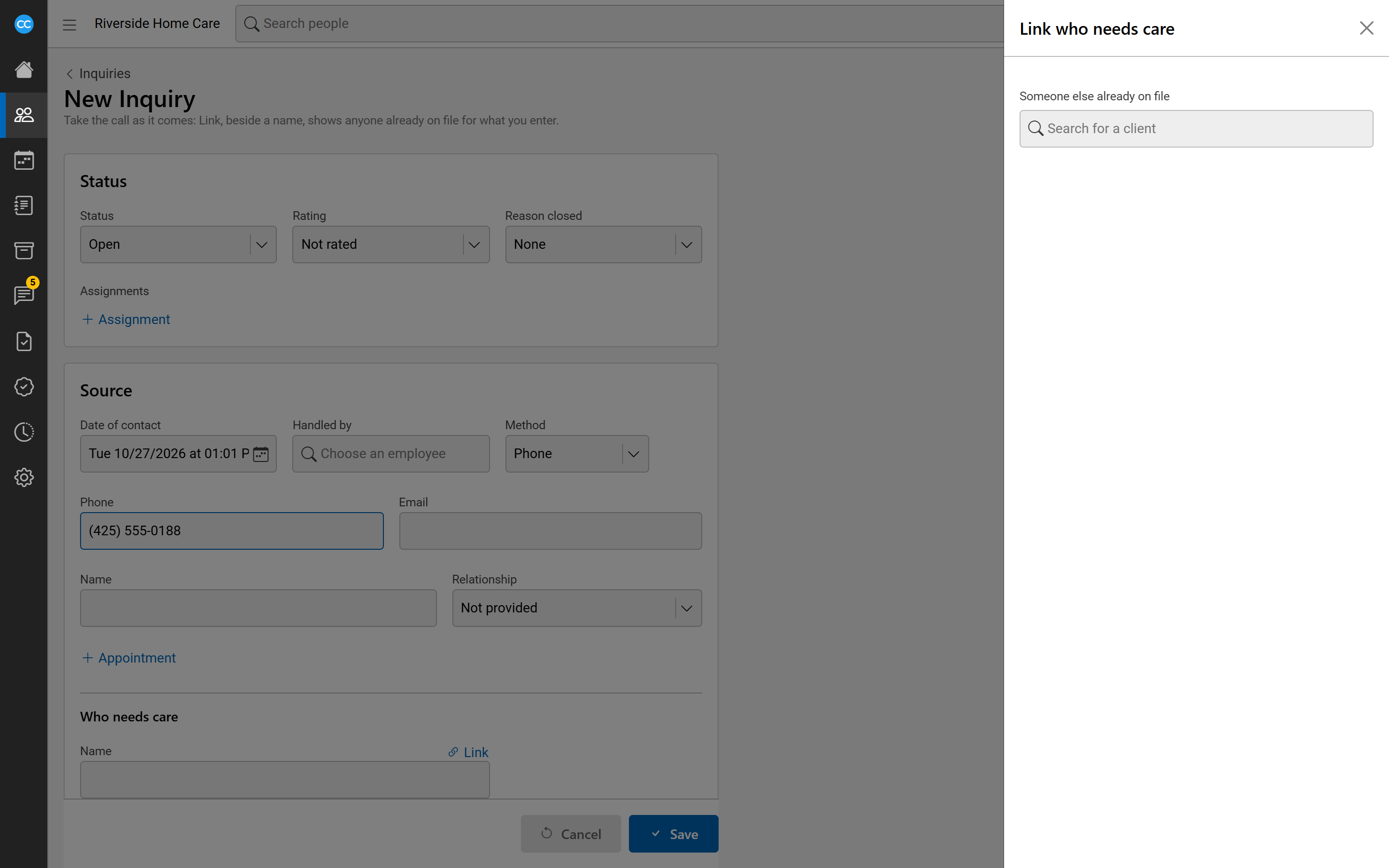
- If anyone on file has it, a Link button with a count appears beside Name. Select it to see them in a side panel: people who called before, clients and contacts with that phone or email, and the people other inquiries with it were about.
- Select Link beside the caller. Their empty boxes fill in from their record, and a line under the boxes says who they are linked to. Unlink makes them a new caller again.
- For someone new, type their Name and choose their Relationship to the person needing care.
Record who needs care
Under Who needs care, type their Name. Use the + links to add a date of birth, age, gender, language, phone, email or address if the caller gives them. Leave anything blank they did not say.
When the details match someone, a Link button appears beside the name. The Link who needs care panel lists each possible match, how strongly it matches and on what. What Link does depends on the match:
- An open inquiry: this call becomes another inquiry about the same person, linked to theirs, so they are managed in one place. Save reads Add to their inquiries.
- A former client: the new inquiry is linked to them.
- A client in care: the call is saved as a note on their record. Save reads Add note to their record.
Note what they need and book a follow-up
- Under Information, write Notes and use the + links to add the care needs the caller describes.
- Select + Appointment to book an assessment or callback: choose When, who it is Assigned to and its Type, and add the reminder text. Add as many as you need.
- Set the Status, and a Rating if your agency uses it. Use + Assignment to assign staff to the inquiry.
- Select Save.