Your dashboard
Choose which dashboards show on Home, whose caseload they count, and look back at how things stood on an earlier day.
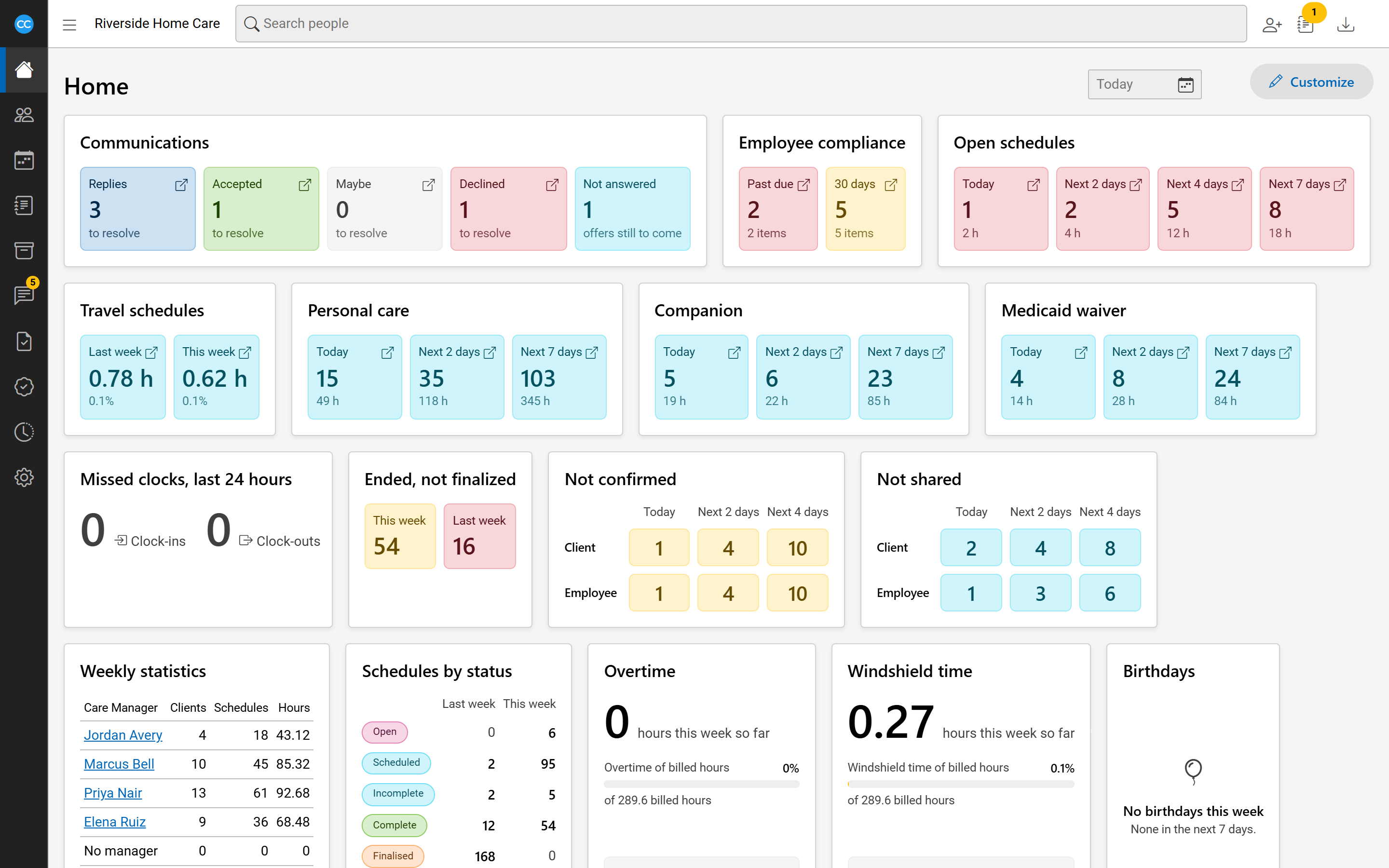
Home is a set of dashboards. Each one is a card that counts or lists one thing that needs attention, such as open schedules, visits not confirmed, or employees with compliance past due. You only see dashboards you have permission for.
Open the list behind a count
Many counts are links. Select one to open the list it counts:
- Open schedules, Travel schedules, Not confirmed, Not shared and your agency's rate code group dashboards open the Schedule Board showing exactly those visits.
- Employee compliance opens the compliance list on the employees who are past due, or due within 30 days.
- In Weekly statistics, each manager's name opens the Schedule Board on their clients for the week.
The schedule dashboards update by themselves as schedules change.
Choose your dashboards
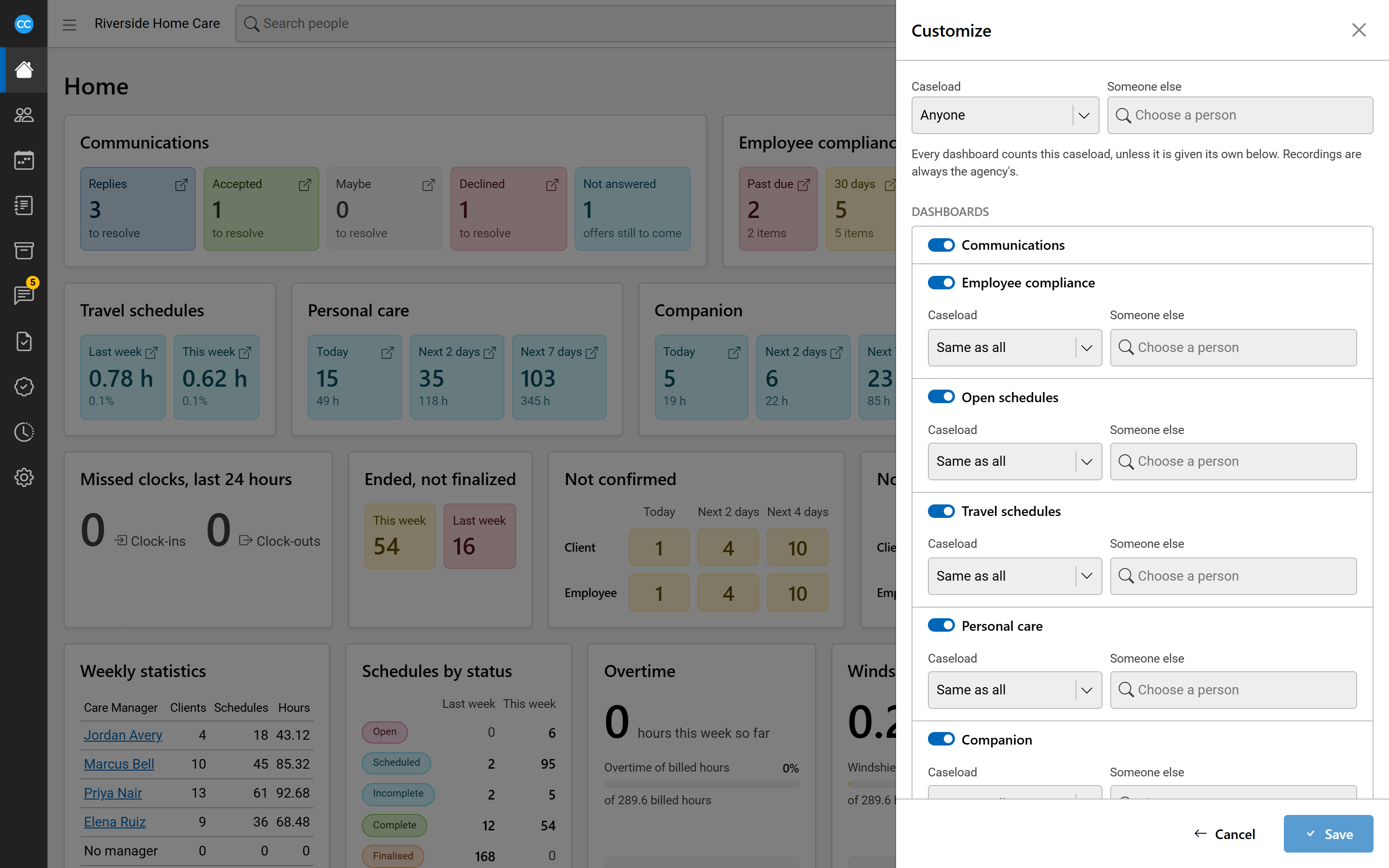
- On Home, select Customize. A panel opens at the side.
- Under Dashboards, switch on the ones you want and switch off the rest.
- Select Save. The panel closes and Home redraws.
Count one person's caseload
A caseload is the clients and employees someone is assigned to. At the top of the Customize panel, Caseload sets whose work every dashboard counts:
- Anyone - the whole agency.
- Me - your own caseload.
- Someone else - pick an employee in the box beside it.
Each dashboard can also have its own Caseload. Leave it at Same as all to follow the setting at the top. Recordings always show the whole agency. The foot of each card says whose caseload it counts.
See an earlier day
Use the date box beside Customize (it reads Today) to pick a day. A banner says Showing the dashboards as of that day. Dashboards such as Open schedules, Not confirmed, Not shared, Schedules by status, Overtime and Windshield time then show that day, edged in amber. Dashboards that cannot look back, such as Employee compliance, Missed clocks and Birthdays, stay current, are dimmed, and say so. While a day is set, the dashboards that follow it stop updating by themselves. Select Back to today to return. The day is not kept: Home opens on today next time.