Working with lists
Filter, sort and group any list, choose its columns, and save the views you use as bookmarks.
Lists in CareComplete - People, Documentation, File Cabinet, a person's Files tab, the Audit Log and others - all work the same way. Learn one and you know them all. The examples here use the People list.
Filter a list
- Select Filter at the top right. The filter panel opens at the side.
- Fill in the fields you need. On People these include Name Contains, Status, Office, Person Type and Assigned To. Lists with dropdowns let you pick several values.
- Select Search. The list reloads, starting at the first page.
You can drag the panel's edge to make it wider. Select Clear in the panel to remove every filter, sort and grouping at once.
Remove one filter
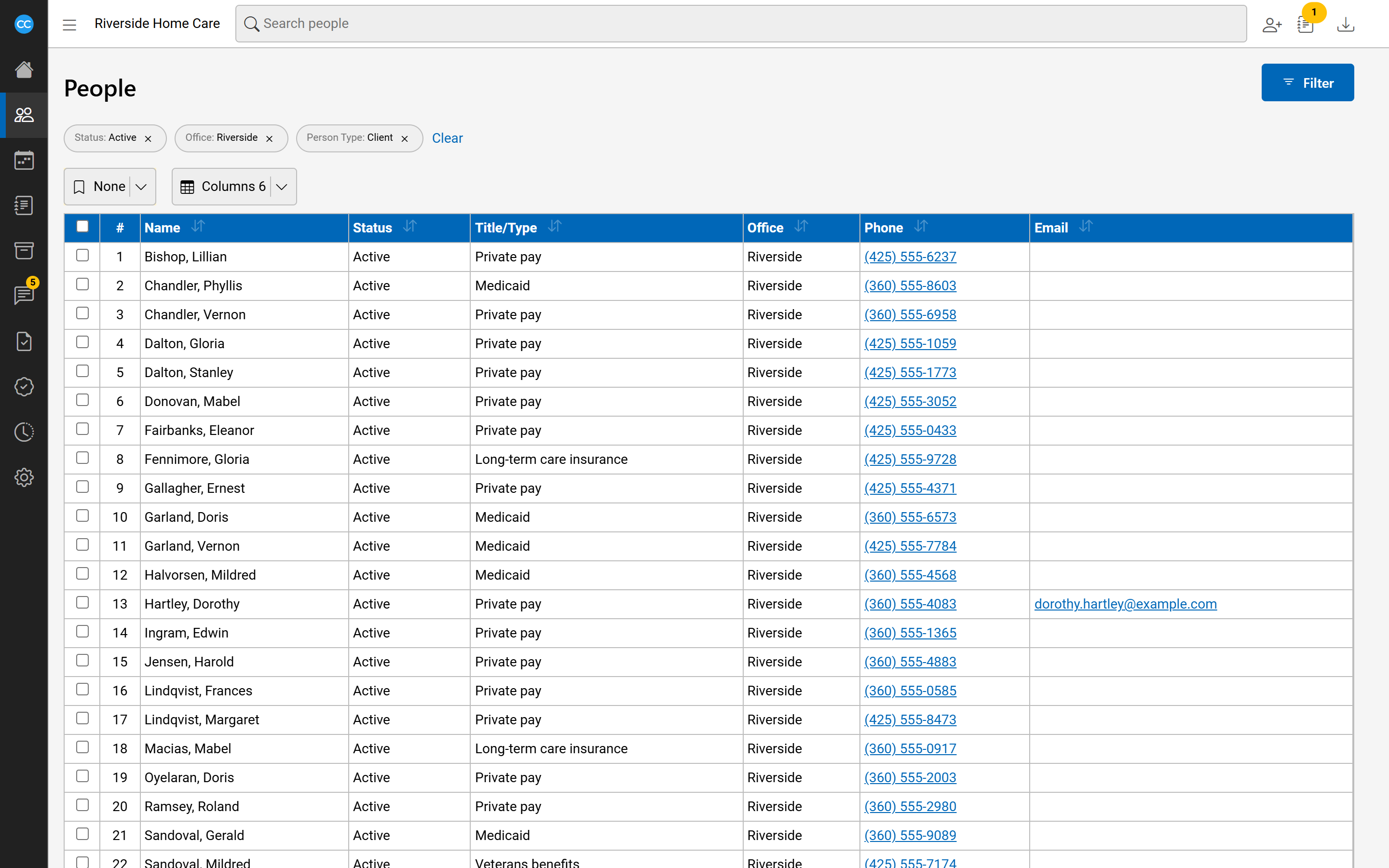
What you have applied shows as chips above the list, such as Status: Active. Select the x on a chip to remove just that one, or Clear beside the chips to remove them all.
Sort and group
The order is set in the filter panel, beside the filters:
- Sort by - pick one or more columns, each up or down. Drag them to change which comes first.
- Group by - pick columns to group rows under. Grouping applies to the rows on the page you are viewing.
Select Search to apply them. You can also select a column heading to make it the sort (select again to reverse it, or hold Ctrl to add a second column), then select Search. The chips show the order as Sorted by and Grouped by.
Choose columns
Select the Columns button above the list (it shows how many are visible) and tick the columns you want. The list changes straight away, and CareComplete remembers your choice for next time.
Save a view as a bookmark
A bookmark saves your filters, sort and grouping - not the columns or the page you are on.
- Set the filters and order you want.
- Open Bookmarks above the list and select New bookmark.
- Type a name and select the check mark.
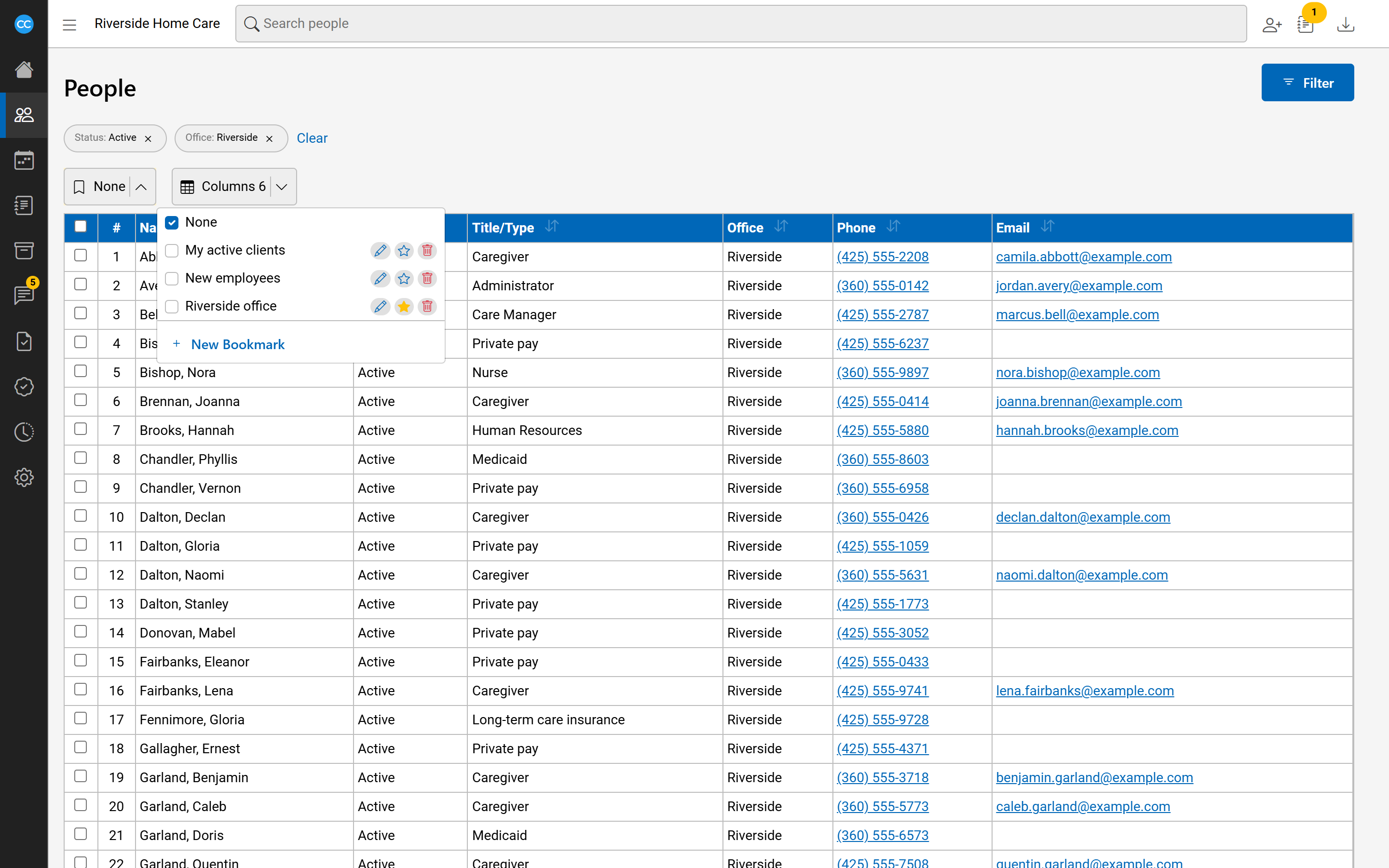
To use a bookmark, pick it from Bookmarks. Pick None to go back to no filters. Beside each of your bookmarks you can rename it (pencil), delete it (bin), or select the star so the list always opens on it.
Move between pages
Below the list, use the arrow buttons to go to the previous or next page. Your filters and order stay as they are.