Finding your way around
Learn the sidebar menu, the person search and the add menu in the header, so you can get to any screen quickly.
Every screen in CareComplete has the same frame: a menu down the left side and a header across the top. What you see in them depends on your permissions, so your menu may have fewer items than a colleague's.
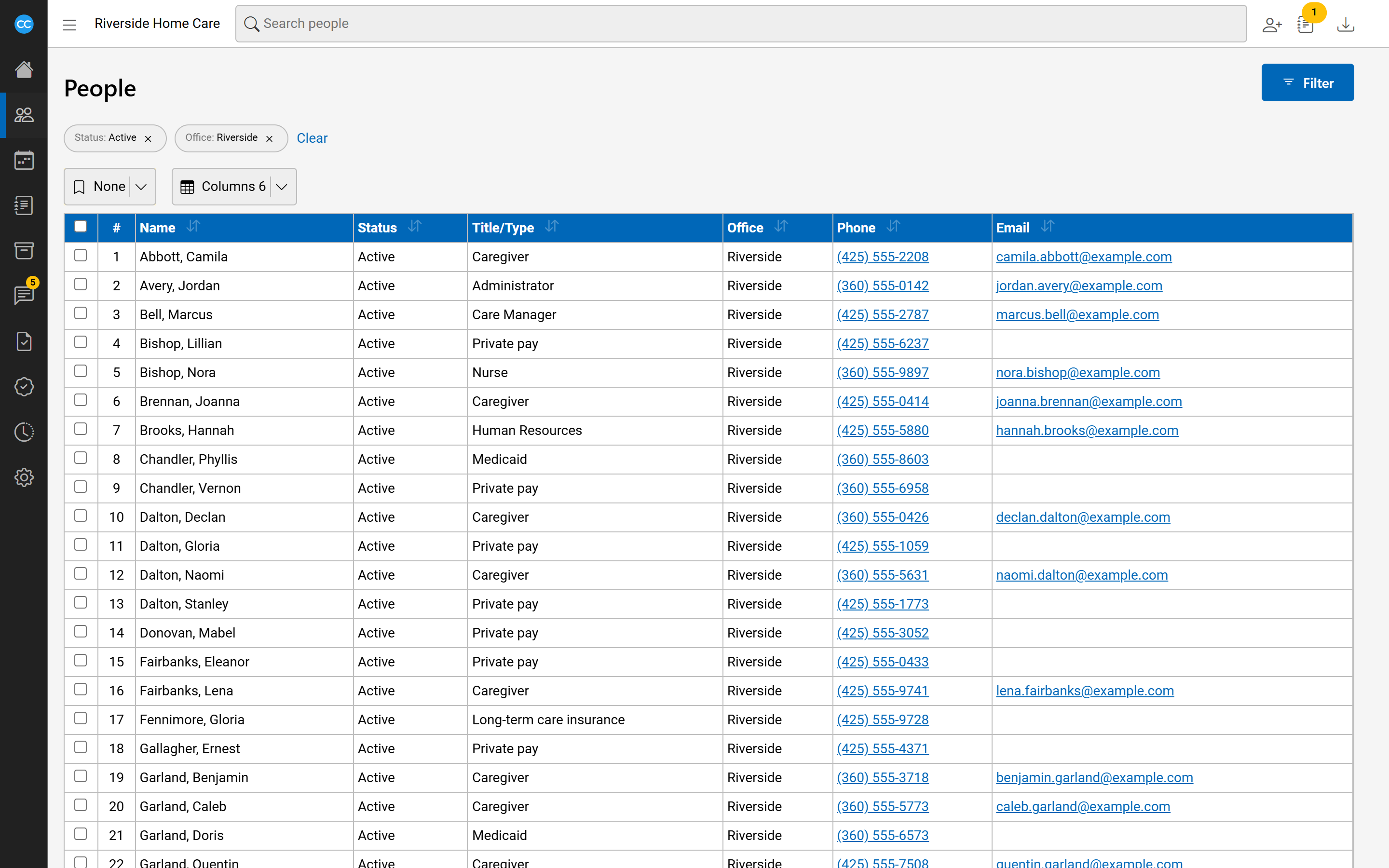
Use the sidebar menu
The menu lists the main areas of CareComplete. Some items sit in groups: select a group's heading to open or close it.
- Home - your dashboard.
- People - All (the people list), Assignments and Inquiries.
- Schedules - Schedule Board and Timesheets.
- Documentation - notes across everyone you may see.
- Filing - File Cabinet and Inbox.
- Communications - Messages and Announcements.
- My Forms.
- Compliance - Results and Audit Files.
- Audit Log and Settings.
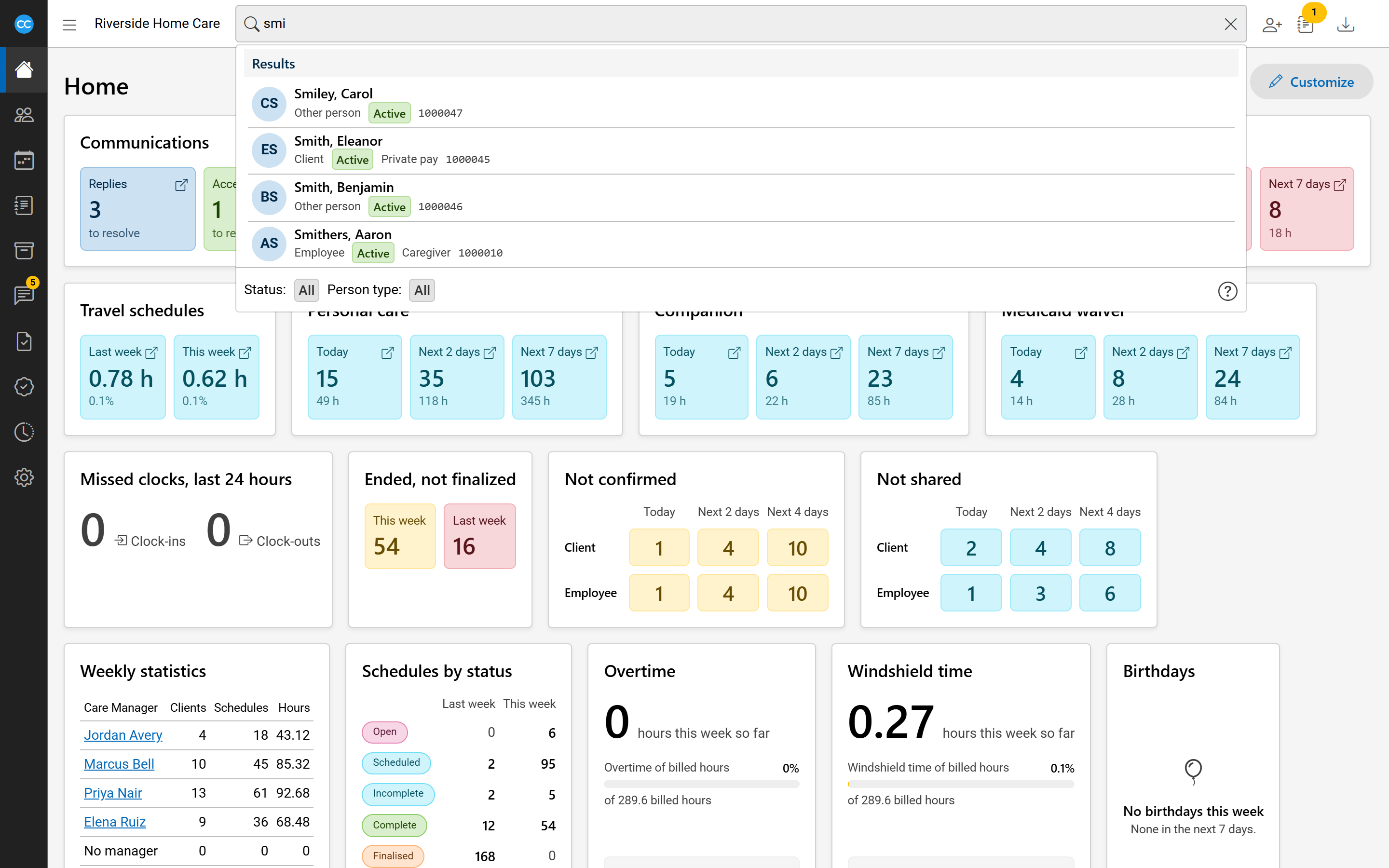
Search for a person
The Search people box is in the middle of the header. On a phone, select the magnifying glass instead.
- Type at least three letters of a name.
- Pick a person from the results. Their profile opens in a new browser tab, so the page you were on stays as it was.
Under the results you can narrow the search by Status (All, Current or Not current) and Person type. Select the question mark to change them and to see the search tips. You can also start your search with a prefix:
e:searches email addressesp:searches phone numberss:searches the last 4 digits of the SSNi:searches internal and external ids
Add someone
The person-with-a-plus button beside the search opens the add menu. It offers Inquiry, Employee and Referral, each only if you may add it. See Finding and adding people.
Other header items
- Available Downloads - the download icon. A badge counts downloads still being made.
- A notebook icon with a number appears when you have unsaved documentation drafts. Select it to carry on with them.
- Your name opens your user menu, with your account, your agencies, the theme and Log out.