Building a form
Create a form from scratch or a starter template, then lay out its sections and questions.
A form is the blank your agency designs once, such as a plan of care or an incident report. Forms are kept in Settings, under Forms. You need form design access to create and change them.
Create a form
- On the Forms list, choose Create Form.
- Enter a Name.
- Choose About: a client, an employee, or no one in particular.
- Choose what it Keeps: many responses, such as visit notes, or one living document each, such as a plan of care.
- Tick Enforceable signatures if signers must agree to sign electronically and type their full name.
- Choose Save. The form opens on its tabs: General, Questions, Signatures, Audience and Versions.
About and Keeps cannot be changed later.
Or start from a starter template
Choose Starter templates on the Forms list, then Use this template on the one you want. The copy is a draft of your own: change anything, then publish it.
Add sections and questions
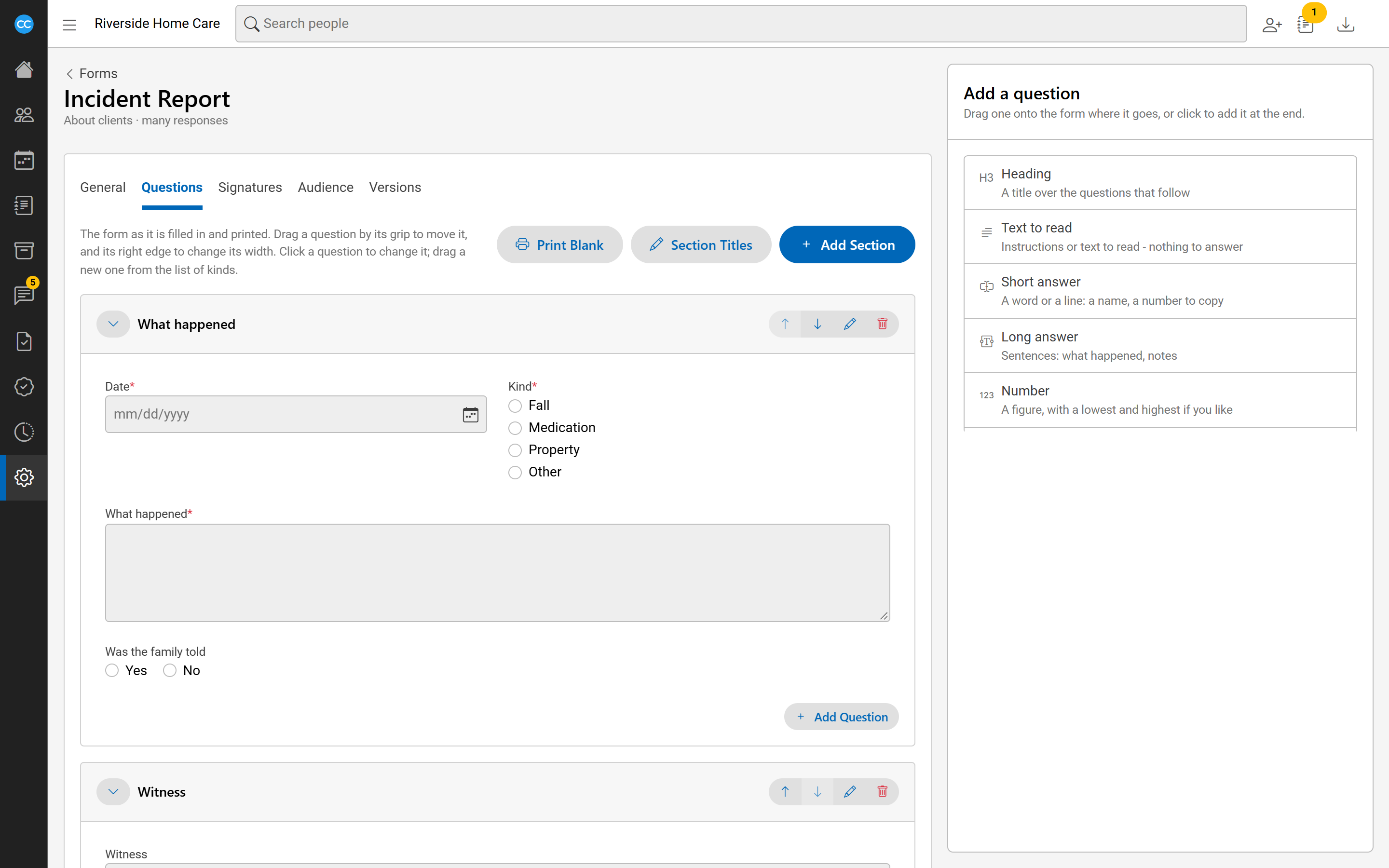
A form is built from sections, each holding its questions. On the Questions tab:
- Choose Add section, give it a Title, and choose Save.
- From the Add a question list beside the form, drag a kind of question onto the form where it goes, or click it to add it at the end.
- Fill in the question's wording and settings, and choose Save.
Kinds of question include short and long answers, numbers, dates, times, yes or no, choose one, choose any, a grid of choices, headings, and text to read. A Filled in for you question copies a detail from the person's record, such as their name, when a response is started.
Click any question to change it. A question can be Required, and can be shown only when an earlier yes-or-no or choice question has a certain answer. A whole section can be shown the same way.
Lay it out
- Drag a question by its grip to move it, and its right edge to change its width. Questions narrower than the row sit side by side.
- Choose Section titles to set how every section's title bar looks: colours, alignment, size and capitals.
- On the General tab, choose a Letterhead to print at the top of the form's documents.
- Choose Print blank to print the form empty, to fill in by hand.
Every change is saved straight into the form's draft. Nobody can use the form until you publish it.