Skills and skill suggestions
Keep people's skills in step with their compliance requirements by applying the skill changes CareComplete suggests.
A requirement can be linked to one or more skills. For example, a "CPR certification" requirement can be linked to a "CPR certified" skill. CareComplete then suggests skill changes so that people's skills match their compliance:
- When someone meets the requirement but does not have the skill, it suggests Add.
- When someone has the skill but does not meet the requirement, it suggests Remove.
These are suggestions only. Nothing changes on a person until you apply them.
Link a requirement to a skill
- In Settings, open Compliance Rules and choose the requirement.
- On the Requirement tab, choose the skills under What skill does this map to? (Leave blank if none).
- Choose Save.
Suggestions appear after the next nightly run, or after a Recalculate.
Review and apply suggestions
- Open the Compliance list (Compliance, then Results) and choose Skill suggestions.
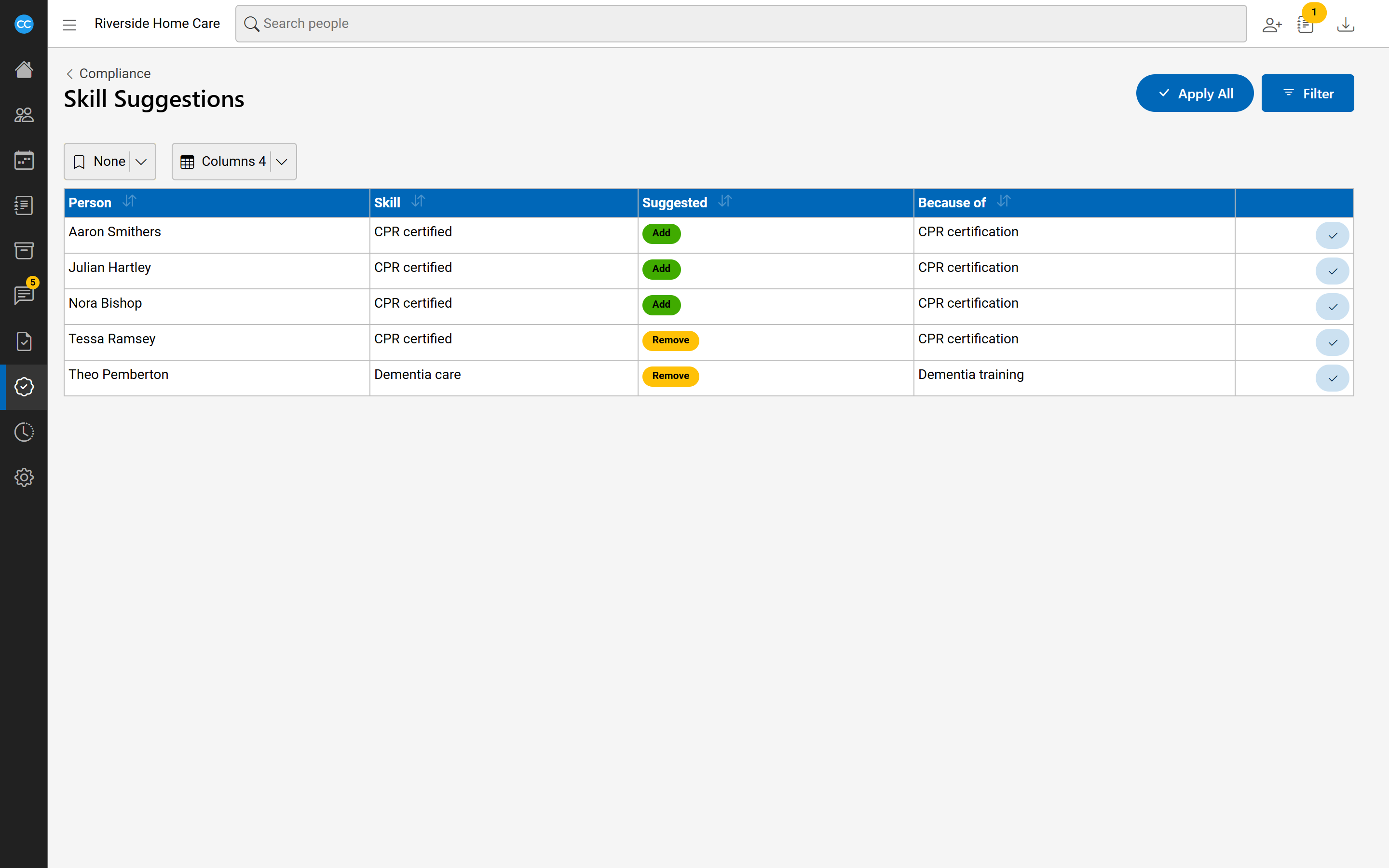
- The Skill Suggestions list shows the Person, the Skill, what is Suggested (Add or Remove), and the requirement it is Because of.
- To apply one suggestion, choose the tick button on its row.
- To apply every suggestion the list shows, choose Apply all and confirm.
Use Filter first to narrow the list by person or skill, so Apply all only applies the ones you see.
Applying a suggestion is an ordinary skill change on the person. You need permission to change that person's skills. If some can't be applied, CareComplete tells you how many.
The Compliance list's Skill column, when shown, also says which skill to add or remove for each row.