Creating a requirement and its rules
Set up a new compliance requirement, or adopt one from a template, and write the rules that decide it.
Requirements are kept in Settings, under Compliance Rules. The list is called Compliance Requirements. You can start from a ready-made template or create your own.
Start from a template
- On Compliance Requirements, choose Templates.
- Find the template you want. The list shows what it is for and its rules in words.
- Choose Adopt on its row.
- Under The agency's own, pick what the template's names mean at your agency, such as your own document type or position. You only choose these once.
- Choose Adopt.
When a newer version of a template comes out, its row shows the new version. Choose Update to replace the template's rules in your copy. Your requirement's name, its dates and any rules you added yourself stay as they are.
Create your own requirement
- On Compliance Requirements, choose Create Requirement.
- Enter a Name and choose whether it is For employees or clients. This cannot be changed later.
- Add a Description, Category and Priority if you like.
- Leave Starts on blank to follow the rules' own dates. With a date, no one is due before it.
- Choose Save. The requirement opens with its tabs: Requirement, Rules and People.
On the Requirement tab you can also set a Short name (shown in a person's header), an Ends on date, the skills it maps to, and a tag for notifications.
Add a rule
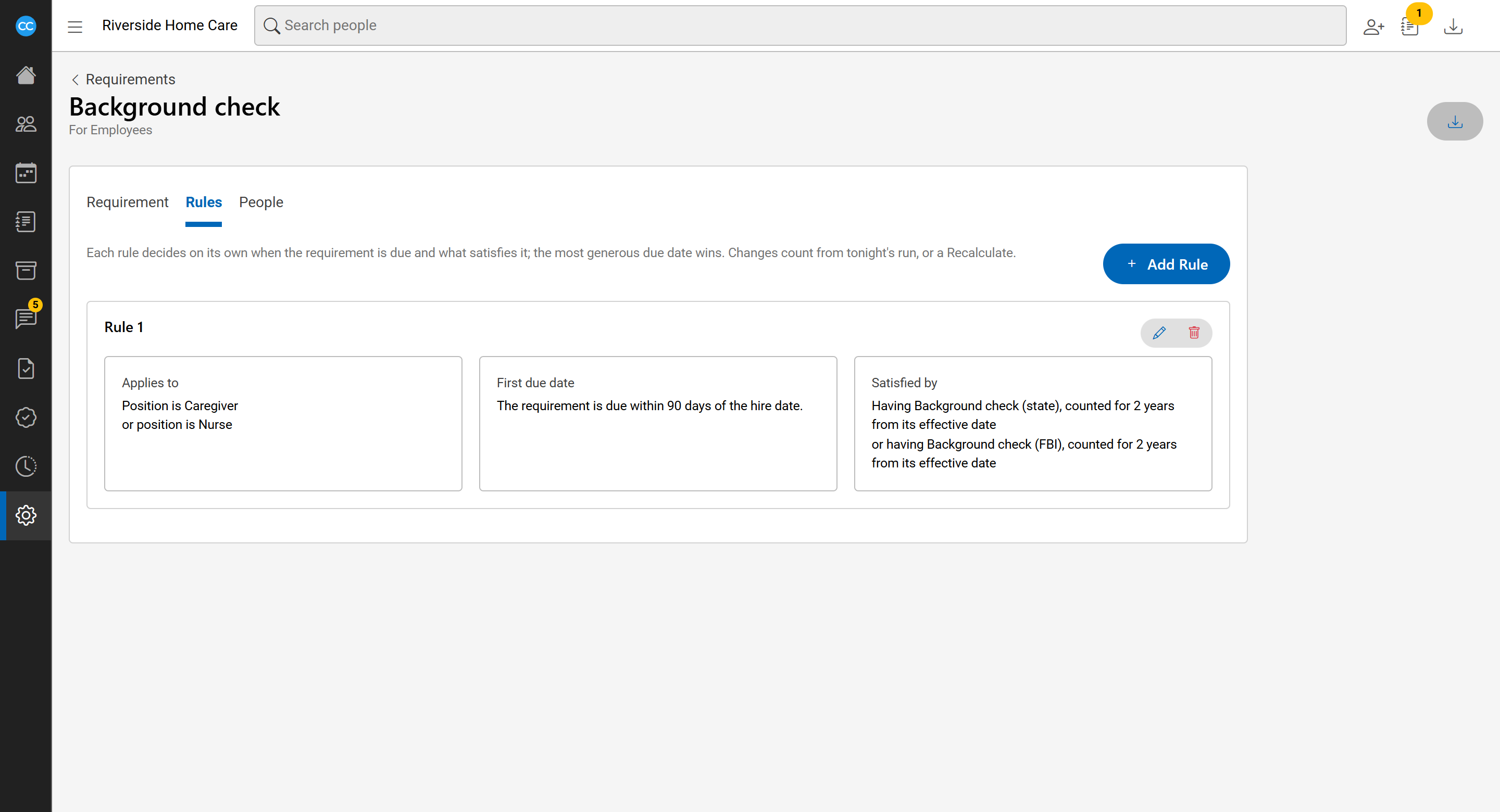
A requirement with no rules applies to no one. On the Rules tab, choose Add rule. The rule page has three sections:
- Applies to: build lines such as "Position is Nurse" or "Skill has Dementia care". Use + and to add a line that must also hold, and + or for another way to qualify. Leave it empty to apply to everyone active.
- First due date: for example, due within 90 days of the hire date, or by a fixed date. You can tick Or sooner, whichever comes first to add a second due date.
- Satisfied by: for example, a document of a certain type that is active by its expiration date, or for a length of time from its effective date.
Choose Save. The Rules tab then shows each rule in words under "Applies to", "First due date" and "Satisfied by". Changes count from tonight's run, or a Recalculate.