A person's Compliance tab
See where one client or employee stands, exempt them or move a due date, and print their compliance history.
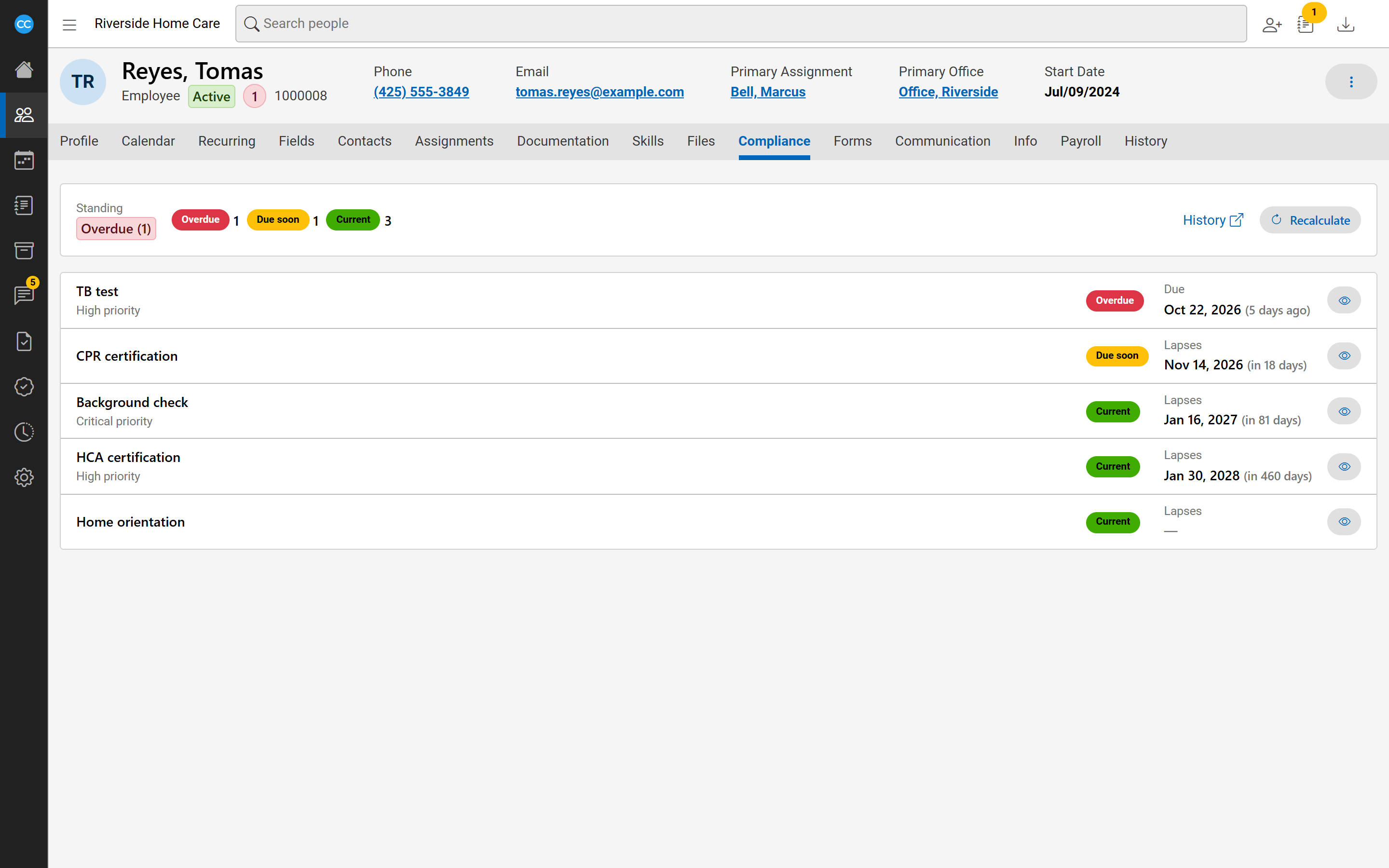
Every client and employee has a Compliance tab on their page. It shows each requirement that applies to them today, worst first.
The indicator in the header
Beside the person's status in their header is a small circle. Red means something is overdue or missing, yellow means something is due soon or pending, and green with a tick means everything is current. The number is how many requirements are at that colour. Hover over it to see which requirements are not current, or select it to go to the Compliance tab.
Read the tab
The top card shows the person's overall Standing, such as "Overdue (2)" or "Compliant", and a count of their requirements at each standing.
Below it, each requirement shows its standing and its date. A requirement that is not met shows when it is Due. One that is met shows when it Lapses. A requirement can also be marked as high priority, Assigned or Exempted.
Choose Recalculate to work this person out again now, for example after filing a document.
For an employee, choose the eye button on a requirement to open its side panel, with how it is met and the contact recorded about it.
Exempt someone or move a due date
If you can edit compliance for employees, the requirement's side panel has two buttons:
- Exempt: the requirement no longer counts for this person, from a date and optionally to a date.
- Move due date: a new due date that holds until the requirement is met. Then the rules' due dates return.
Each needs a Reason. You can also manage these for everyone on a requirement's People tab, in Compliance Rules, using Add person. There you can also assign a requirement to someone the rules would not give it to.
Print a compliance history
Choose History on the tab. It opens in a new browser tab and shows:
- whether the person is in compliance today;
- each requirement, when it is due and when it was last satisfied;
- each period they were out of compliance, and what was missing.
Enter From and To dates and choose Show to limit the periods, then choose Print. The history is worked out from the records as they are now.