Messaging a caregiver
Write to a caregiver, see when they have read it, and mark their replies as dealt with.
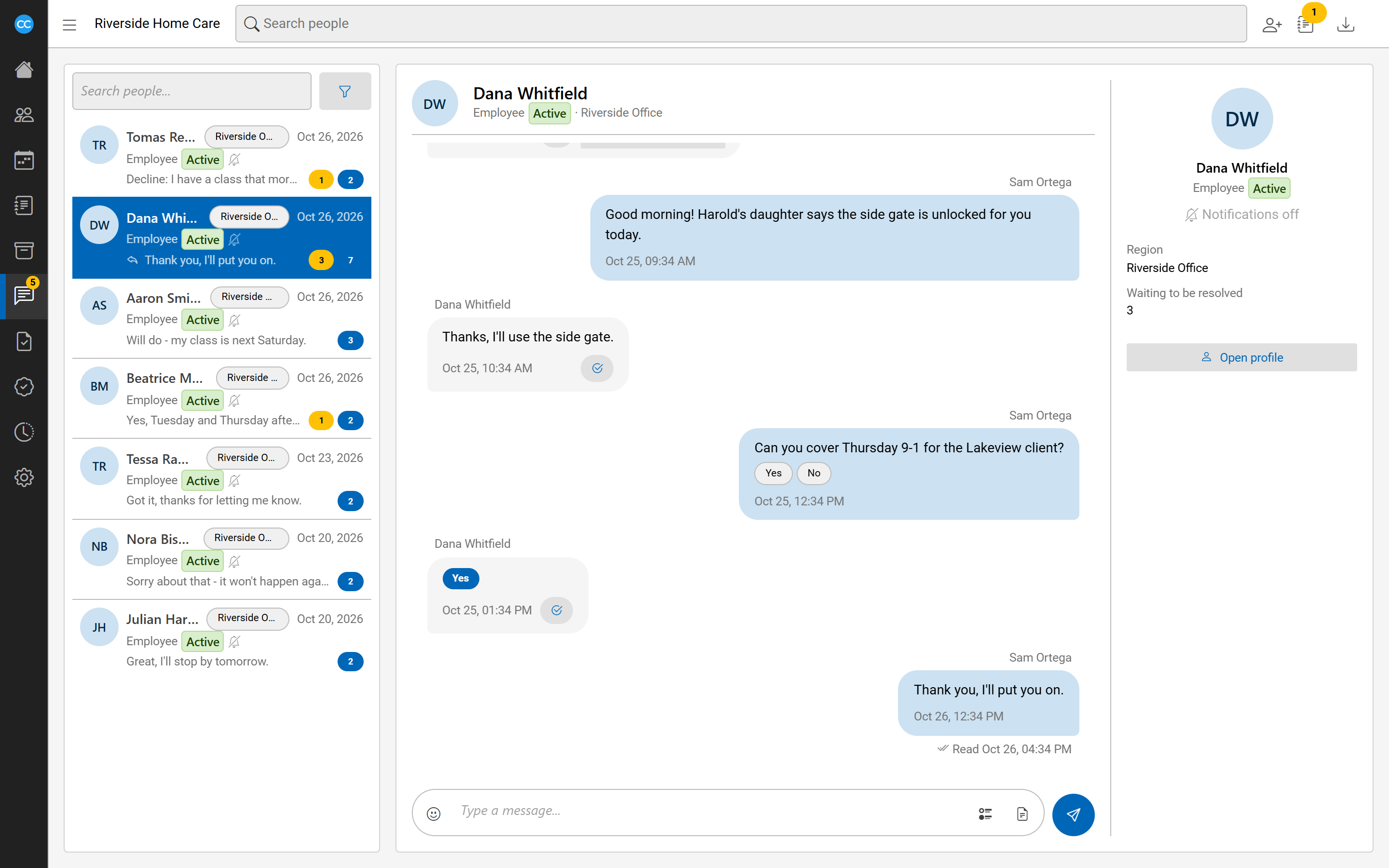
Each person your agency works with has one conversation with the office. Everyone on staff who may read that person's messages sees the same conversation, and the caregiver reads and answers it in their portal. Use it for quick questions, reminders and anything you want on record.
Find someone to message
- Open Messages under Communications in the side menu.
- Type a name in Search people.... The list narrows as you type and includes people you have not written to yet.
- Select a person to open their conversation beside the list.
The list shows the newest conversations first. Each row shows the person's region, their last message and when it was sent. A yellow count means messages waiting to be resolved, and a blue count means messages you have not read.
You can also open the Communication tab on a caregiver's, client's or other person's own page.
Narrow the list
Select the funnel button beside the search to show the filters: person type (Everyone, Employees, Clients, Other people), region (Every region or one region), Any notifications (or only people whose notifications are off, failing or on), and the Waiting to be resolved switch. Your filters are kept for the next time you open the page. The search is not.
Write a message
- Type in Type a message... at the foot of the conversation. You can add emoji from the smiley button.
- To give the caregiver buttons to tap, open Reply options and enter the answers separated by commas, such as
Yes,No. Leave it empty for a reply in their own words. - Select Send.
The message appears at the foot of the conversation. When the caregiver opens it in their portal, Read and the time they first saw it appears under the newest message they have read.
Check that messages reach their phone
Under the person's name you see whether their notifications are on, off or failing. Select it to see each phone, when the portal was last opened on it, and when a notification last reached it.
Resolve a reply
A message from the person waits to be resolved until someone deals with it. Select the Resolve button at the foot of their message. It is resolved for everyone, and the message shows who resolved it. Select Undo resolve to put it back.
The count beside Communications in the side menu, and the Communications dashboard card, show what is still waiting. When a person replies to a message you sent, you also see a short notice on whatever page you are on.