Message templates
Save messages you send often, and fill them in for one person with a click.
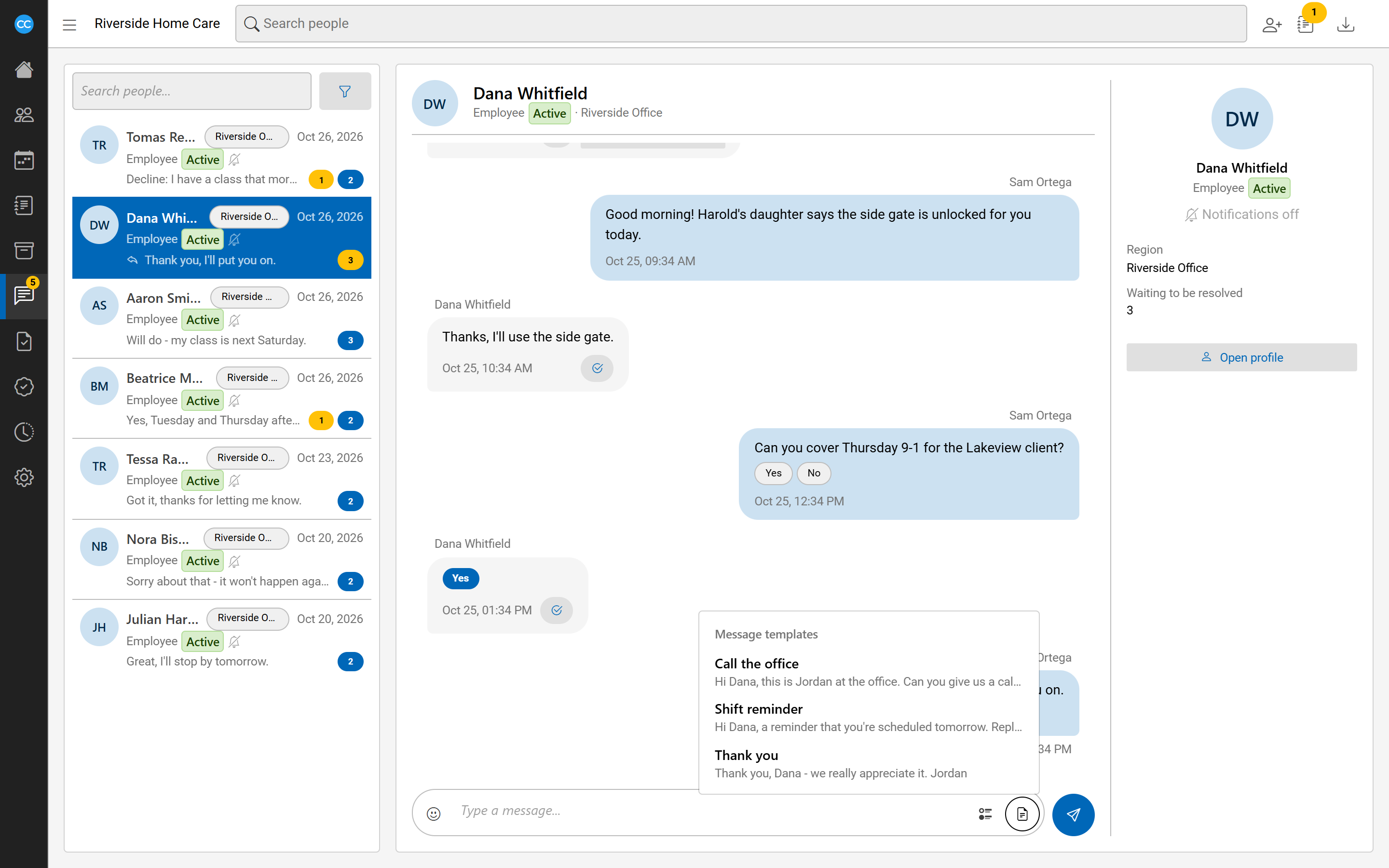
A message template is a message your agency sends often, such as a shift reminder or a request to call the office. Staff pick it from the conversation's write box instead of typing it. A template can also carry reply options, the buttons the person taps to answer.
Add a template
- Go to Settings and open Message Templates, under People.
- Select Add.
- Enter a Name. This is what the write box lists it by, and no two templates can share it.
- Write the Message.
- Optionally, enter Reply options separated by commas, such as
Yes,No. Leave it empty for a reply in the person's own words. - Select Save.
Use the same list to change or remove a template. Changing or removing a template does not change messages already sent with it.
Use placeholders
A message can hold two placeholders, which are filled in for the person you write to:
{SenderFirstName}becomes your first name.{RecipientFirstName}becomes the first name of the person you are writing to.
For example, Hi {RecipientFirstName}, this is {SenderFirstName} at the office. Can you give us a call today?
Any other word in braces is refused when you save, so a mistyped placeholder is never sent.
Send a template
- Open a person's conversation on the Messages page or on their Communication tab.
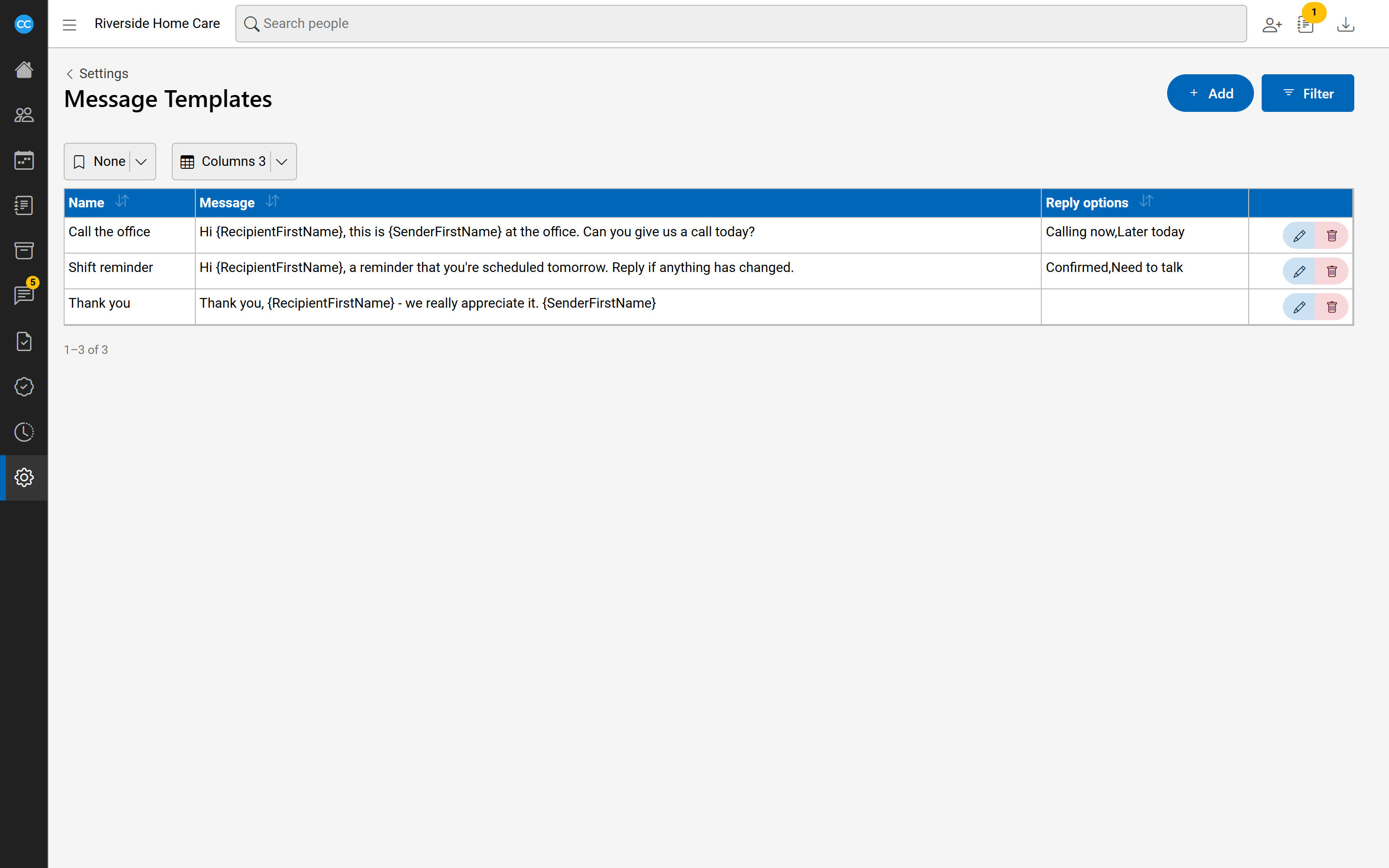
- Select Use a template, the document button in the write box.
- Pick a template. The menu already shows the message filled in for this person.
- The write box fills with the message, and the reply options open if the template has any. Whatever was in the box is replaced.
- Change anything you like, then select Send.
Placeholders are filled in when you pick the template, not when you send it, so you see exactly what the person will read before it goes.