Reviewing red flags
Find shifts with red flags, see what each flag means, and mark them reviewed so the shift can be finalised.
A red flag points out something on a shift that someone should look at before it is paid or billed. Examples are a missing skill, overlapping shifts, or an authorization's hours being exceeded. A shift with a red flag nobody has reviewed cannot be finalised.
Find shifts with red flags
- On a calendar or the Schedule Board, a red flag and a number in a shift's top right corner show how many flags are not reviewed yet.
- On the Timesheets page, the Open red flags chip lists every shift with one. Hover over a shift's flag chip to see which flags it has.
Review a red flag
- Open the shift in the schedule editor.
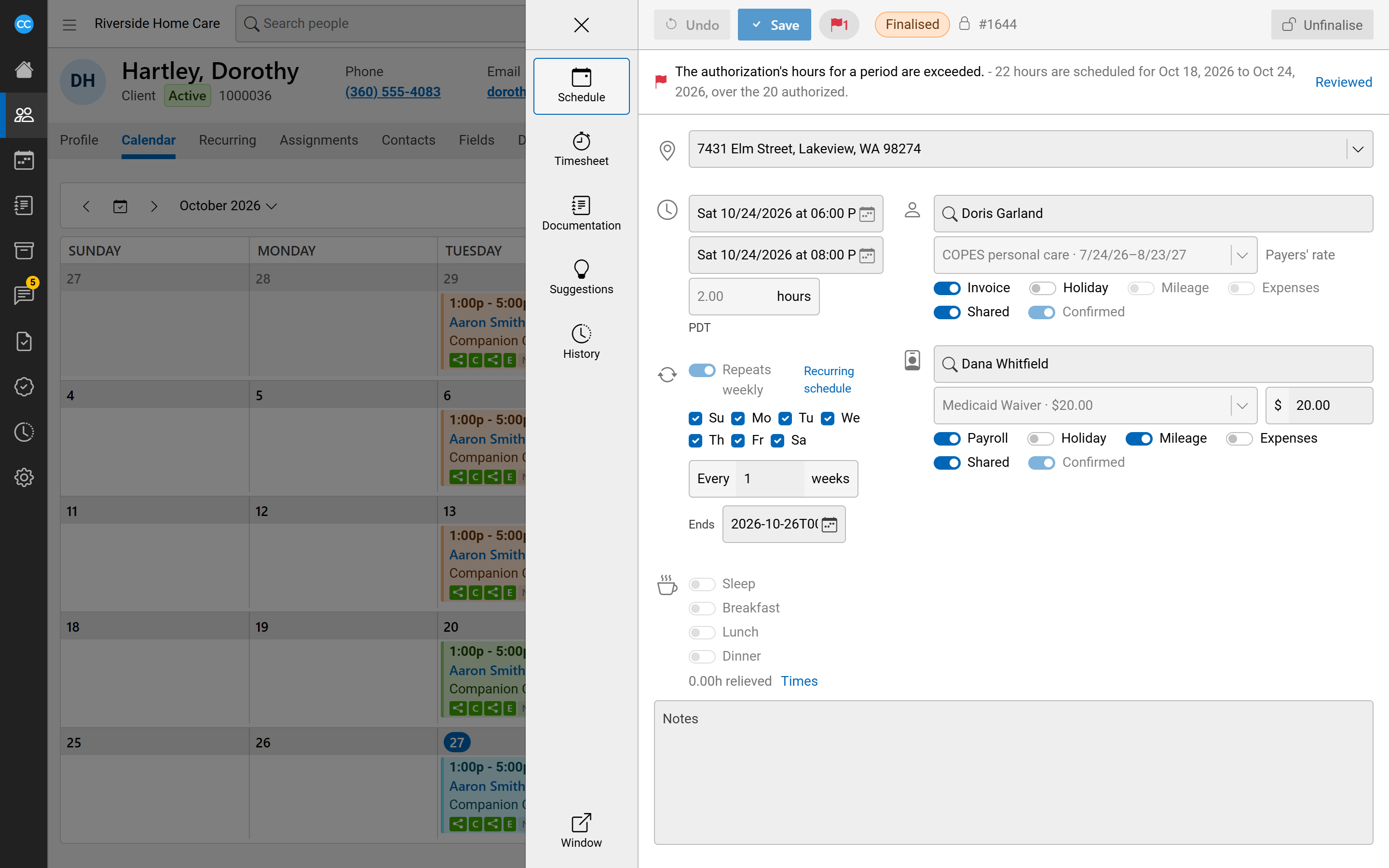
- Click the flag button in the toolbar. It is red, with a count, while any flag needs review. The list opens under the toolbar.
- Read each flag. Fix the cause if you need to, for example by correcting a time or a code, and save.
- Click Reviewed beside a flag once you are satisfied. The flag turns grey and shows who reviewed it. Undo reopens it.
Saving a change to the shift can raise new flags or clear old ones, so check the list again after you save.
What raises red flags
These flags are always checked:
- A skill, or a critical skill, the client needs that the caregiver does not have.
- The shift overlaps another shift.
- The bill code does not equal the pay code.
- A payer has been billed more than its authorized amount or budget.
- The authorization's hours for a period are exceeded.
- The travel is as long as the agency's longest trip.
Your agency can also turn on others, including:
- low profit, or a pay rate that is zero or below minimum wage;
- a shift that is bill only or pay only;
- bill or pay hours that differ from the timesheet or scheduled hours, or from each other;
- relieved hours not applied equally;
- holiday not being applied;
- hours outside a pay code's or bill code's minimum and maximum;
- mileage that is not paid or not billed, and expenses being reimbursed;
- an address that may not work for travel, or travel time turned off;
- billing or payroll data missing.
Choose which red flags your agency uses
An administrator chooses them under Settings, Red Flags. Tick the flags you want and click Save. The flags that are always checked show as ticked and marked Always on.