Recurring schedules
Set a shift to repeat every week, change the repeating pattern, and end it when care stops.
A recurring schedule makes the same shift on the same days every week, or every few weeks. You set one up from a single shift in the schedule editor, and see them all on the person's Recurring tab.
Make a shift repeat
- Add a shift, or open one on the calendar.
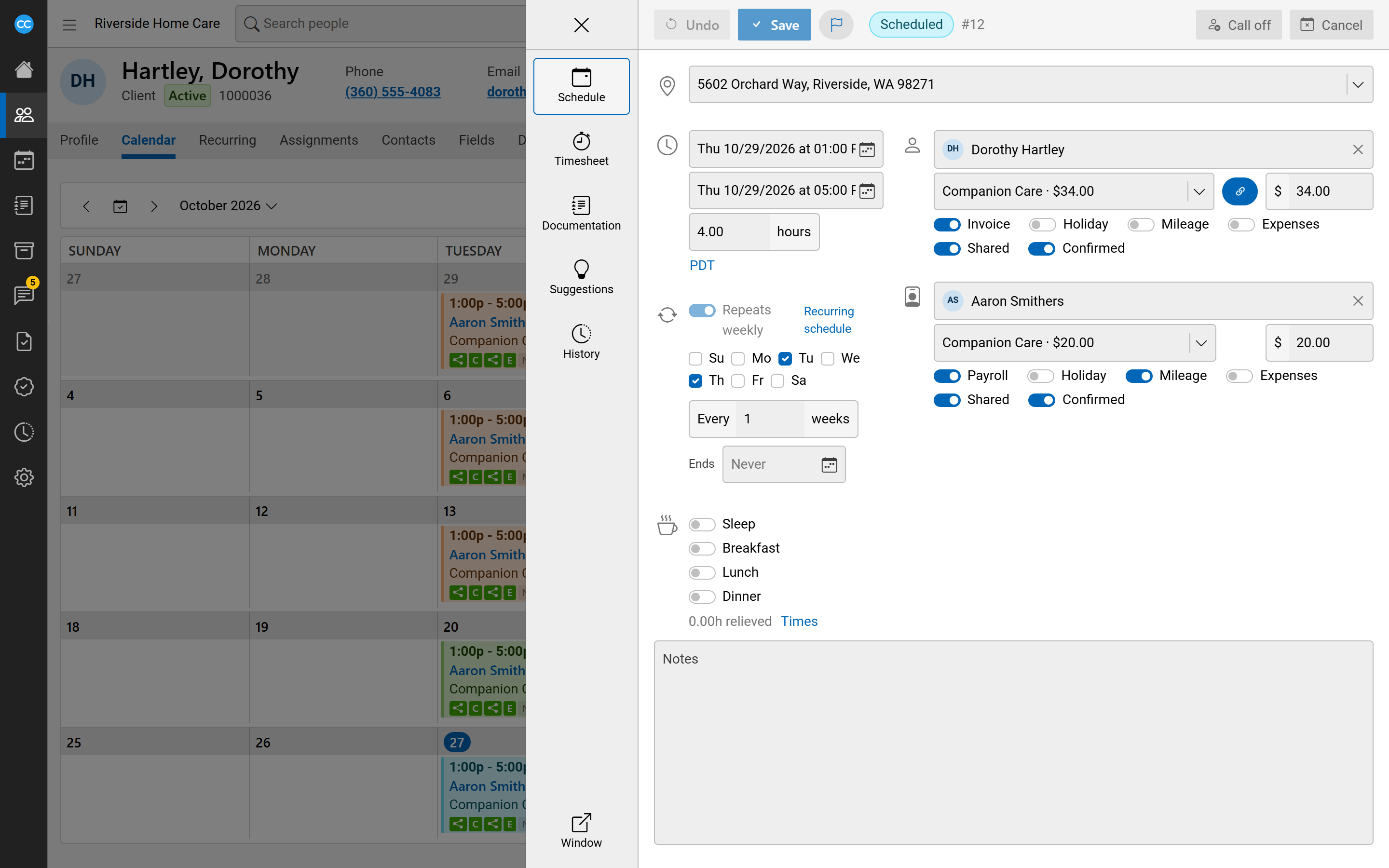
- Turn on Repeats weekly, under the times.
- Tick the days it repeats on.
- Set Every how many weeks (1 for every week, 2 for every other week).
- Pick when it Ends, or leave it as Never.
- Click Save.
The schedules are made ahead of time and topped up each night. Shifts in a recurring schedule carry a repeat mark on the calendar. The mark turns grey on a shift that has been changed on its own.
Travel and cancelled shifts cannot repeat.
Change a recurring schedule
Open any one of its shifts on the calendar, make your change and click Save. You are asked what the change should apply to:
- This schedule only: just this shift. The recurring schedule stops changing it.
- This and following: this shift and every one after it.
- All from today: every shift in the series from today on.
See a person's recurring schedules
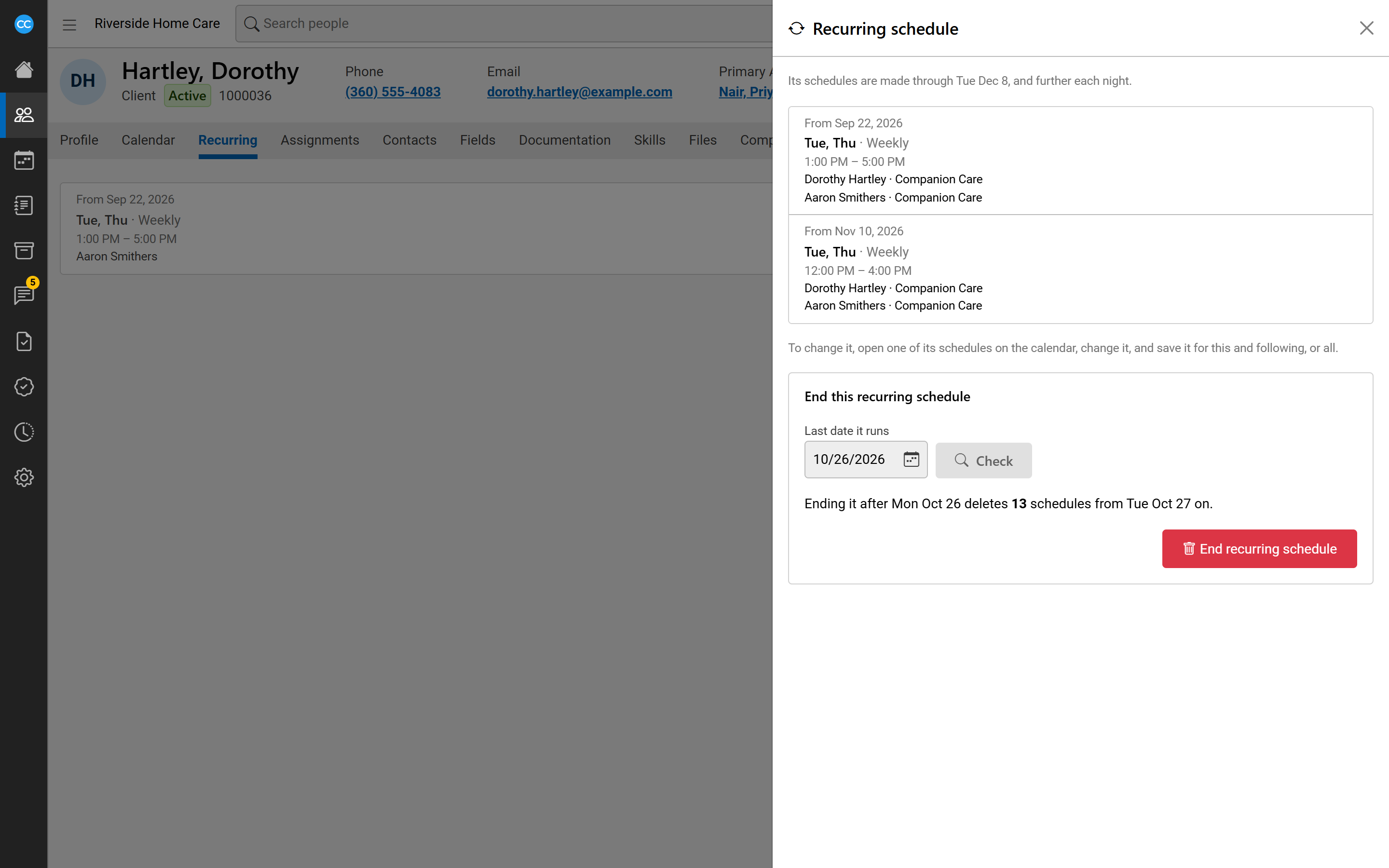
The Recurring tab lists each recurring schedule with its dates, days, how often, times and who it is with. Click one to open it in a side panel. It shows each version of the pattern over time, and how far ahead its shifts have been made. Ended ones are greyed out.
If a recurring schedule could not make a shift, it shows Stopped and the reason. For example, the authorization does not cover the visit, or the client cannot be scheduled that day. Fix the cause from one of its shifts (a new authorization, say) and it carries on.
End a recurring schedule
- Open the recurring schedule from the Recurring tab.
- Under End this recurring schedule, pick the Last date it runs and click Check.
- Read how many shifts will be deleted after that date. Shifts changed on their own or already under way are kept.
- If some later shifts already have work on them, such as clocked times or approved times, tick the box to delete those too, or leave it to keep them.
- Click End recurring schedule and confirm. This cannot be undone.