Reading and changing the calendar view
Choose how much of a person's calendar you see, what it shows, and how to read each shift.
Every client and employee has a Calendar tab. This article explains how to move around it, choose a view, and read the shifts on it.
Move between dates
Use the arrows at the top left for Previous and Next, and the calendar button for Today. Click the period's name (for example the month and year) to pick any date. In the longer views, click a day's number to open that week.
Choose a view and size
The calendar's settings sit in the toolbar on a wide screen. On a smaller screen, open them with the Calendar settings button.
- View: Week, 2 weeks, 4 weeks, 6 weeks or Month.
- Size: Small shows one line per shift, Medium three lines and Large four. Your choice is remembered.
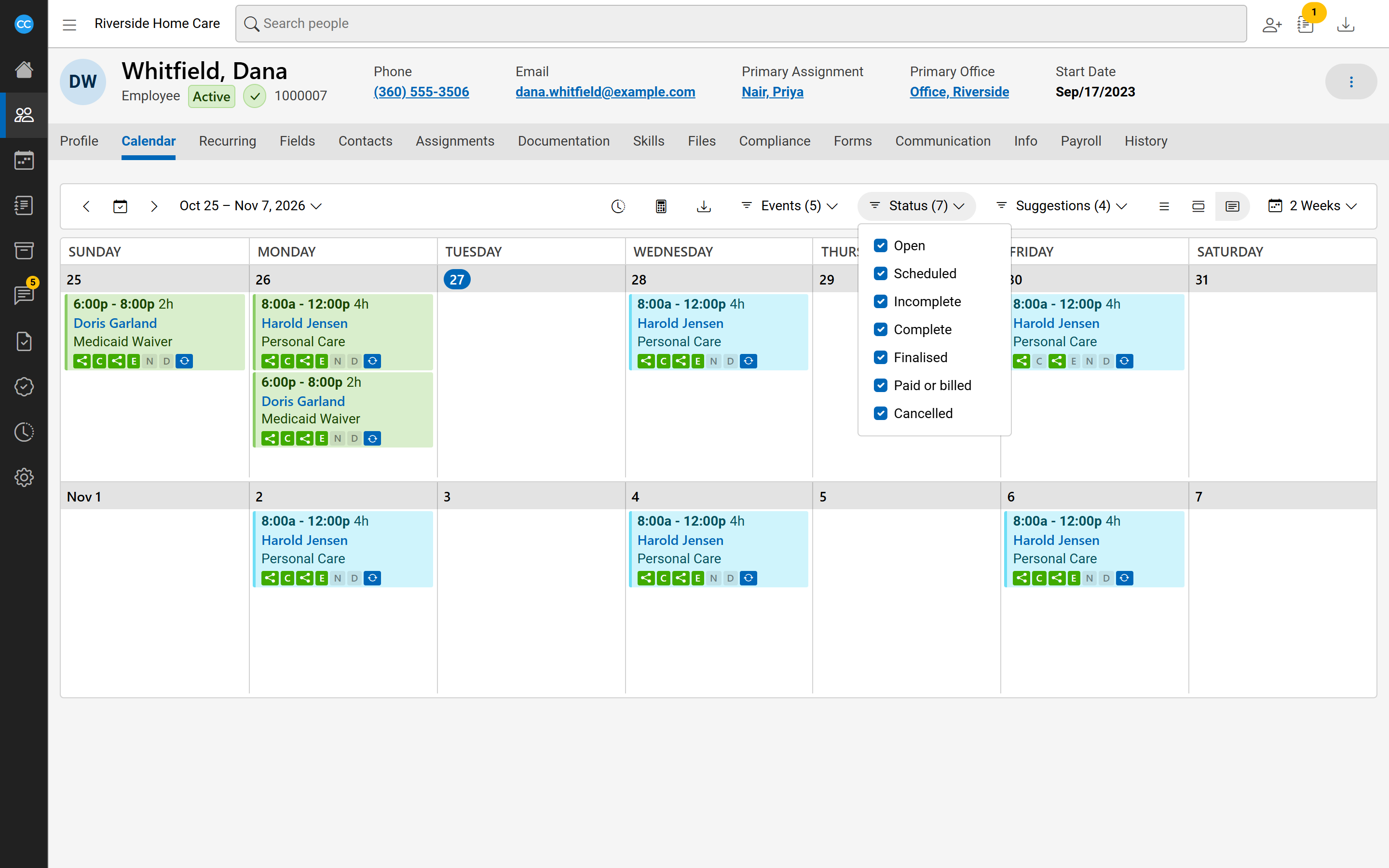
- Show: the Events menu hides kinds of shift (Visit, Non-visit, Admin, Travel, Custom). The Status menu hides shifts by status. If you can see suggestions, the Suggestions menu hides them by suggestion status.
Show approved times instead of scheduled times
The Approved times button (a clock) switches every shift between its scheduled times and its approved times. A shift with no approved time yet keeps showing its scheduled time. The shift stays on the day it was scheduled for. Your choice is remembered.
Show each week's totals
The Weekly summary button (a calculator) adds a totals cell after the last day of each week. It is available on larger screens.
Save a picture of the calendar
Download saves the calendar as a picture. Last names and the weekly totals are left out.
Read a shift
Each shift is coloured by its status: open pink, scheduled and incomplete blue, complete green, finalised grey, paid or billed lavender, and cancelled dark grey. Shift times are on the client's clock, and the time zone is added when it is not your agency's.
At medium and large sizes a shift also shows small marks:
- A share icon and C for the client, and a share icon and E for the employee. Each lights up when the shift is shared with, or confirmed by, that person.
- N when it has notes, and D when it has documented events.
- A number in a circle: how many caregivers are suggested for it.
- A repeat mark when it belongs to a recurring schedule.
A red flag with a number, in the top right corner, means the shift has red flags nobody has reviewed yet.
Double-click a shift to open it in the schedule editor. The calendar updates by itself when anyone changes one of its shifts.