Filling open shifts with suggestions
Find caregivers who fit an open shift, suggest and offer it to them, and put one on the schedule.
An open shift is a visit with no caregiver yet. The schedule editor's Suggestions pane helps you find who could cover it, keep track of who you have asked, and put the right person on the shift.
Find caregivers for a shift
- Double-click the open shift on a calendar or the Schedule Board.
- Click Suggestions on the left of the schedule editor.
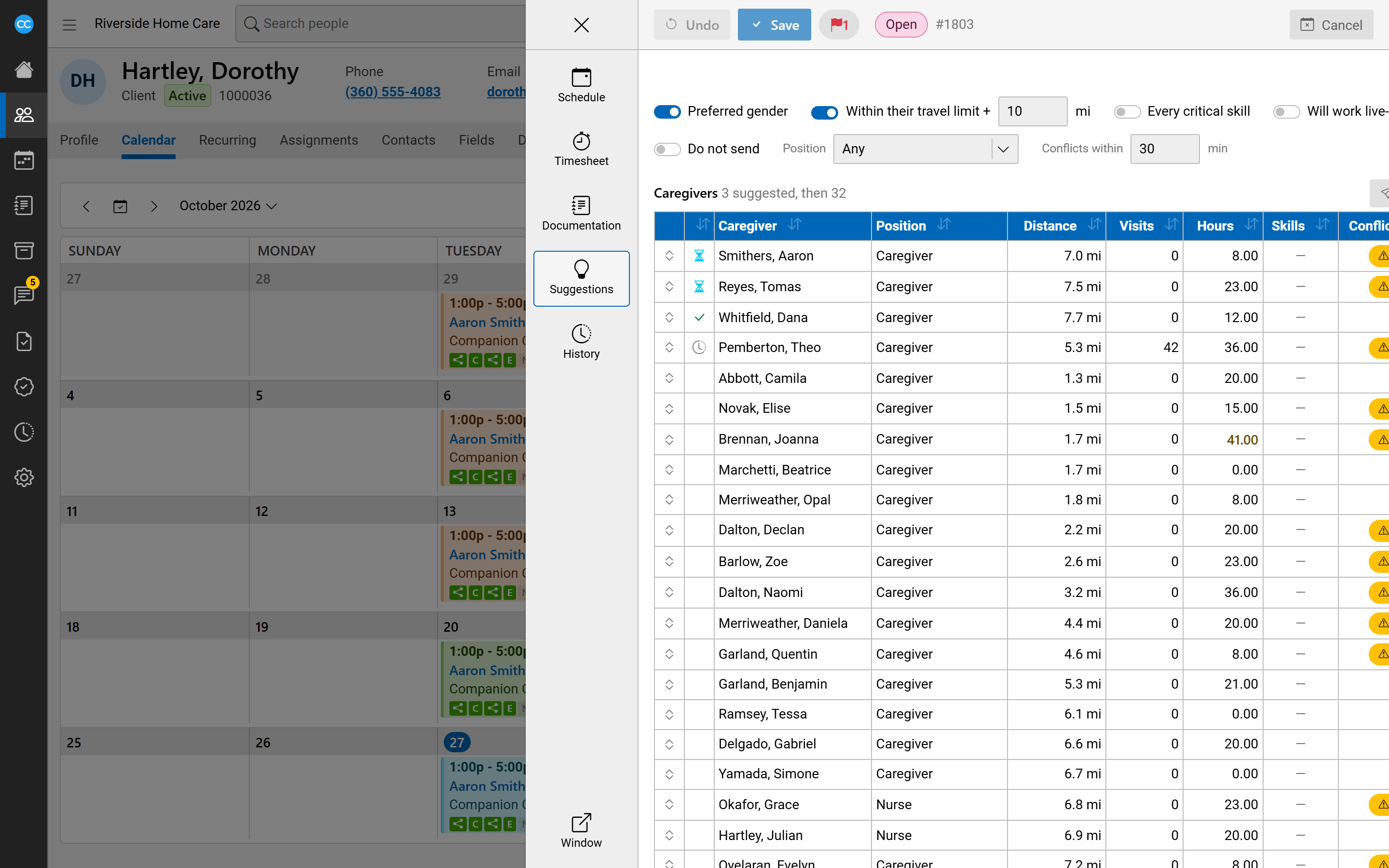
The top of the pane shows what the visit asks for: a preferred gender, and the client's skills, with critical skills highlighted. The list then shows caregivers with their Position, Distance, Visits, Hours, Skills, Conflicts and Live-in. Caregivers already suggested always come first.
Use the switches to narrow the list: Preferred gender, Within their travel limit + a number of miles, Every critical skill, Will work live-in and Do not send. You can also pick a Position, and set how close another visit must be to count in Conflicts within (minutes). Click a column heading to sort.
Suggest, offer and ask
Click a caregiver's row to open their details and actions:
- Suggest: adds them to the shift's suggestions.
- Status: changes where a suggestion stands, using your agency's suggestion statuses.
- Send offer: offers the shift to them in their communication thread, so they can answer from their portal. Offer to all suggested does this for everyone suggested, after you confirm.
- Unsuggest: removes the suggestion.
- Ask if available: asks whether they could stand by to cover. Those who answer yes are listed under Standby cover.
Put a caregiver on the shift
Click Put on the schedule. The editor's Schedule pane opens with that caregiver picked. Nothing is saved until you click Save.
See suggestions on the calendar
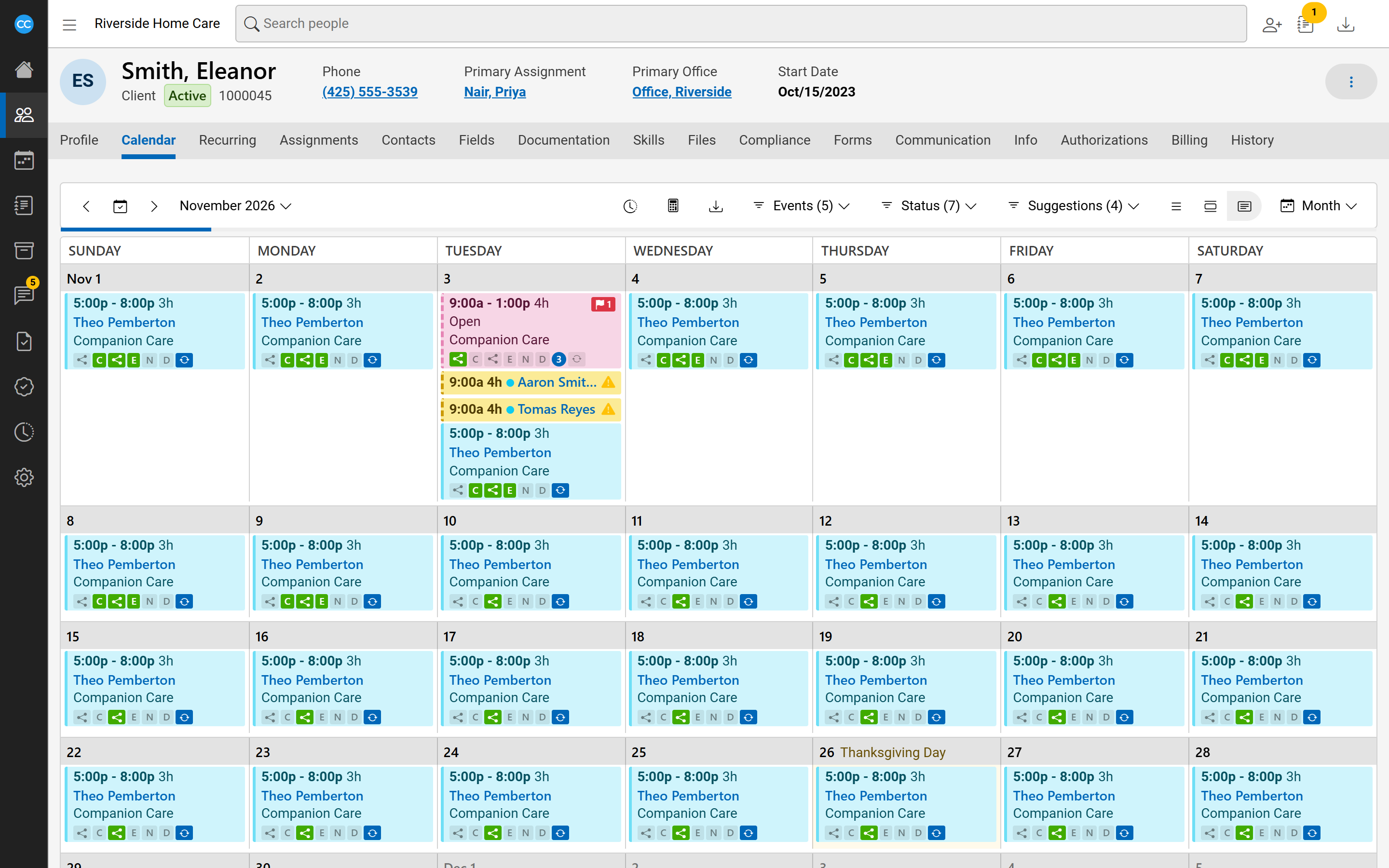
Suggestions for open shifts show on the calendar as yellow items. On a client's calendar each sits right under its shift, and on an employee's calendar it names the client. Each shows the shift's start and length, a dot in the suggestion status's colour, and the person's name, which opens their own calendar. A warning sign means the caregiver has another visit at that time. Double-click a suggestion to open the shift's Suggestions pane.
The Suggestions menu in the calendar's settings hides suggestions by status. A number in a circle on a shift tells you how many caregivers are suggested for it.
Set up suggestion statuses
An administrator manages the statuses under Settings, Suggestion Statuses. Each has a Name, what it Stands for (Suggested, Waiting, Accepted or Declined, which cannot change once added), whether it is Active, a Colour, an Order and an optional Icon.