Confirming and sharing schedules
Share shifts with clients and caregivers, record their confirmations, and know what withdraws a confirmation.
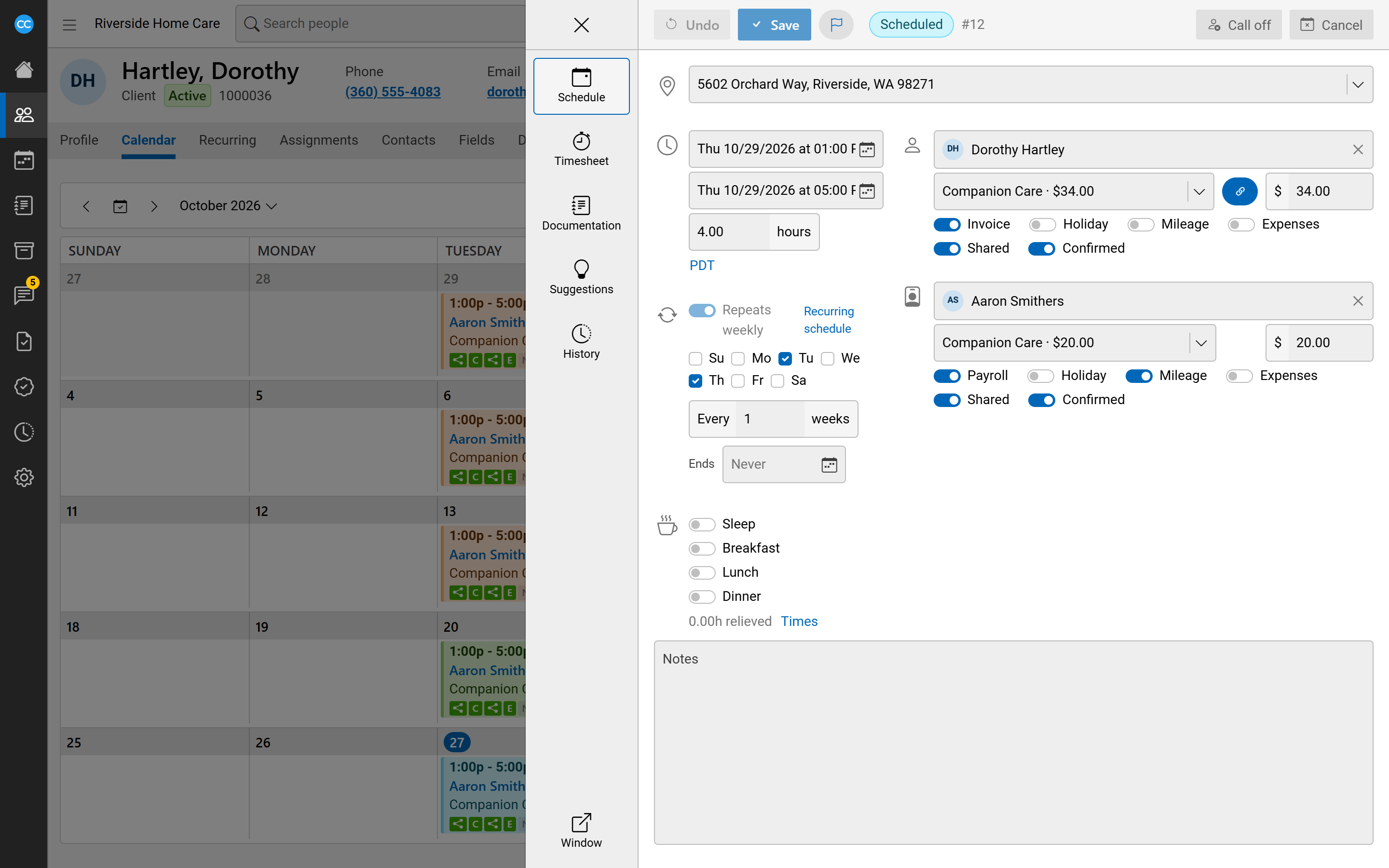
Each shift has two separate settings for each side, the client and the employee:
- Shared means the shift is shown to that person. A caregiver sees a shift in their portal, and can confirm it and clock in to it there, only once it is shared with them.
- Confirmed records that the person has agreed to the shift.
The two do not depend on each other. You can confirm a shift on someone's behalf without sharing it, and stopping sharing leaves a confirmation in place. For why shifts are shared only when you choose, see Build schedules first, share them after.
Share or confirm one shift
- Open the shift in the schedule editor.
- Under the client or the employee, turn on Shared, then click Save.
- To record their answer, switch Confirmed on (or off to withdraw it). This is saved straight away.
Hover over Confirmed to see who confirmed. You can confirm only before the shift starts. If you have just picked a new person, save the shift first.
Share or confirm many shifts at once
On a calendar or a row of the Schedule Board, select the shifts, then use the bar's Share or Confirm menu. Each menu has a choice for the client and for the employee. For example: Share with the employee, Stop sharing with the client, Confirm for the client or Withdraw the employee's confirmation.
See what is still waiting
On the calendar, each shift's marks show a share icon and C for the client, and a share icon and E for the employee. They light up when the shift is shared or confirmed. On the Schedule Board, use the Waiting on filter, Not confirmed or Not shared, to list only people with shifts still waiting.
Shifts on codes that do not ask for confirmation, such as leave or training, are never counted as waiting.
What withdraws a confirmation
Both the client's and the employee's confirmations are withdrawn when:
- the start or end time changes, or the client changes (on shifts that have not started yet);
- the caregiver is added, swapped or removed, including a call-off;
- the shift is cancelled, or restored after being cancelled.
Nothing else withdraws a confirmation. Changing codes, rates, the service location, relieved time or notes leaves it in place. So does a shift moving on to Complete, Finalised, Paid or Billed.
When you swap the client or the caregiver, sharing for that side is turned off. The new person does not see the shift until you share it with them.