Adding a shift on a calendar
Add a new shift from a client's or employee's calendar and fill in the schedule editor.
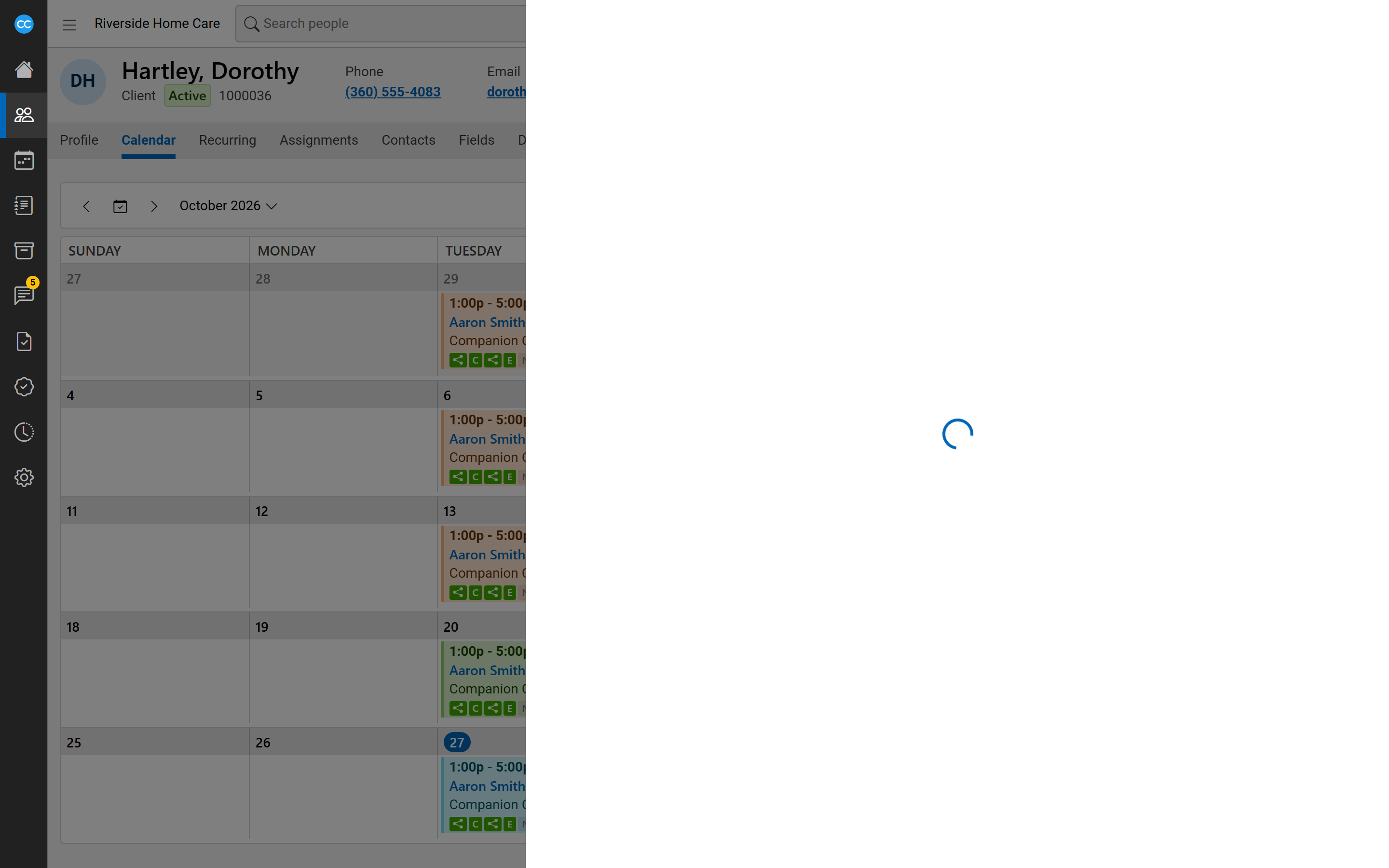
You add shifts straight onto a person's calendar. Open the client or employee, go to their Calendar tab, and pick the day. The shift opens in the schedule editor, a side panel beside the calendar, with that person already on it.
Start a new shift
- Open the client's (or employee's) Calendar tab.
- Click the + at the end of the day's heading, or double-click an empty part of the day.
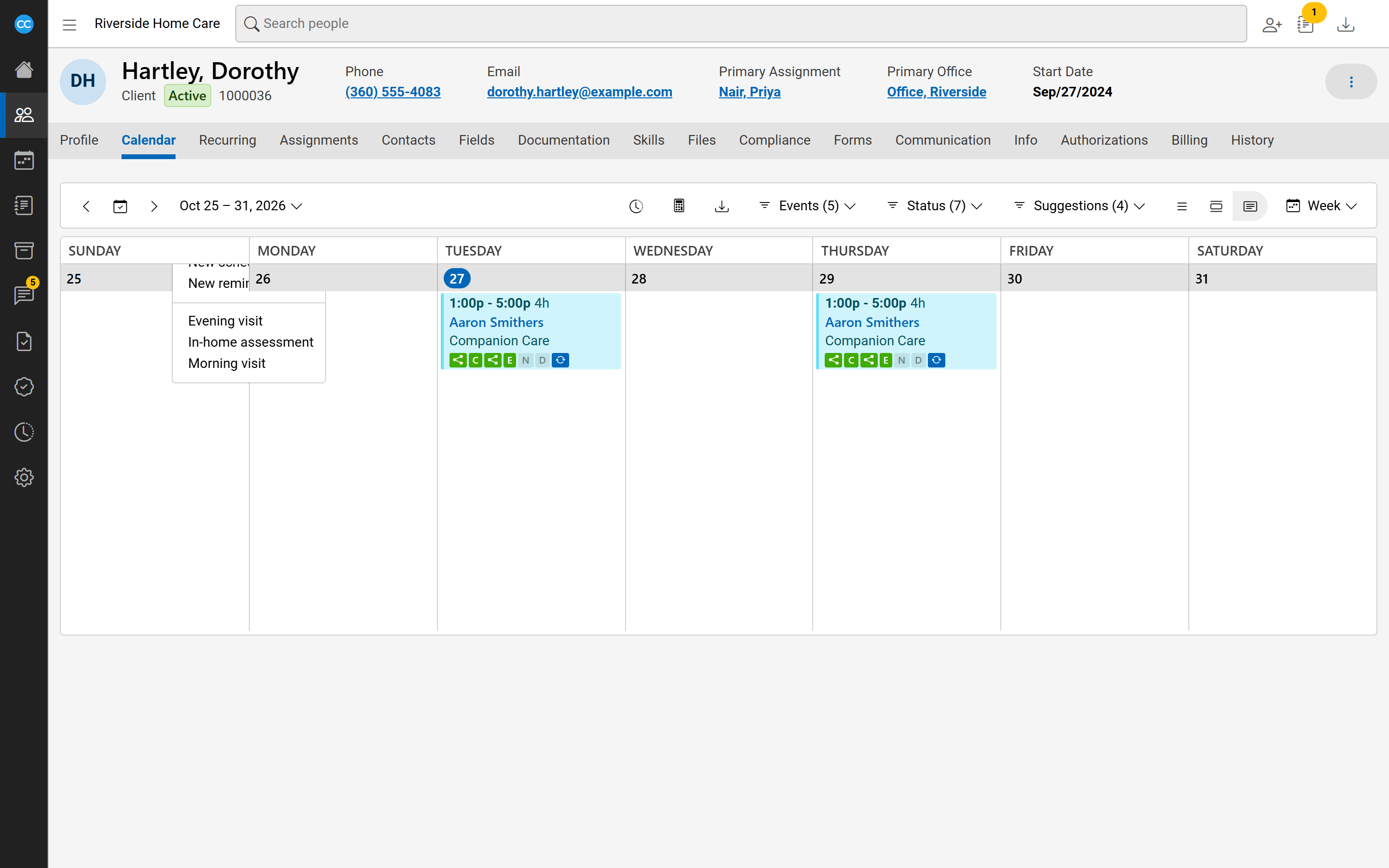
- If your agency has schedule templates, or you can add reminders, the + opens a short menu. Choose New schedule, or pick a template by name to start from it.
If the person cannot be scheduled on a day, the day shows their status instead of the +.
Fill in the schedule editor
The editor shows one row for each part of the shift, each led by an icon:
- Service location: which of the client's addresses the visit is at.
- Start and End: the times on the client's clock. You can type the hours instead, and the end moves to match. The time zone shows under the times; click it to choose another. DST appears when the clocks change during the shift.
- Repeats weekly: turn it on to make this the first of a recurring schedule. See Recurring schedules.
- Sleep, Breakfast, Lunch and Dinner: relieved time during the shift. Times opens when each one happens.
- Client, with the Billing code and bill rate. Where an authorization sets the rate, the box shows Payers' rate instead. Switches below control Invoice, Holiday, Mileage, Expenses and Shared.
- Employee, with the Pay code and pay rate, and the Payroll, Holiday, Mileage, Expenses and Shared switches.
- Notes, filling the rest of the panel.
The link button between the billing code and the pay code keeps the two codes in step: choosing one chooses the same code on the other side. Click it to set them apart.
Leave the shift open
To schedule a visit before you know who will cover it, leave the employee empty. It shows as Open - no caregiver and is saved as an open shift. You can fill it later from the editor's Suggestions pane.
Save it
Click Save. The shift appears on the calendar, and the editor's other panes (Timesheet, Documentation, Suggestions and History) become available on the left. To give up a new shift without saving, close the panel.