Turning an inquiry into a client
Make a client from an inquiry, checking who they already are and which callers become their contacts.
When care is going ahead, make the inquiry a client. CareComplete first shows you who the person and the callers may already be, so you do not create a duplicate. Nothing is merged unless you pick it.
To do this you need permission both to edit inquiries and to create clients.
Open Make a Client
- Open the inquiry from the Inquiries list.
- Select Every inquiry about them, and reminders.
- Select Make client.
If your agency requires details before an inquiry becomes a client, such as a date of birth, a warning lists what is missing with a link to fill it in on the inquiry.
Review the client
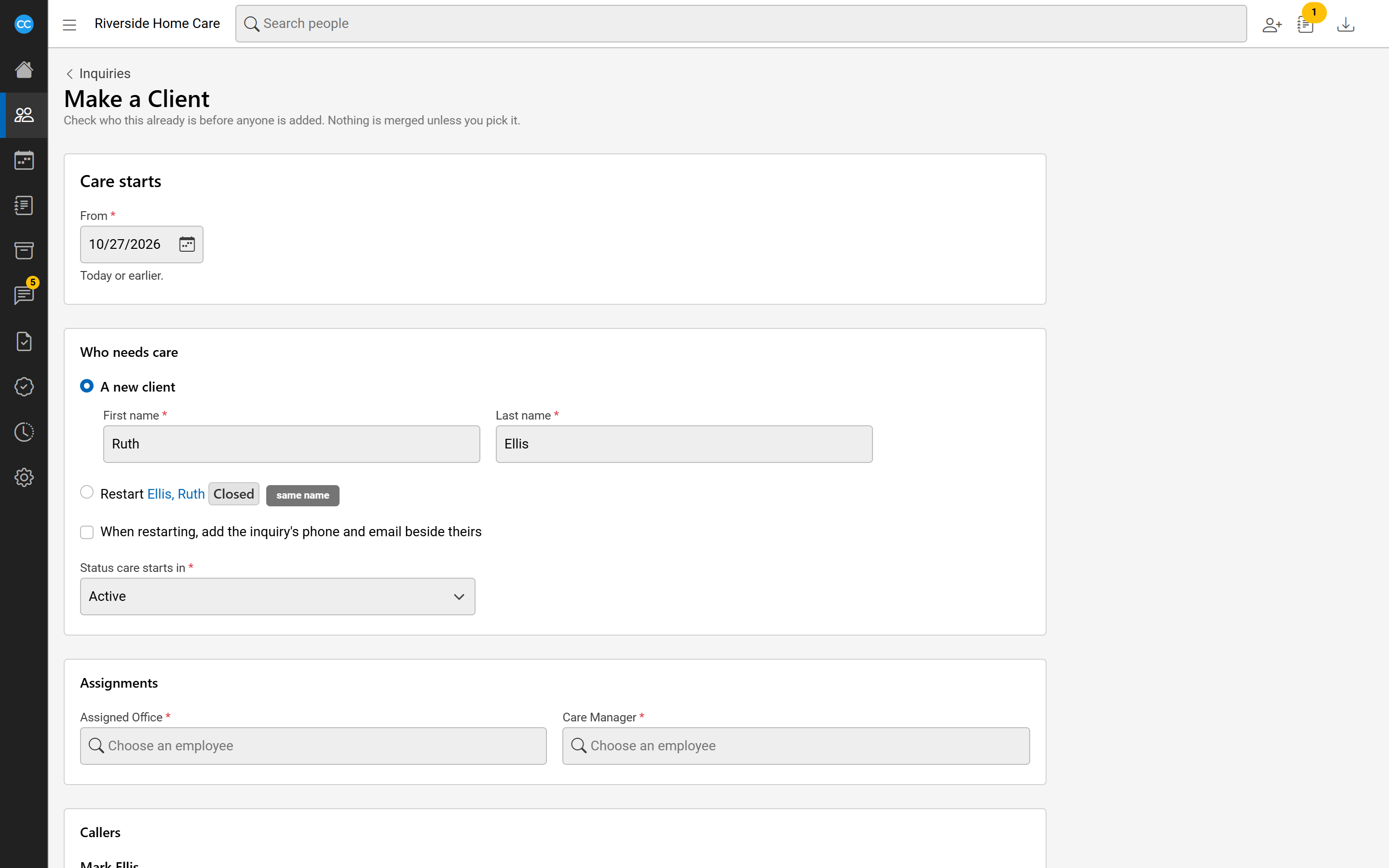
- Under Care starts, choose the day in From. It must be today or earlier.
- Under Who needs care, choose A new client and check the First name and Last name. If a former client matches, you can choose Restart them instead, and tick the box to add the inquiry's phone and email beside theirs. A client already in care is shown but cannot be picked.
- Choose the Status care starts in.
- Under Assignments, choose the employee for each assignment.
- Under Callers, decide for each caller: Add as a new contact, pick the person they already are, or Leave out - not a contact. Choose How they are related. A caller already in the system becomes the client's contact.
- Select Make client.
Each match shows why it matched, and its name opens their profile in a new tab so you can check. If someone in the system who is not a client matches, a warning asks you to check they are not the person needing care.
When you save, the client's profile opens.
Make several clients at once
If the callers also called about other people with open inquiries, such as both parents, Also make a client lists them. Tick any that are starting care now. Each gets its own section to fill in, and the button reads, for example, Make 2 clients. One save makes them all, with the same start day. A caller they share is decided once, in the first section, and becomes a contact of each.