Your account, agencies and theme
Open your user menu to manage your account, switch between agencies, change the light or dark theme, and log out.
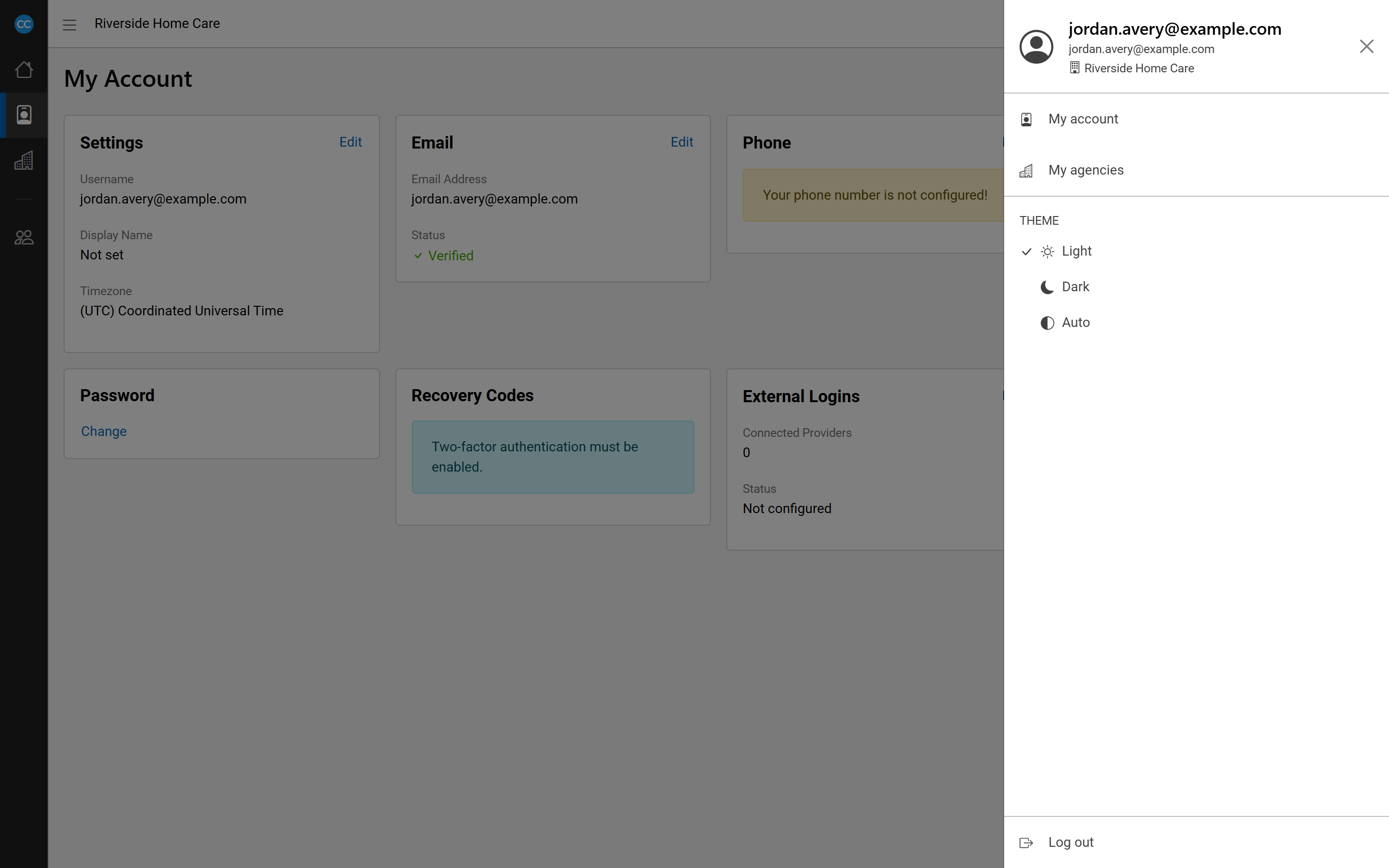
Everything about you - rather than the people you care for - is in your user menu. Select your name at the right of the header to open it. The top of the menu shows your name, your email and the agency you are working in now.
Manage your account
Select My account to open your account settings. This is where you look after your own sign-in details, such as your password and two-factor sign-in.
Switch to another agency
If you work for more than one agency, you sign in once and switch between them.
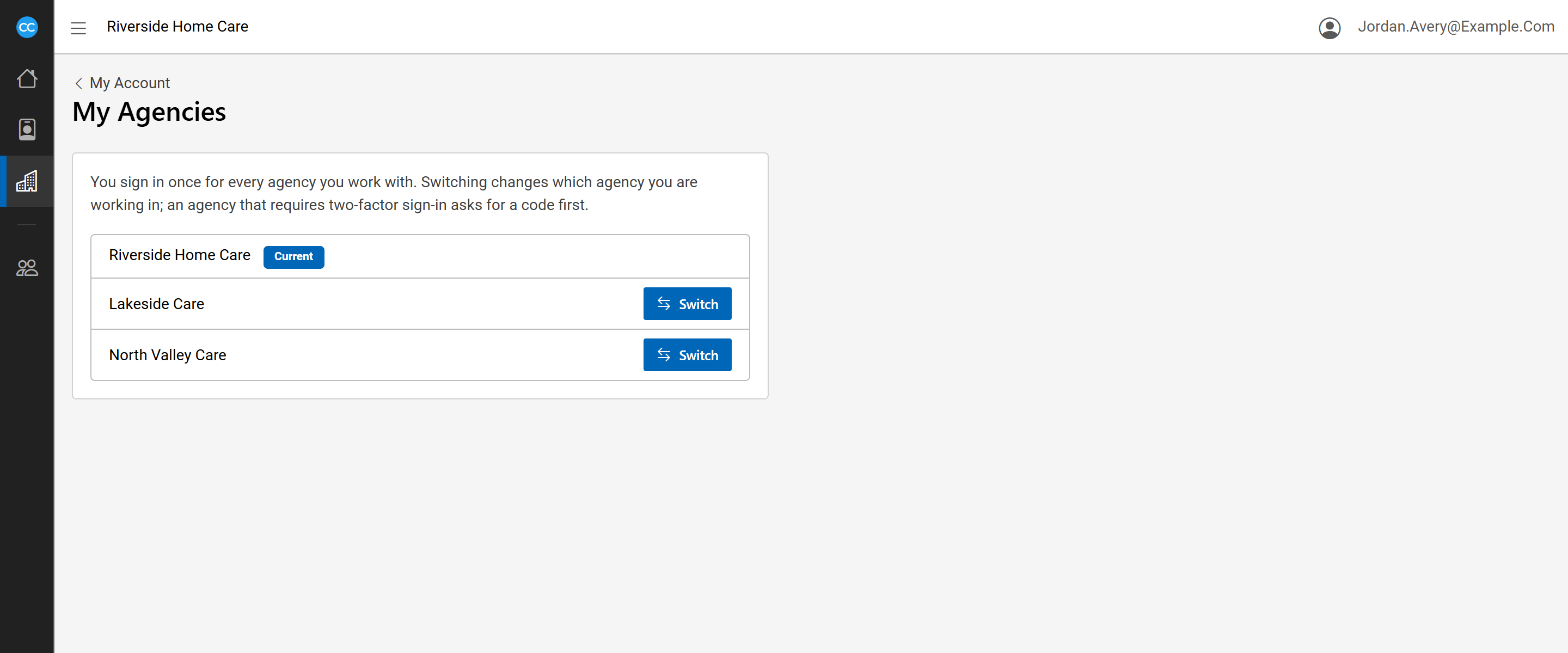
- In the user menu, select My agencies.
- The agency you are in is marked Current. Select Switch beside the agency you want.
An agency that requires two-factor sign-in asks for a code before it lets you in. You cannot switch agencies while you are impersonating another user.
Change the theme
Under Theme in the user menu, choose:
- Light
- Dark
- Auto - follows your computer's or phone's own setting.
A check mark shows the theme you picked.
Log out
- In the user menu, select Log out.
- CareComplete asks Are you sure you want to log out of CareComplete? Confirm to log out.
Log out when you finish on a shared computer, so the next person cannot open your work.