Signing in to CareComplete
Sign in with your username or email, choose an agency if you work for more than one, and know what to do if you are locked out.
You sign in to CareComplete once, on the CareComplete sign-in page. The same account works for every agency you work with.
Sign in
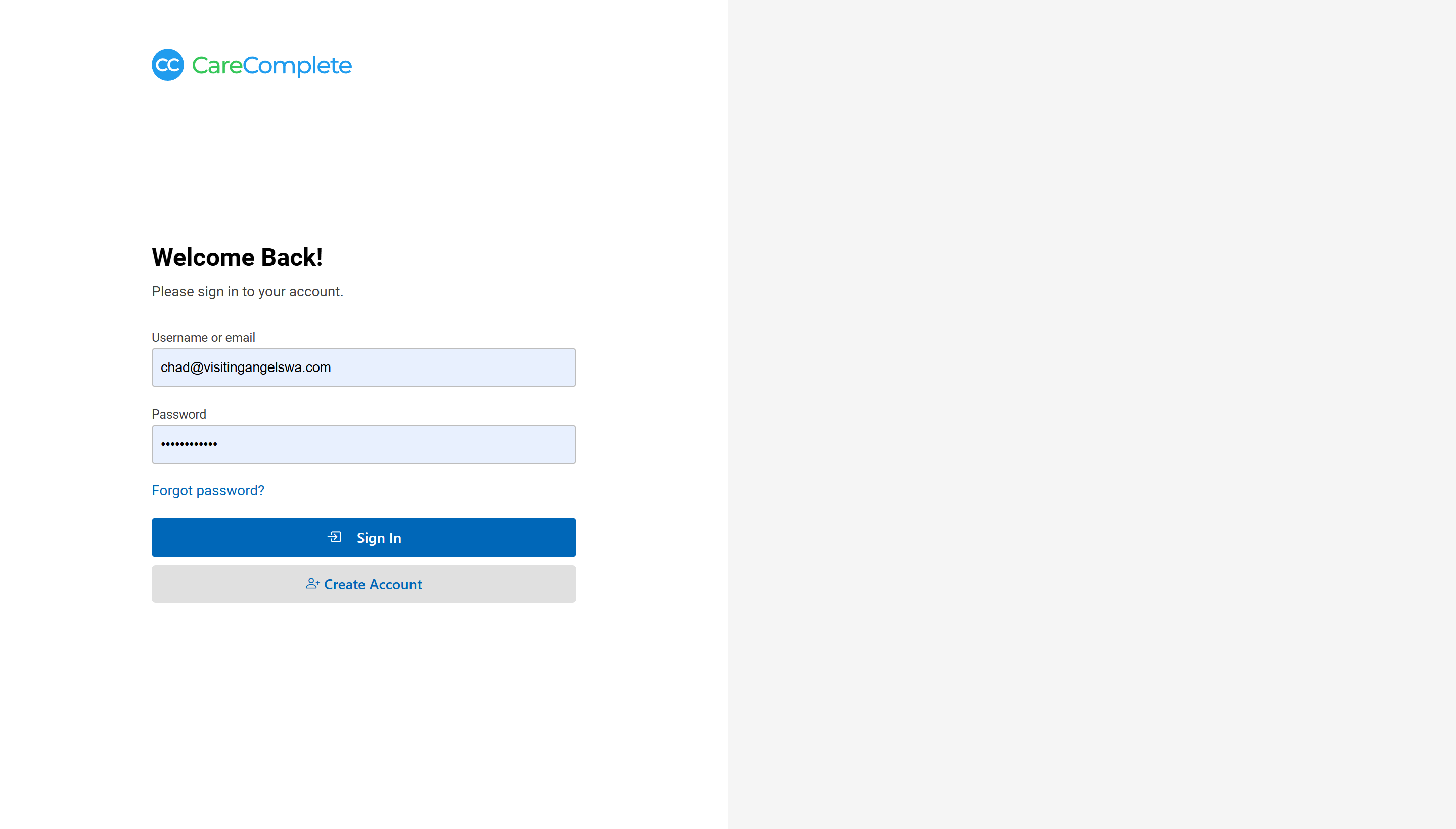
- Go to the CareComplete sign-in page. It says Welcome Back!
- Type your Username or email and your Password.
- Select Sign In.
If your username or password is wrong, the page says Invalid login attempt. and you can try again.
Choose an agency
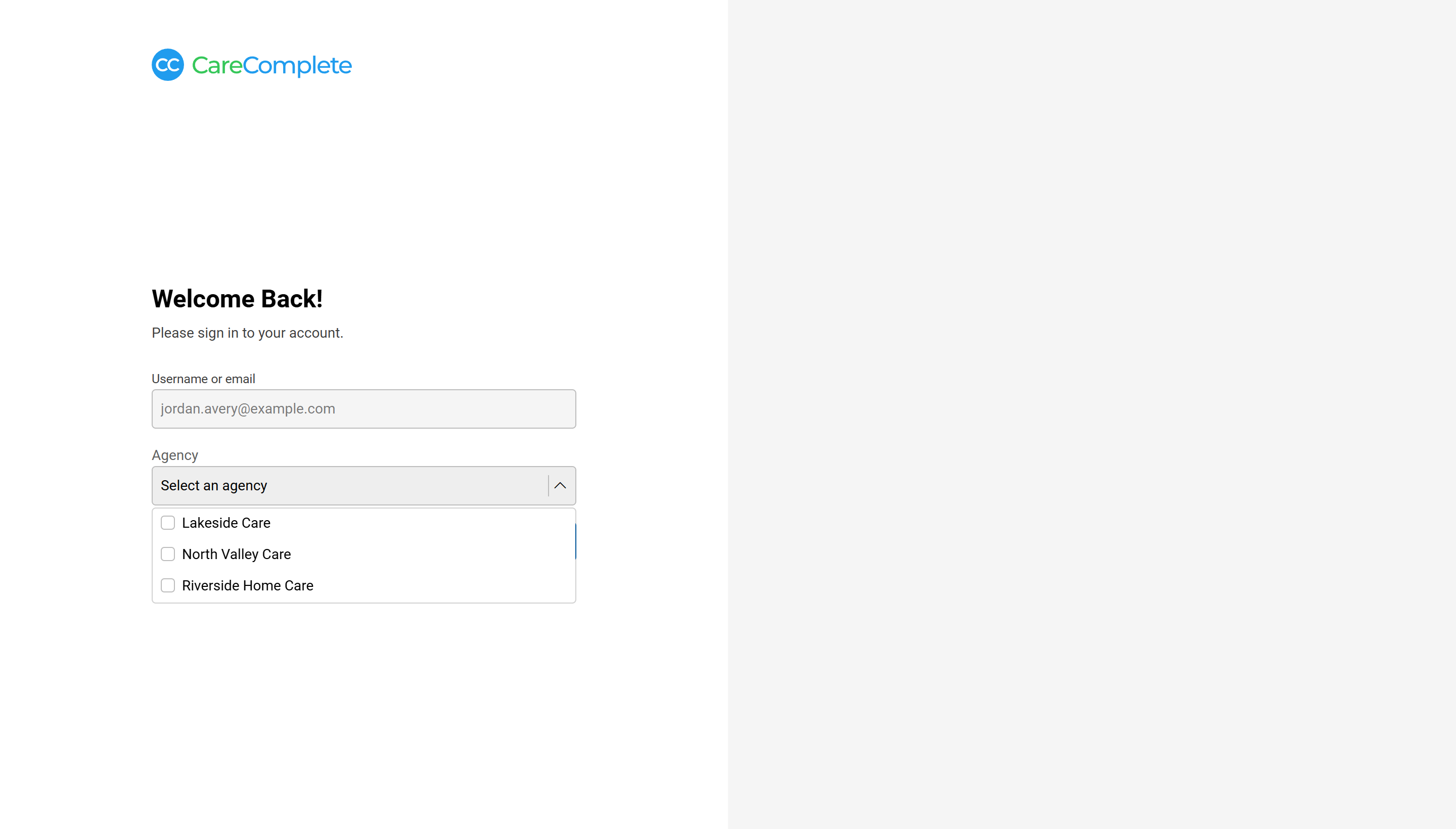
If your account belongs to one agency, you go straight in. If it belongs to more than one, the page asks you to choose:
- Open the Agency list and pick the agency you want to work in.
- Select Sign In. Select Back instead to start again with a different username.
If your account has no agency yet, the page tells you to contact your agency administrator.
Enter a verification code
If your agency requires two-factor sign-in, you see Verify Your Identity after your password. Type the code you were sent and select Verify. Tick Remember this browser for 30 days if you do not want to be asked again on this computer. If you cannot get a code, use a recovery code instead.
Forgot your password
- On the sign-in page, select Forgot password?
- Type your Username or email and select Email me a reset link.
- Open the email and follow the link to choose a new password. The link works once and expires in two hours.
If your account is locked
After too many wrong passwords, your account is locked for a while and you see Account Locked. Wait and try again later. If it keeps happening, contact your agency administrator.