Who can use a form, and My Forms
Let caregivers and other staff fill in, view or acknowledge a form, and see what they must read on My Forms.
Office staff who manage forms can see every filled-in form. A form's Audience tab lets other people in too, such as the caregivers who visit a client.
Choose who can use a form
- Open the form and go to its Audience tab.
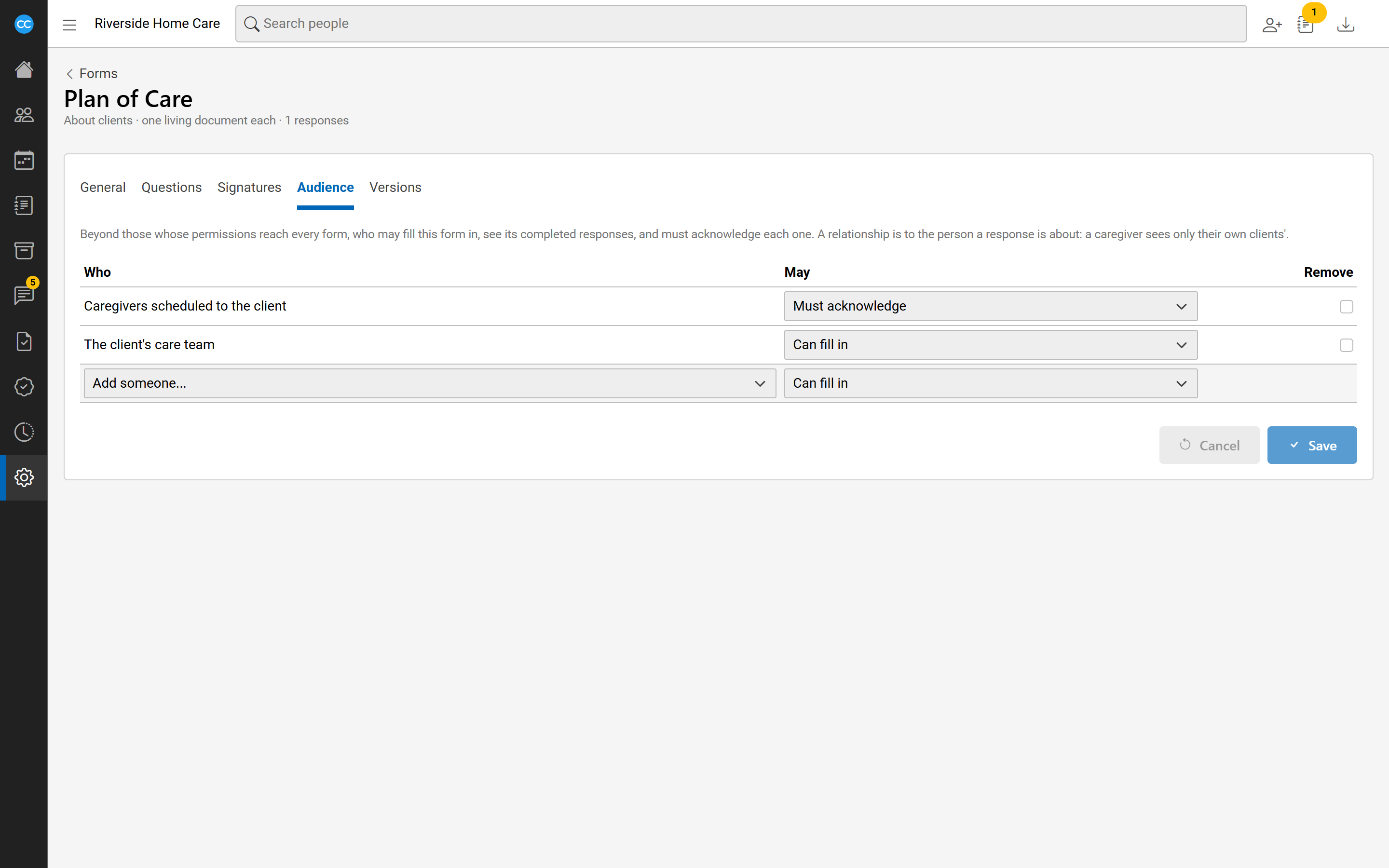
- In the last row, choose someone from Add someone.... This can be a role, or a relationship to the person the form is about.
- Choose what they May do.
- Choose Save.
The relationships are:
- Caregivers scheduled to the client: anyone on a schedule with the client within 30 days before or after today.
- The client's care team: the people assigned to the client.
- The employee themselves: on a form about an employee.
A relationship only reaches that person's own forms. A caregiver sees only their own clients' documents.
Each row has one level:
- Can fill in: start and fill in these forms, and view the ones they started.
- Can view: read the completed ones, without changing anything.
- Must acknowledge: read the document and confirm they have read it.
To remove a row, tick its Remove box and choose Save. Audience changes apply as soon as you save; they don't need publishing.
Acknowledging a document
Acknowledging is how a caregiver confirms they have read a document, such as a client's plan of care. Each new revision has to be acknowledged again.
When a document needs your acknowledgement, it shows "Your acknowledgement is needed". Read it, then choose I have read it.
To see who has acknowledged a form and who still has to, open the Forms list and choose the acknowledgements button on the form's row.
My Forms
Choose My Forms in the side menu to see your own documents. It has two parts:
- Waiting for your acknowledgement: documents you must read and acknowledge, marked To acknowledge.
- For reference: the current documents for the people you work with, such as your clients' plans of care.
Choose a document's title to open it. Once you acknowledge it, it moves to For reference and shows as Acknowledged.