Setting up signatures on a form
Add signature lines to a form, choose who signs each one, and decide whether signatures are enforceable.
A form's Signatures tab sets the signatures each response collects. Each one is a signature line on the document. A response is completed when every required signature is in. A form with no signature lines is completed as soon as it is submitted.
Signature lines are part of the form's draft. On a published form, choose Start a draft first, and publish the draft when you are done.
Add a signature line
- On the Signatures tab, choose Add signature.
- Enter a Label. This is what the signature line says on the document, such as "Client signature".
- Choose who it is Signed by:
- The client, or someone on their behalf
- The employee the form is about
- A member of staff
- Anyone
- Choose where the Line drawn at the end of goes: at the end of a section, or after the last section.
- Choose its Width.
- Leave Required ticked if the response should complete only once it is signed. Untick it to make the signature optional.
- Choose Save.
Signatures are listed in the order they appear. Use the arrows to change the order, or the pencil to change one.
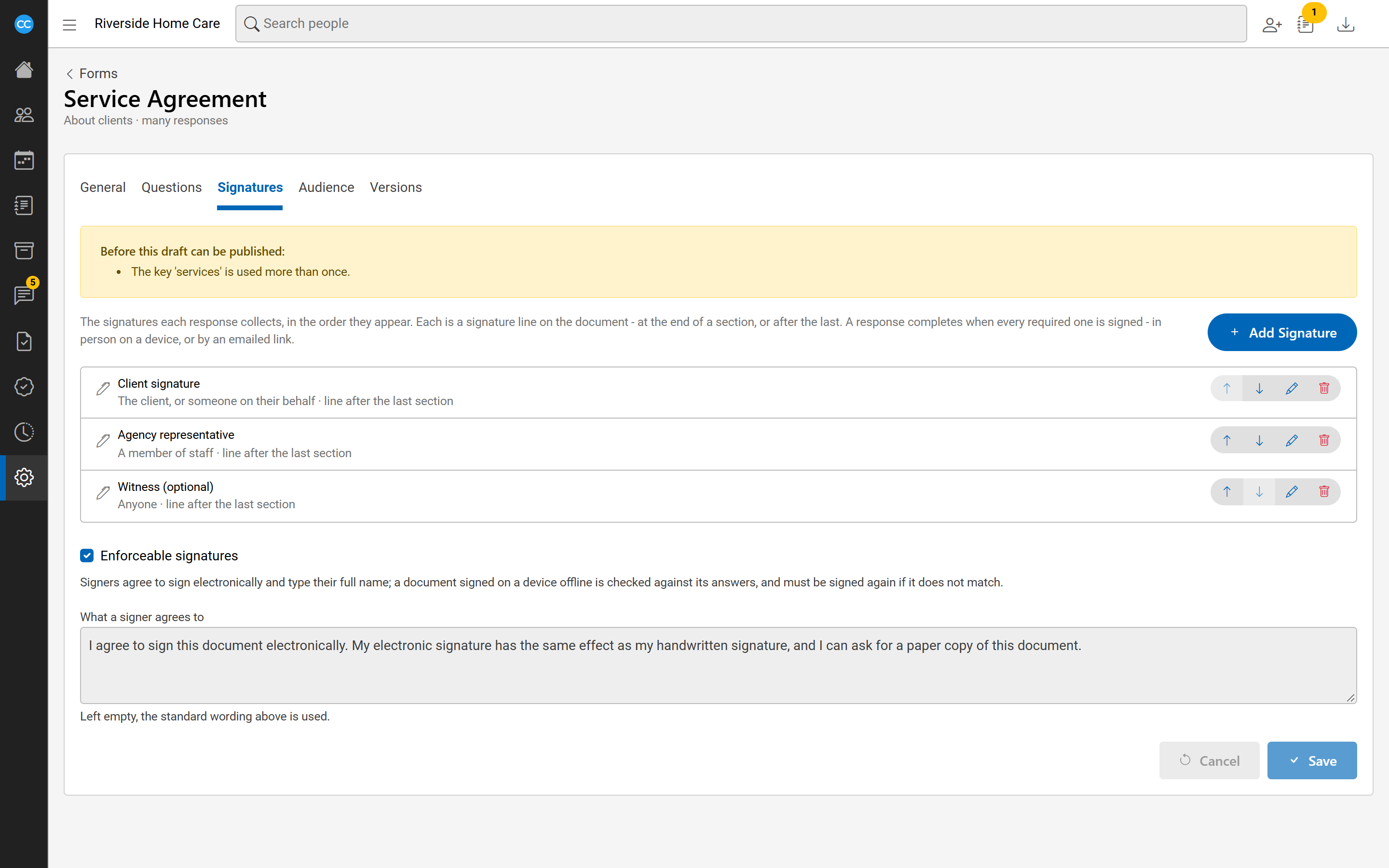
Enforceable signatures
Tick Enforceable signatures for documents that need a binding signature, such as a service agreement. On an enforceable form:
- each signer ticks that they agree to sign electronically;
- each signer types their full name as well as drawing their signature;
- a document signed on a device without a connection is checked against its answers when it reaches the office. If it does not match, it is marked Unverified and must be signed again.
Under What a signer agrees to you can write your own wording. Left empty, the standard wording is used.
Leave Enforceable signatures off for forms people only need to acknowledge, such as a handbook. The Forms list's Signing column shows each form as Enforceable or Acknowledgement.
Choose Save under these settings to keep them in the draft.