Publishing a form and its versions
Put a form into use, change it safely in a draft, and understand living documents and many responses.
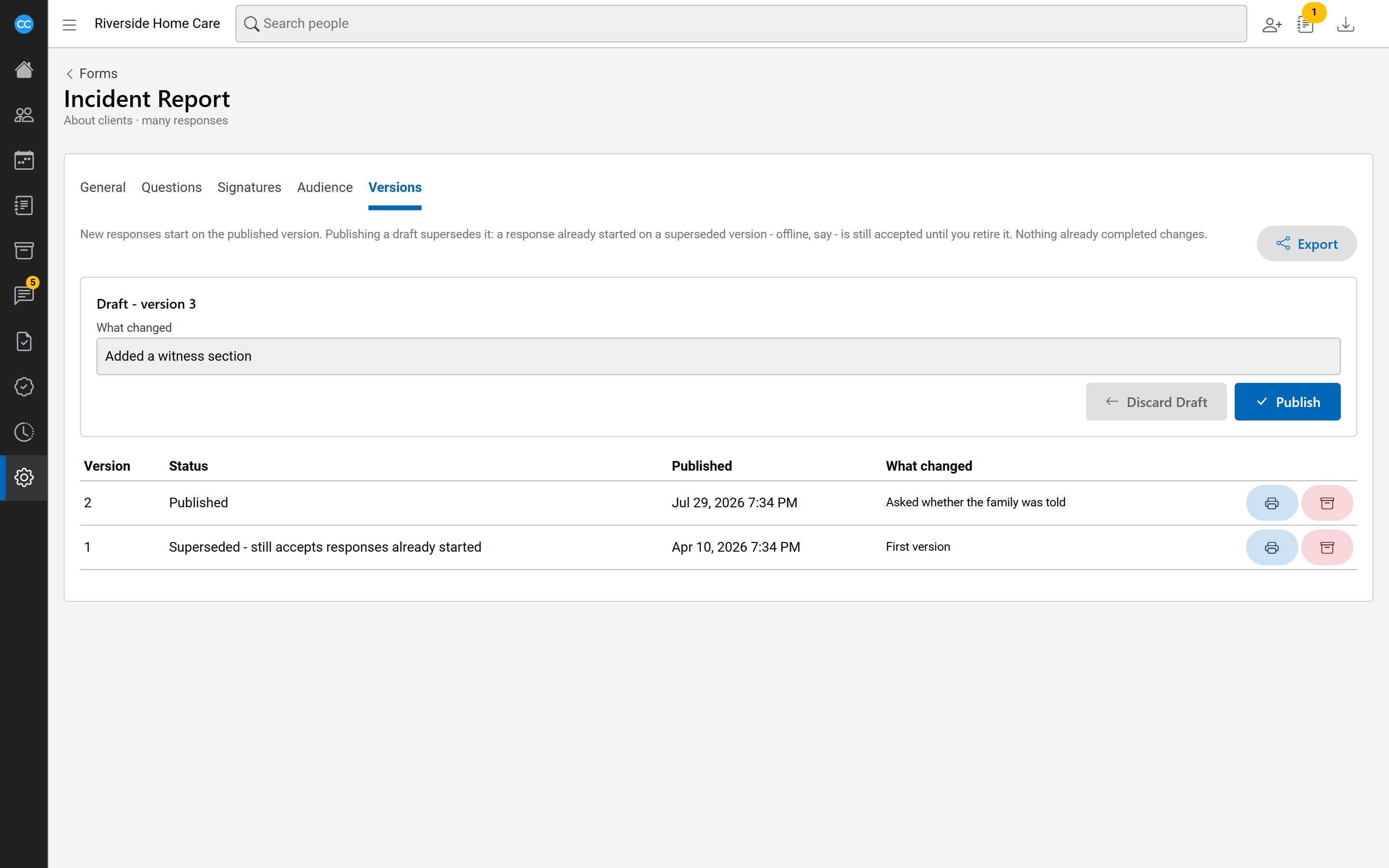
A form is changed in a draft and put into use by publishing it as a version. Earlier versions are kept, so every form already filled in still shows and prints exactly as it was.
Publish a form
- Open the form and go to its Versions tab.
- Under the draft, describe What changed.
- Choose Publish and confirm.
If something must be fixed first, the Questions and Signatures tabs list it under "Before this draft can be published", and Publish stays off until it is fixed.
New responses start on the published version from then on.
Change a published form
- On the Questions or Signatures tab, choose Start a draft. The draft begins as a copy of the published version.
- Make your changes. Nobody filling the form in sees them yet.
- Publish the draft from the Versions tab. It becomes the next version.
To throw your changes away, choose Discard draft. The published version stays as it is.
Changes on the General and Audience tabs are not part of the draft. They apply as soon as you save them.
Renaming a question keeps its earlier answers together. Changing a question's kind makes it a new question; earlier answers stay with the old one.
Version statuses
- Published: the version new responses use.
- Superseded: an earlier version. Responses already started on it can still be finished.
- Retired: accepts no more responses. Everything filled in on it can still be viewed and printed. Choose the retire button on a version's row to retire it.
Many responses or one living document
The Forms list's Keeps column says how a form is kept for each person:
- Many responses: a person can have any number, each separate, such as a visit note for every visit.
- One living document each: a person has one current copy, such as their plan of care. Changing it makes a new revision that replaces the current one. Earlier revisions are kept.
The Published column shows which version is in use, such as "Version 3 - draft in progress", or "Not yet" if the form has never been published.
Archive a form
On the General tab, tick Archived and choose Save. An archived form starts no new responses, but every response is kept. Tick Show archived forms in the list's filter to find it again.