Filling in a form for a client or caregiver
Start a form from a person's Forms tab, fill it in over time or walk through it with them, and submit it.
Forms about a client or an employee are filled in from that person's Forms tab. The tab lists every form about them that you may open, and has a button for each form you may start.
Start a form
- Open the client's or employee's page and go to their Forms tab.
- Choose the button with the form's name. It opens as a draft.
Some answers may already be filled in from their record, such as their name and address. They are copied in when you start, so a later change to the record does not change them.
Fill it in and submit it
- Choose Save whenever you like. The form stays a draft, and you can come back to it over as many days as you need.
- The Required pane lists the required questions still unanswered. Choose one to go to it.
- Choose Guide to fill it in a section at a time.
- When it is finished, choose Submit and confirm. The answers are checked first. Once submitted, the form is locked and ready for signatures.
A draft you no longer need can be deleted with Delete. A submitted form can't be changed or deleted. To correct one, fill in a new one; for a living document, revise it.
Walk through it with someone
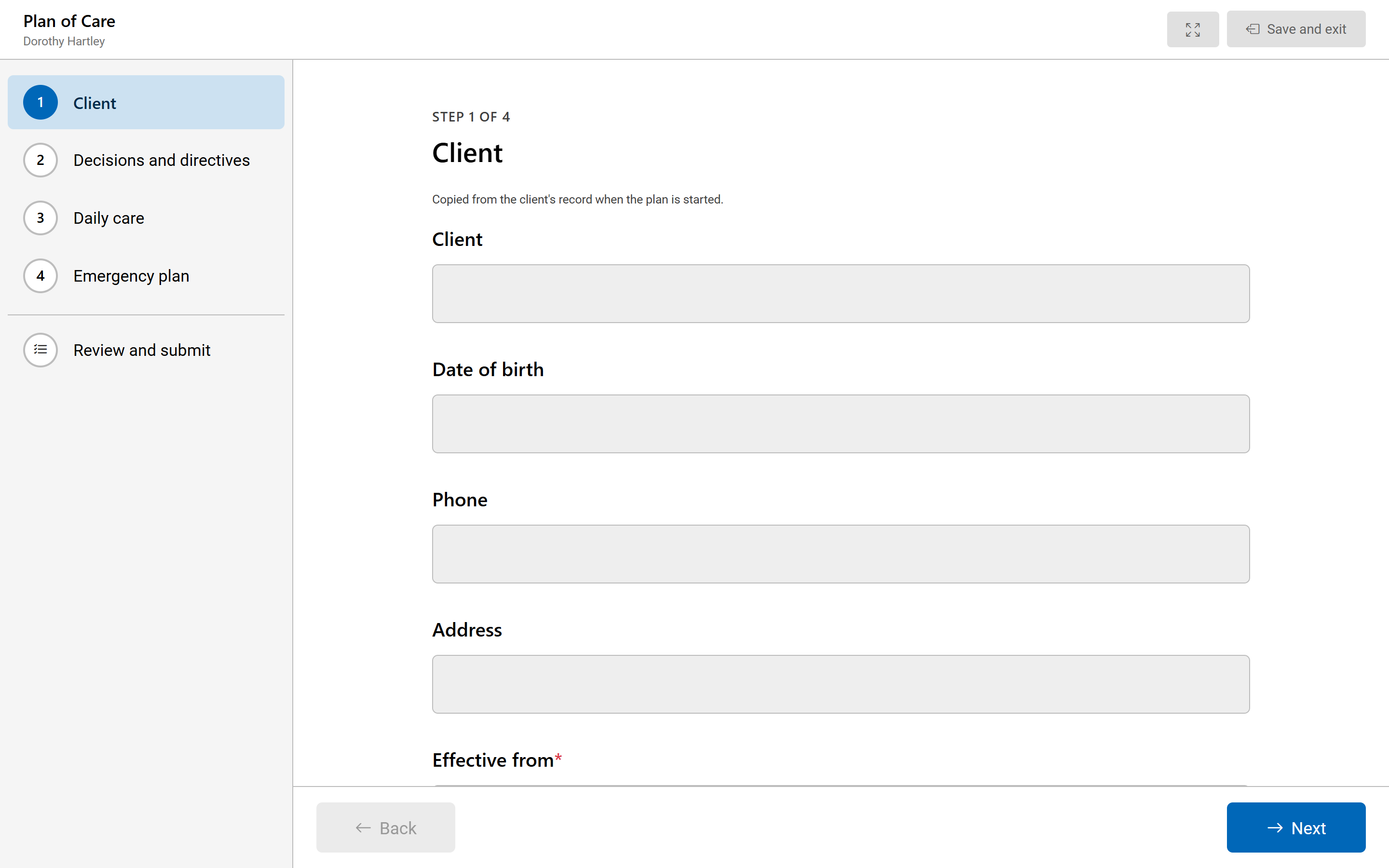
Choose Walk through to fill the form in with a client or caregiver in person. It opens full screen, one section at a time, with the sections listed down the side. Every move saves the answers.
- Work through each section with Next and Back.
- At the end, Review the answers with them. Choose Change to go back to a section.
- Choose Submit. If signatures are needed on this device, choose Sign now to collect them.
Choose Save and exit at any time to go back to the form.
Revise a living document
For a form that keeps one living document each, such as a plan of care, the button on the Forms tab reads Revise followed by the form's name once the person has one. You can also choose Revise on the open document.
The new revision starts with the current answers, so you only change what is different. Note What changed in this revision: caregivers asked to acknowledge it read this first. When the revision is completed, it becomes the current document and the one before is marked Superseded.
Only one revision can be worked on at a time. If you revise again while one is in progress, you are told first what will happen to it.