Announcements at clock-in
Post a notice caregivers see when they clock in, choose who it is for, and track who has acknowledged it.
An announcement is a notice from the office, such as a fall risk at a client's home or a new rule. Caregivers see it in the portal when they clock in to a shift it applies to. Nobody replies to an announcement.
Create an announcement
- Open Announcements under Communications in the side menu.
- Select Create Announcement.
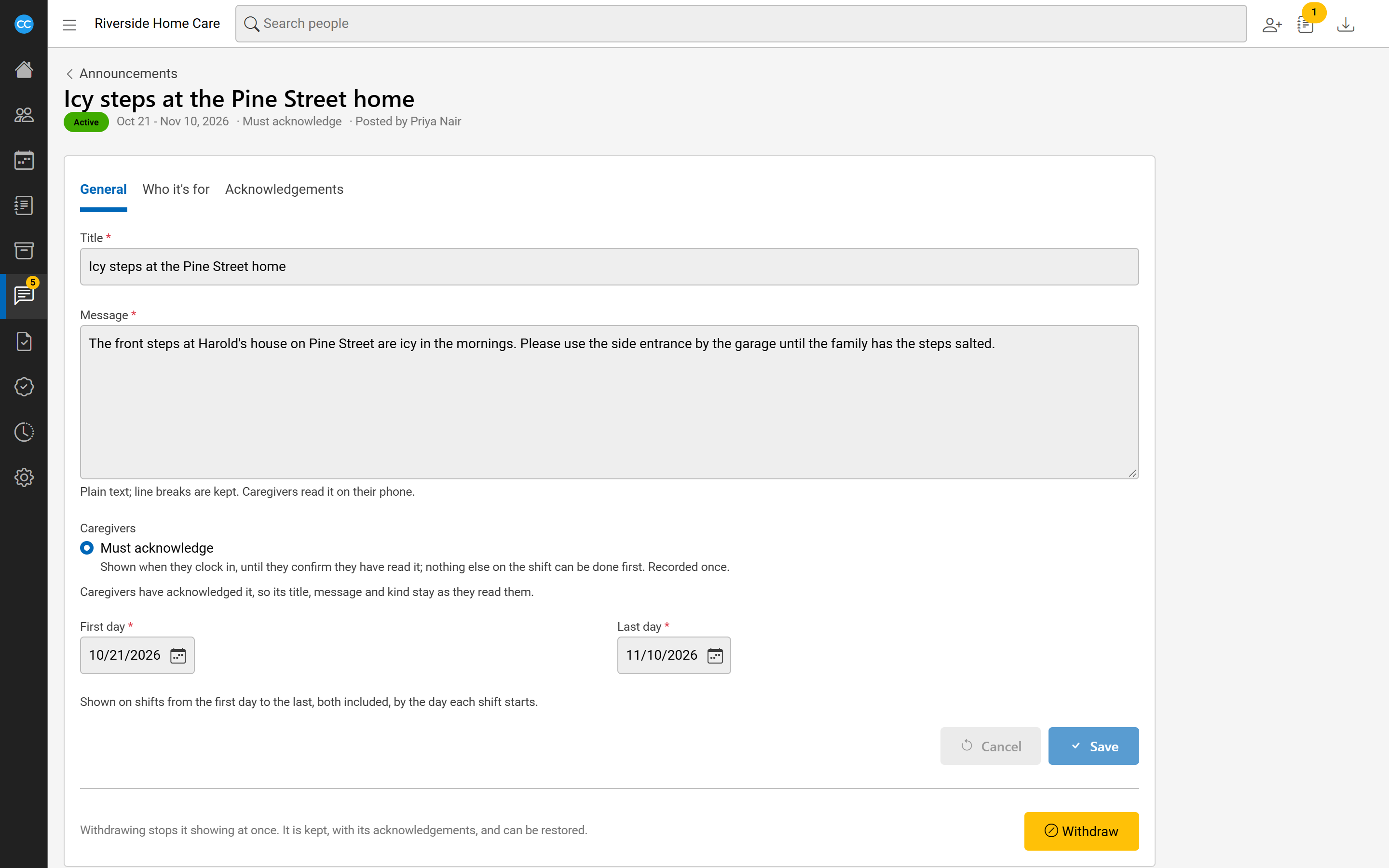
- Enter a Title and the Message. The message is plain text, and line breaks are kept.
- Under Caregivers, choose what it asks:
- Must acknowledge: shown when they clock in until they confirm they have read it. Nothing else on the shift can be done first. Their acknowledgement is recorded once.
- Informational: shown each time they clock in while it runs. They close it when read, and nothing is recorded.
- Choose the First day and Last day. It shows on shifts that start on those days or between them.
- Select Save. The Who it's for tab opens next.
Choose who it is for
An announcement is shown to no one until you add someone. On the Who it's for tab, use any of these and select Add:
- Add a caregiver: any shift that caregiver works.
- Add a client's caregivers: any shift for that client, whoever works it.
- Add an assignee's caregivers: any shift for a client assigned, on that day, to the person you choose, such as a care manager. You can limit it to certain assignment types.
See who has acknowledged it
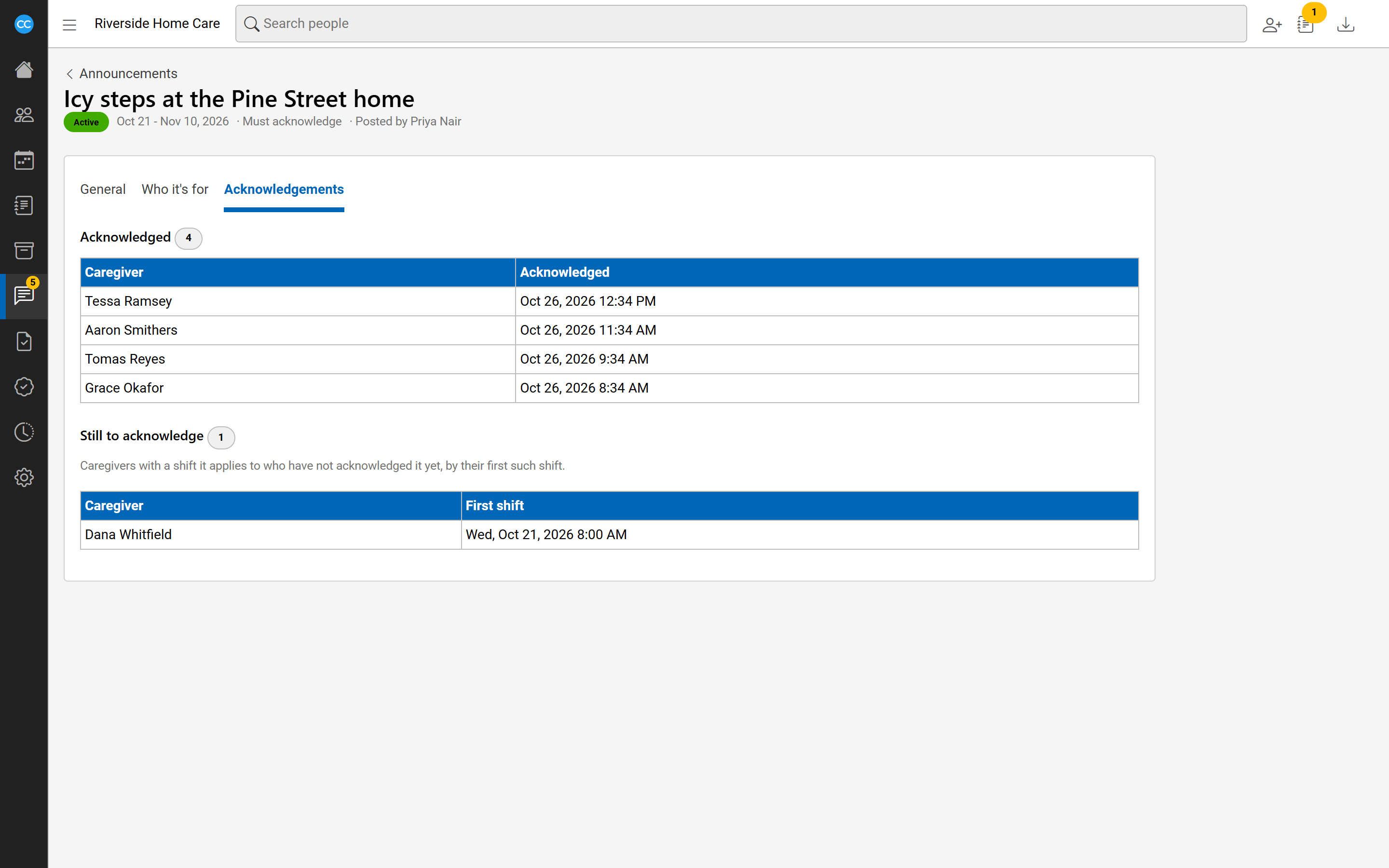
Open the Acknowledgements tab. Acknowledged lists each caregiver and when they confirmed. Still to acknowledge lists caregivers with a shift it applies to who have not confirmed yet, with their first such shift.
Once anyone has acknowledged an announcement, its title, message and kind stay as they read them. You can still change its days.
Withdraw, restore or delete
On the General tab, Withdraw stops it showing at once. It is kept with its acknowledgements, and Restore shows it again. Delete is offered only while nobody has acknowledged it.
Find announcements
The list shows current announcements, active and scheduled, by default. Use the filter to search by title, show active, scheduled, ended, withdrawn or all, or find those naming a caregiver, a client or an assignee.