Documentation notes
Write notes about the people you care for, add follow-ups, find notes again, and pick up drafts you have not saved.
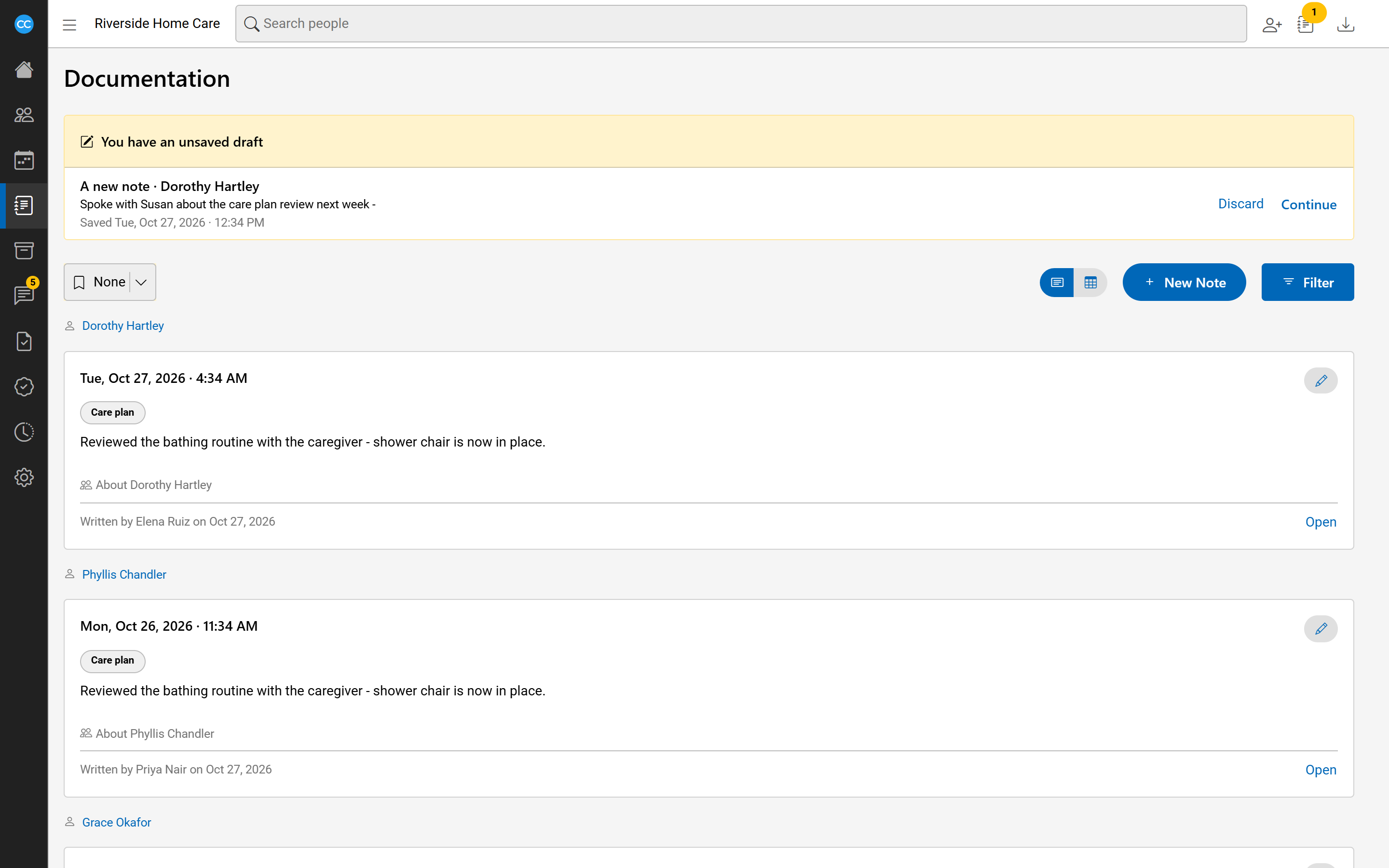
Documentation notes record what happened with a client, employee or anyone else - a phone call, a visit, a concern. You find them in two places: a person's Documentation tab shows the notes about them, and Documentation in the sidebar shows every note you may read, across everyone.
Write a note
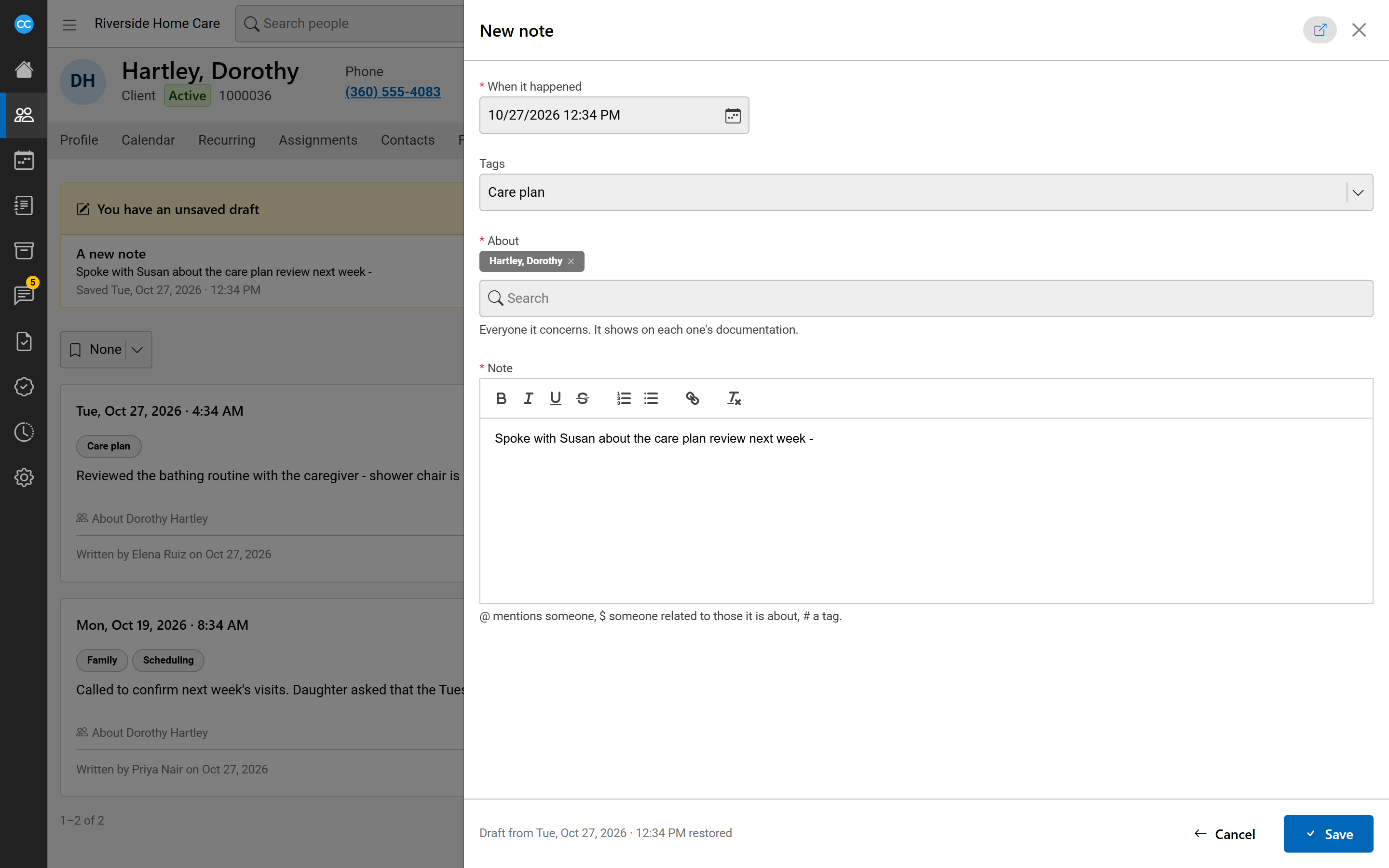
- On a person's Documentation tab, or the Documentation page, select New note. The note opens in a panel at the side.
- Under About, choose everyone the note concerns. It shows on each one's Documentation tab. On a person's tab, that person is already chosen.
- Set When it happened and add any Tags.
- Write the Note.
- Select Save.
To keep the note beside your work while you look at other screens, select the open-in-a-window button at the top of the panel.
Your drafts are kept
As you type, CareComplete keeps a draft. Beside Save it tells you where the draft is, such as Draft saved 10:42. If you close the panel or lose your connection, nothing is lost:
- When you open the note again, choose Restore to carry on, or Discard to throw the draft away.
- Your drafts on a person are listed above their notes, with Continue and Discard.
- A notebook icon in the header counts your unsaved drafts. Select it to go to the Documentation page, where all your drafts are at the top.
If someone else is changing a note, it shows their name, so you know before you edit it too.
Read and follow up
Select a note to open it with its follow-ups. Select Add a follow-up to reply under it. If you may change a note, it has an edit (pencil) button.
Find notes
Select Filter and use Words (in the note or its tags), Tags and Dates. The Documentation page adds Written by, About and Assigned to. Sort by starts at newest first, and Group by can group notes by when they happened or who wrote them. Save views you use often as bookmarks.
Use the Cards and Grid buttons to switch between full notes and a compact table.