Contacts and assignments
Record the people around a client or employee, and set who is assigned to them over time.
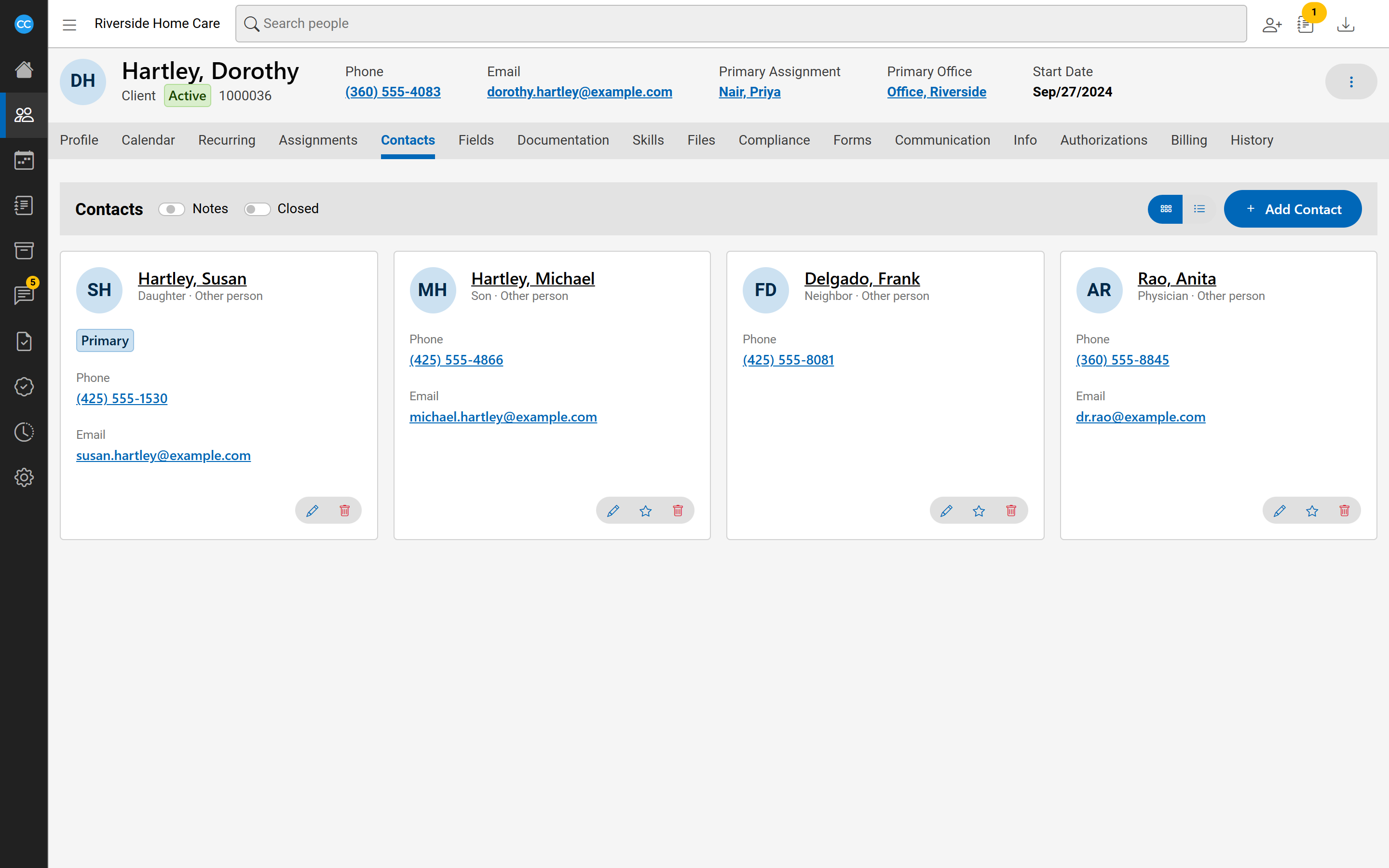
A person's Contacts tab lists the people connected to them, such as family members or a doctor. Their Assignments tab lists the employees responsible for them, such as a care manager or their office. Both tabs have the same bar at the top: Notes shows or hides each entry's notes, Closed shows entries that have ended, and the cards and list buttons switch how entries are drawn.
Add a contact
- On the Contacts tab, select Add contact.
- Under Person, search for the contact. If they are not in CareComplete yet, choose Add new at the end of the results and type their first name, last name, and phone number or email if you have them.
- Choose the Type of contact.
- Add a Start date, Order and Notes if you need them. Tick Primary contact or Survey contact if they apply.
- Select Save.
If the new person looks like someone already in CareComplete, you are shown the matches. Select Use this person, or Add as someone new.
Change or end a contact
Each contact has buttons to edit it (pencil), make it primary (star) and remove it (bin). Removing deletes the record. To keep its history, edit it and give it an End date instead: it is then hidden unless Closed is switched on. To change who a contact is, end it and add another.
Under the contacts, Contact for lists anyone this person is a contact of.
Set an assignment
An assignment is held by one employee at a time, over a period of days. Each type - for example Care Manager, or the office - has its own timeline. For why assignments matter and ways to use them, see Assignments: who looks after whom.
- On the Assignments tab, select Add assignment and pick the type under Which assignment? To change an existing type, select its clock button instead.
- The timeline opens with a row per period: Held by, From, To and Notes. Leave a date empty for "since the start" or "still held".
- To add a period, type in the empty last row. To take one out, select its remove button; select it again to undo.
- Select Save.
Periods cannot share a day. The Issue column flags problems, and if your agency requires the type, each gap shows as a Missing row: choose an employee to fill it.
contacts-assignment-timelineThe Care Manager timeline panel for a sample client: two past periods with different employees, one Missing gap row, and the empty last row.Fix assignments across the agency
In the sidebar, People then Assignments lists every assignment problem: Missing, Overlap, Holder not current, Wrong holder and Dates reversed. A row's clock opens that person's timeline. To fill the same assignment for many people, tick their rows and select Fill. CareComplete asks you to confirm first, as a fill cannot be undone.