A person's profile and tabs
Read a person's header, move between their tabs, and update their name, photo, phone numbers, emails and addresses.
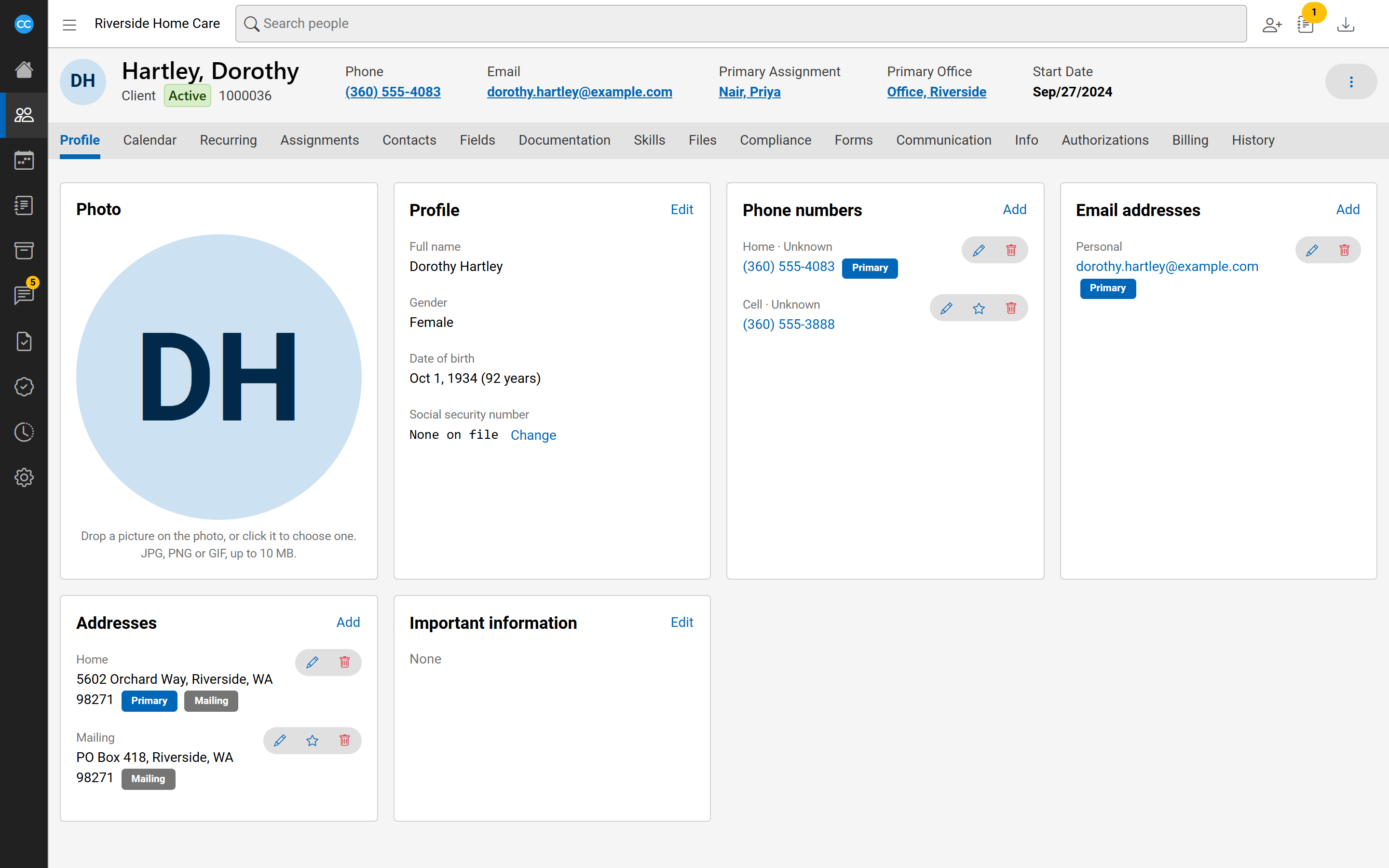
Every person has the same layout: a header at the top, a row of tabs under it, and the tab's content below. Each tab only shows if you have permission for it.
The header
The header shows the person's photo, name, type, status and external id. On a wide screen it also shows their primary phone and email and, for clients and employees, their Primary Assignment and Primary Office. Someone who has left shows their status and the day it started, such as Separated since.
The Actions button (three dots) beside the header holds things you can do from any tab, such as Generate audit file, New reminder or New inquiry, depending on the person and your permissions.
The tabs
- Profile - name, photo, important information and contact details.
- Calendar and Recurring (clients and employees) - their visits and repeating schedules.
- Contacts and Assignments - the people around them.
- Fields - your agency's own fields, in a card per category.
- Documentation - notes about them.
- Skills - switched on or off by skill type.
- Files - documents filed under them.
- Compliance, Forms and Communication.
- Info - status, preferences, restrictions and who referred them; for employees, position too.
- Authorizations and Billing (clients), or Payroll (employees).
- History - a record of changes to them. Select Show older to go further back.
Referrals, payer sources and other people have fewer tabs.
Edit the profile
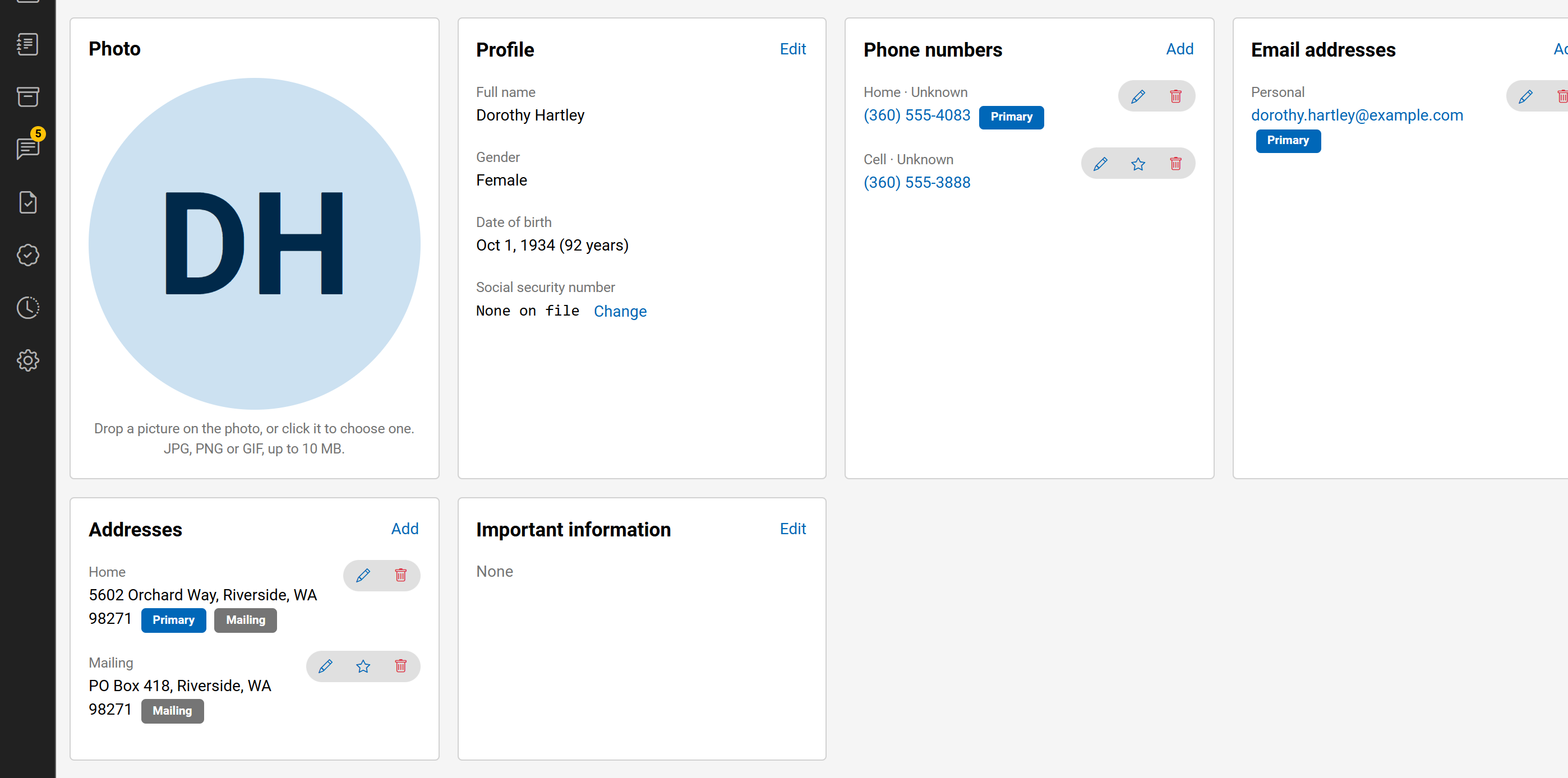
On the Profile tab, select Edit on the Profile card to change names, gender and date of birth. Editing opens in a panel at the side; select Save to close it. Use Edit on Important information for anything staff must see. When it holds something, its heading shows a warning sign.
Change the photo
Drop a picture on the photo, or click the photo to choose one. JPG, PNG or GIF, up to 10 MB. Select Remove to delete the photo.
Phone numbers, emails and addresses
- On the Phone numbers, Email addresses or Addresses card, select Add.
- Fill in the panel and select Save.
Each entry has buttons to edit it (pencil), make it the primary one (star) or remove it (bin). The primary entry is marked Primary; for addresses, the primary is the residence, and a mailing address is marked Mailing. The header updates when the primary phone or email changes.